

Recurring Tasks
Some work happens on a regular schedule — daily opening procedures, weekly inventory checks, monthly deep cleans. A recurring task lets you set the work up once and have FastQuery create a fresh task automatically on your chosen schedule.
A recurring task is really a schedule: a saved template plus a repeat pattern. FastQuery keeps that schedule for you and, each time it comes due, creates a brand-new task from the template. The generated tasks are ordinary tasks — your team works them exactly like any other.
flowchart TD
    A["Schedule defined"] --> B["Task auto-created on schedule"]
    B --> C{"Finished before\nthe next one\nis due?"}
    C -->|Yes| D["Completed"]
    C -->|No| E["Marked Missed\n(stays in history)"]
    D --> B
    E --> B
The key idea: the schedule fires on the calendar, not on completion. A new task appears when the next occurrence is due whether or not the previous one was finished — so a forgotten checklist never blocks tomorrow’s from showing up. That’s the right behavior for opening routines, compliance walks, and cycle counts, where each day (or week, or month) is its own piece of work.
Finding Your Recurring Tasks
Section titled “Finding Your Recurring Tasks”Open Recurring Tasks from the left sidebar (the ↻ repeat icon) in the web app. This screen lists every recurring schedule in your organization, so the whole team can see what runs automatically and when. Use the search box and the location filter to narrow a long list. Schedules you created yourself always stay on the list — on web and mobile — even when they run in stores outside your access or outside the location filter. Selecting a schedule opens it on the right, where you can edit its template, change the schedule, pause it, run it now, or end the series.
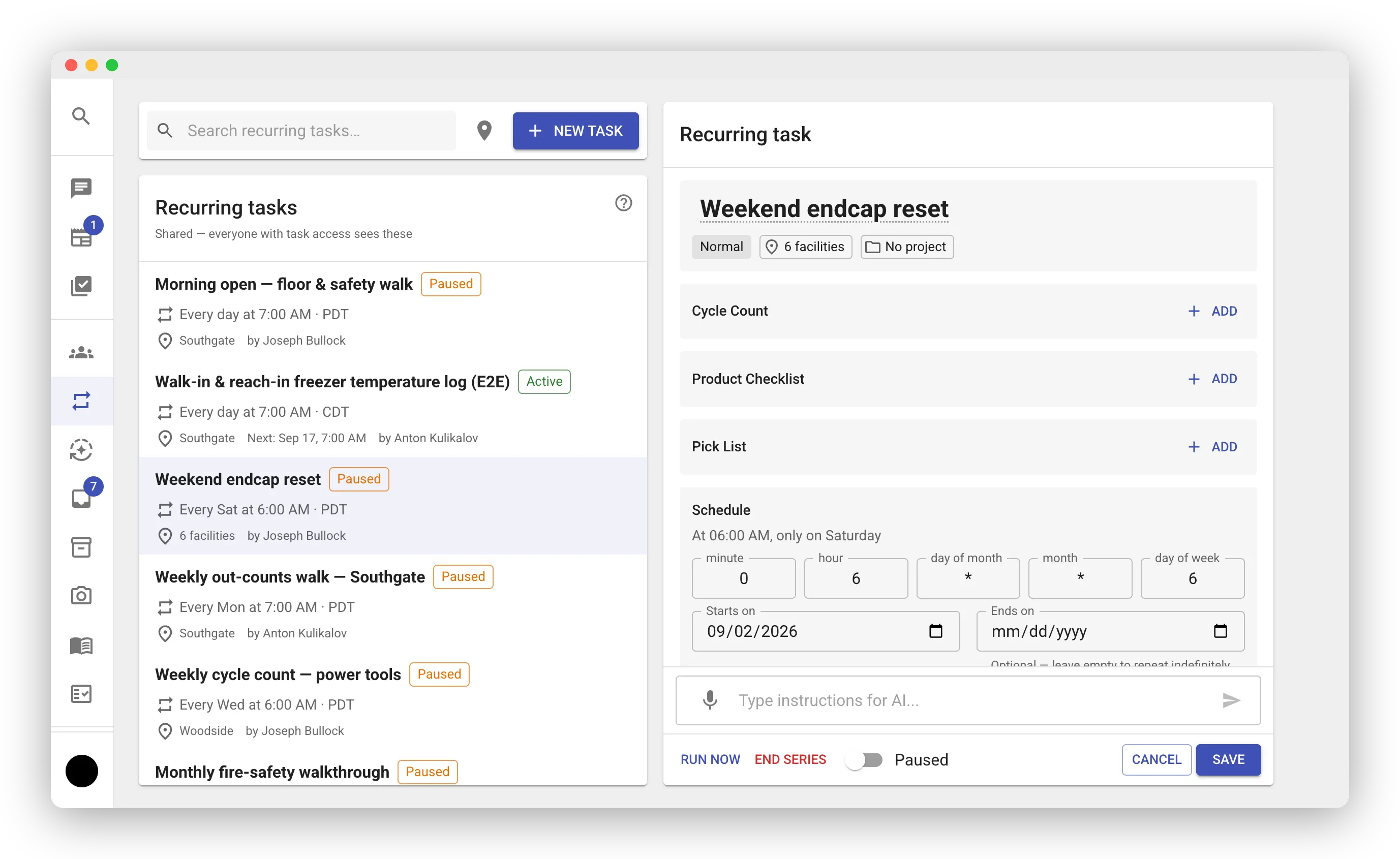
Recurring schedules are shared — everyone with task access sees them, unlike automations, which only their creator (and org admins) can see.
Setting Up a Recurring Task
Section titled “Setting Up a Recurring Task”There are three ways to create one:
- Add a schedule to a task. Create a task as you normally would (see Creating Tasks), then open its Schedule section and pick a repeat pattern. Saving the task registers the recurring schedule.
- Use the New Task button on the Recurring Tasks screen. It opens the same task form; add a schedule and save, and the new series appears in the list.
- Ask the AI assistant. Say something like “Every Monday at 7am, create an out-counts walk for Palo Alto.” The assistant builds the task and its schedule for you.
When you set the schedule you choose the repeat pattern:
- Daily — every day, or specific days of the week
- Weekly — once a week on a chosen day
- Monthly — once a month on a chosen date
- Custom — a cron-style schedule for anything more specific
Every schedule includes timezone support, so tasks fire at the right local time for the facility.
A recurring task can run at most twice a day — recurring tasks are for regular routines, not minute-by-minute reminders. If you enter a custom schedule that would fire more often, FastQuery flags it as too frequent so you can dial it back. (Need the AI to do something on a tighter cadence — say, hourly? That’s a job for an automation, not a recurring task.)
What Happens When a Recurring Task Fires
Section titled “What Happens When a Recurring Task Fires”When the schedule comes due, FastQuery:
- Creates a fresh task from the template — a clean copy with checklists reset (all items unchecked) and the same assignees. It simply appears in the assignees’ My Tasks list; a routine that fires on schedule doesn’t ping the same people every time, so no assignment notification is sent.
- Handles the previous task if it’s still open. If the last task from this schedule was never finished, it’s marked Missed — a final state that’s neither completed nor deleted. The missed task stays visible in history and reporting, so you have an honest record of what didn’t get done, and its creator and assignees are notified.
Marking the old one Missed (rather than auto-completing it) is deliberate: it keeps the “one live task at a time” simplicity your team expects without pretending forgotten work was done.
Run a Schedule on Demand
Section titled “Run a Schedule on Demand”Sometimes the work can’t wait for the calendar — a surprise visit, a routine that sat paused for a while, a new store that should start today. Press Run now in the schedule editor’s footer (the ⚡ button in the header on mobile). The series fires once, exactly as a scheduled firing would: one fresh task per store or person, and any still-open tasks from earlier runs marked Missed. The next scheduled run does not move, and a paused schedule stays paused. The button asks for a second press (a confirmation on mobile) before it fires. Only people who can edit the series — its creator, an admin, or a manager of its store — can run it.
Missed Streaks and Owner Notices
Section titled “Missed Streaks and Owner Notices”The schedule’s row shows how many occurrences in a row went Missed. The count is a signal, not a brake: the schedule keeps firing until someone pauses or ends it, so a dead routine is easy to spot and easy to stop, but a busy stretch never switches a routine off behind your back.
When someone other than the creator edits, pauses, resumes, runs, or ends a schedule, its creator gets a notice — in the Inbox, as a push, and by email — naming who made the change and what changed. Your own changes to your own schedules stay quiet.
Managing a Schedule
Section titled “Managing a Schedule”Select a schedule on the Recurring Tasks screen to manage it from the panel on the right:
- Edit the template — change the title, description, checklists, priority, assignees, or item blocks. Edits apply to future tasks the schedule creates; tasks already generated are untouched. You can also edit by voice or by asking the AI assistant, just like a normal task.
- Change the schedule — adjust the frequency, timing, or timezone.
- Run now — fire the series once, right away, without moving the next scheduled run (see above).
- Enabled / Paused switch — flip a schedule off to temporarily stop new tasks, and back on to resume. Resuming re-bases the next run to the next future occurrence, so a long pause never backlog-fires a pile of catch-up tasks. (This switch saves immediately — pausing is a lifecycle action, not a draft edit.)
- End series — permanently stop the recurrence. Tasks already created stay as ordinary tasks; only the schedule ends.
The Run now and End Series buttons and the Enabled/Paused switch all live in the footer of the schedule editor shown above.
One Task per Store, or One Copy per Person
Section titled “One Task per Store, or One Copy per Person”A schedule doesn’t have to create just one task. When you set it up, you can point it wider:
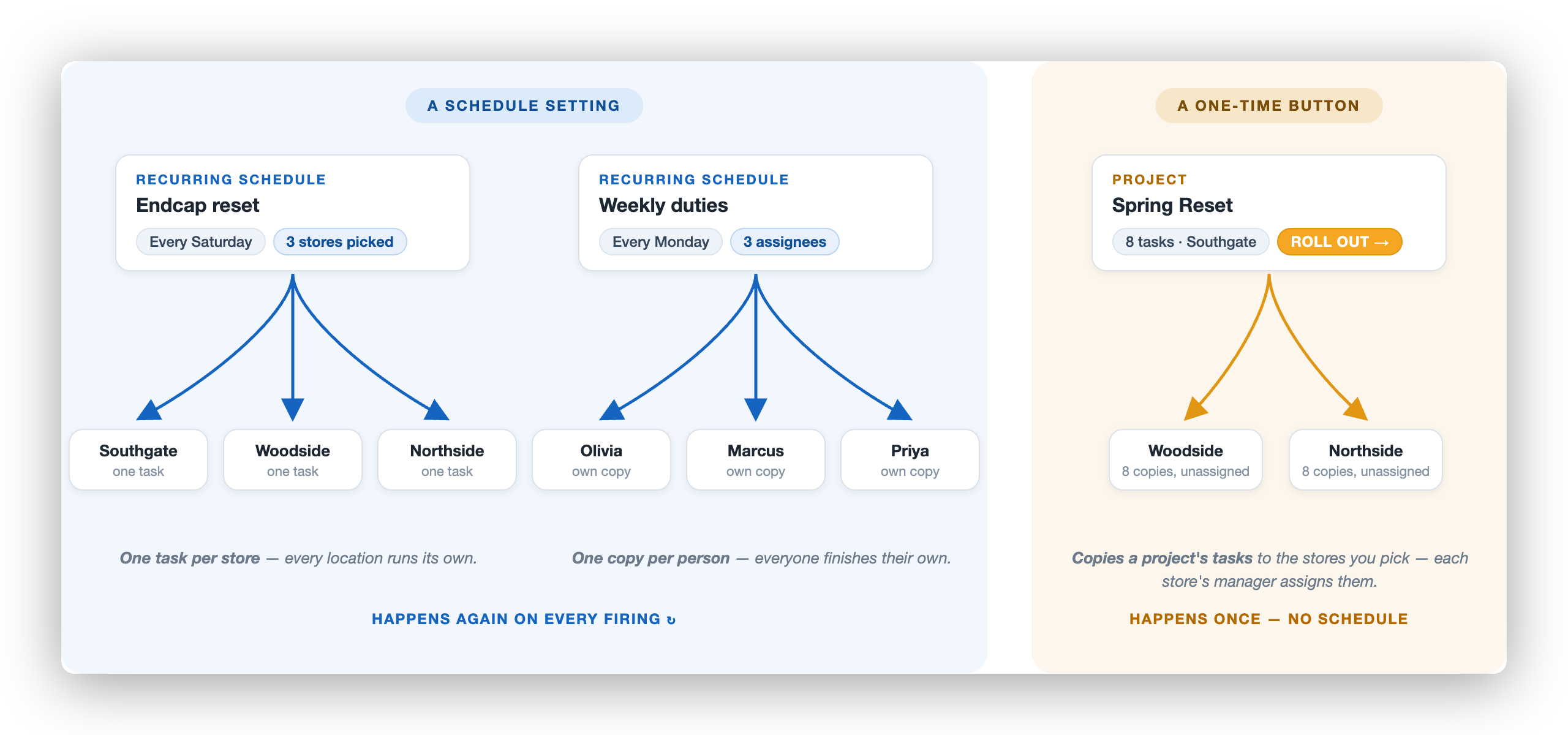
- Several stores — pick more than one store, and each firing creates one task per store (for example, a weekend endcap reset every location runs on its own).
- A group of people — each firing creates one task per assignee, so each person gets their own copy.
This is a schedule setting, picked right in the task editor. It is not the Roll out button — that one copies a project’s tasks to other stores once, with no schedule involved.
Item Blocks: Counts and Product Lists
Section titled “Item Blocks: Counts and Product Lists”A recurring task can carry the same count and product checklist blocks as a one-off task. Because stock is store-specific, FastQuery rebuilds each block fresh for the target store every time the task fires. A product checklist that starts empty is exactly what an out-counts walk needs — each occurrence begins as a blank list your team fills by scanning.
Editing the Series vs. a Single Task
Section titled “Editing the Series vs. a Single Task”Keep the distinction in mind:
- Editing the schedule (on the Recurring Tasks screen) changes the template for every future task — the recurrence, the checklist, the assignees.
- Editing one generated task (checking items off, adding a note) stays on that task and never changes the series.
Privacy is set when the series is created: a Private series generates private tasks, and its row on the Recurring Tasks screen is visible only to the series’ participants. Like any task, a generated task’s privacy can’t be changed after creation.
Great Uses for Recurring Tasks
Section titled “Great Uses for Recurring Tasks”- Daily opening and closing checklists
- Weekly inventory audits and cycle counts
- A personal weekly task for each employee
- Weekly out-counts walks
- Monthly safety inspections or deep cleans
- A routine every store runs on the same cadence — one task per store