

Creating Posts
Share updates with your team by creating posts in the Newsfeed. It’s a quick way to keep everyone informed.
How to Create a Post
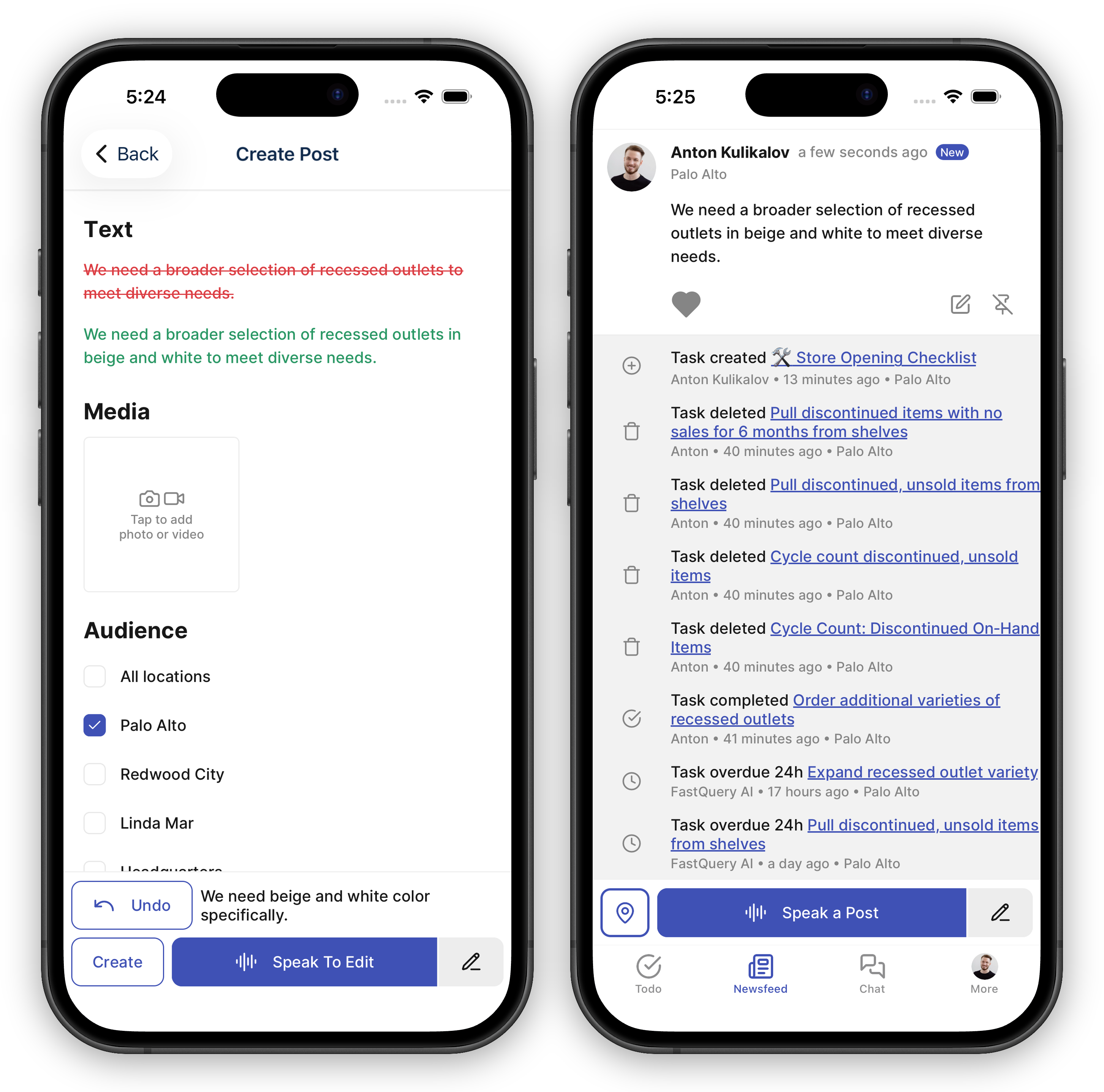
Section titled “How to Create a Post”- Tap the compose button (the + icon) to start a new post.
- Write your message — keep it clear and relevant to your team.
- Attach photos or videos if they help get the point across.
- Choose which facilities should see your post. You must select at least one facility.
- Submit your post and it appears in the feed right away.
Everyone who can see the facilities you picked is notified — see Feed Notifications for when those arrive.
Editing and Deleting Posts
Section titled “Editing and Deleting Posts”- Editing — The original post author can edit a post after it’s been published. Admins and anyone with post moderation at that store can also edit other people’s posts.
- Deleting — The original post author, admins, and anyone with post moderation at that store can delete a post if it’s no longer needed.
Who Can See Your Posts
Section titled “Who Can See Your Posts”Posts are visible to everyone at the facilities you selected when creating the post. Choose them thoughtfully so the right people see your update.
Great Uses for Posts
Section titled “Great Uses for Posts”- Shift handoff notes
- Product arrival announcements
- Policy updates