

Inviting Users
Your organization and facilities are set up. Now bring your team on board. As an admin, you can invite managers, associates, and other team members.
How to Invite People
Section titled “How to Invite People”- Open Manage Users in the web app and click Add Users. The Add New Users sheet opens.
- Type each person’s name and email address into a row.
- Select a Primary Facility for each person. This is their home facility.
- Select a Role for each person.
- Click Add Users. Each person receives an invitation email. During first-time setup, the emails go out once you finish the setup steps.
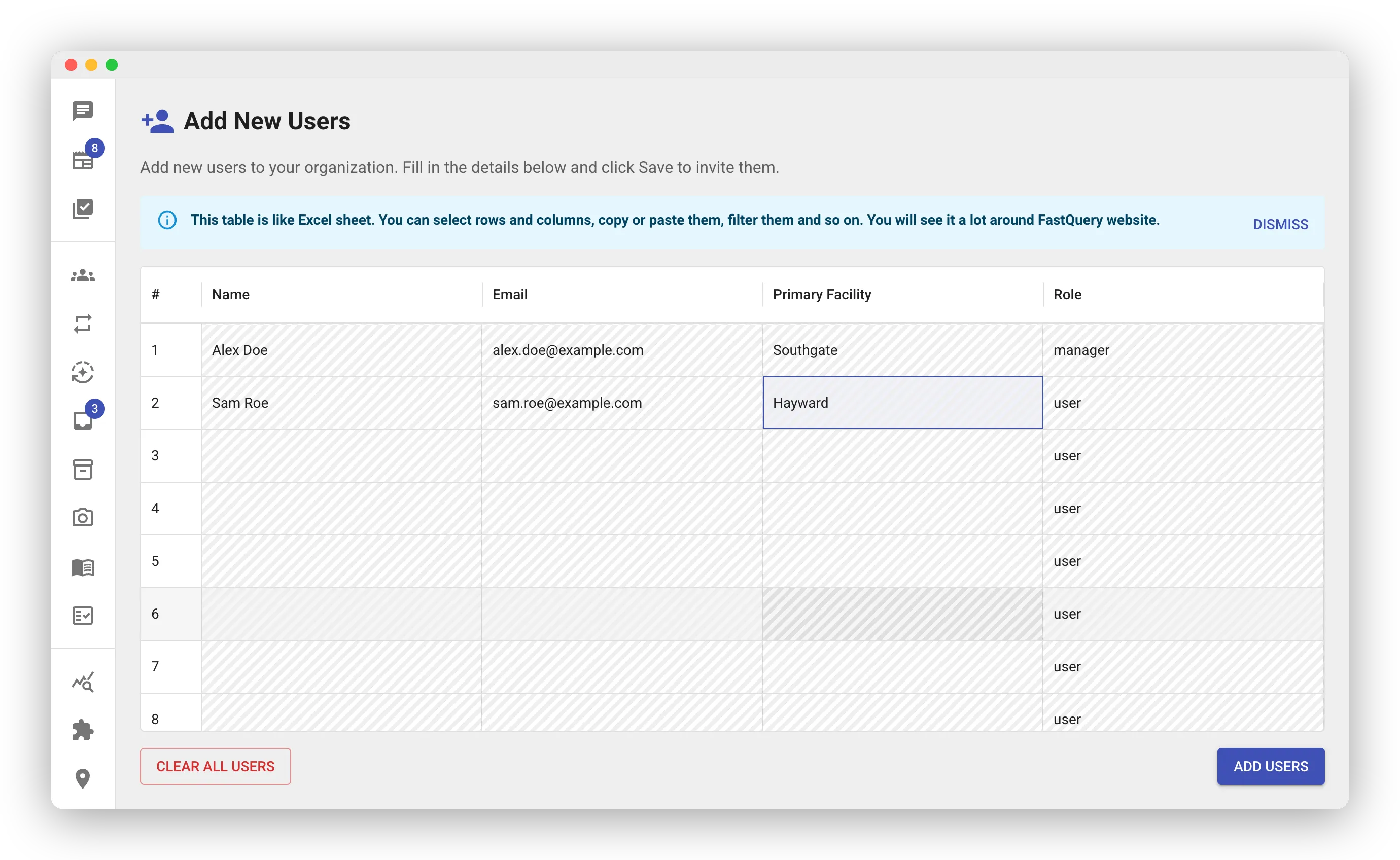
The sheet works like a spreadsheet. You can paste a whole roster at once from another sheet. This helps during seasonal hiring or a new store setup.
During first-time setup, the sheet shows a Manager checkbox instead of the Role column. Check it for the people who run each facility. Every facility needs at least one manager. You can refine roles later on the Manage Users page.
User Roles
Section titled “User Roles”Each person gets a role. The role controls what they can see and do:
| Role | What They Can Do |
|---|---|
| admin | Full access to everything — organization settings, facilities, users, integrations, and all data. |
| manager | Manages labels and the knowledge base across the whole organization. Can export inventory. Manages tasks at their assigned facilities. Cannot add or remove team members. |
| user | Searches, views inventory, and uses FastQuery’s AI features. Creates and manages tasks at their home facility. At other assigned facilities, they can view, post, and help with counts. |
The built-in roles are a starting point. An admin can create a custom role when a group needs something more specific. See Roles and Permissions.
Assigning Facilities
Section titled “Assigning Facilities”A new person gets access to their primary facility and its nearby facilities. This controls which inventory and data they see. You can adjust their facilities at any time on the Manage Users page. See User Management.
What the Invited Person Experiences
Section titled “What the Invited Person Experiences”The new person receives the invitation email. Then they:
- Click the link in the email.
- Sign in with Google, Microsoft, Yahoo, Apple, an email code, or (on mobile) their phone number.
- Get connected to your organization with the role and facilities you assigned.
Before the app opens, they complete a quick personal profile. It asks for their name, a short interview about their job, and their work schedule. It takes a minute. See Completing Your Profile.
- Use work email addresses. This keeps everything connected.
- Give the admin role sparingly. Only people who manage the system need full access.
- You can change a person’s role or facilities at any time.