

User Management
User Management
Section titled “User Management”Admins manage the team on the Manage Users page in the web app. The page has two tabs. The Users tab lists every person in your organization. The Roles tab defines what each role permits. This page describes the Users tab. For the Roles tab, see Roles and Permissions.
View Your Team
Section titled “View Your Team”Open Manage Users in the navigation menu. The grid shows one row for each person. The columns show the name, email, status, primary facility, facilities, and role. The Source, Pending Removal, and Last Synced columns fill in for organizations with an employee sync; elsewhere they stay empty.
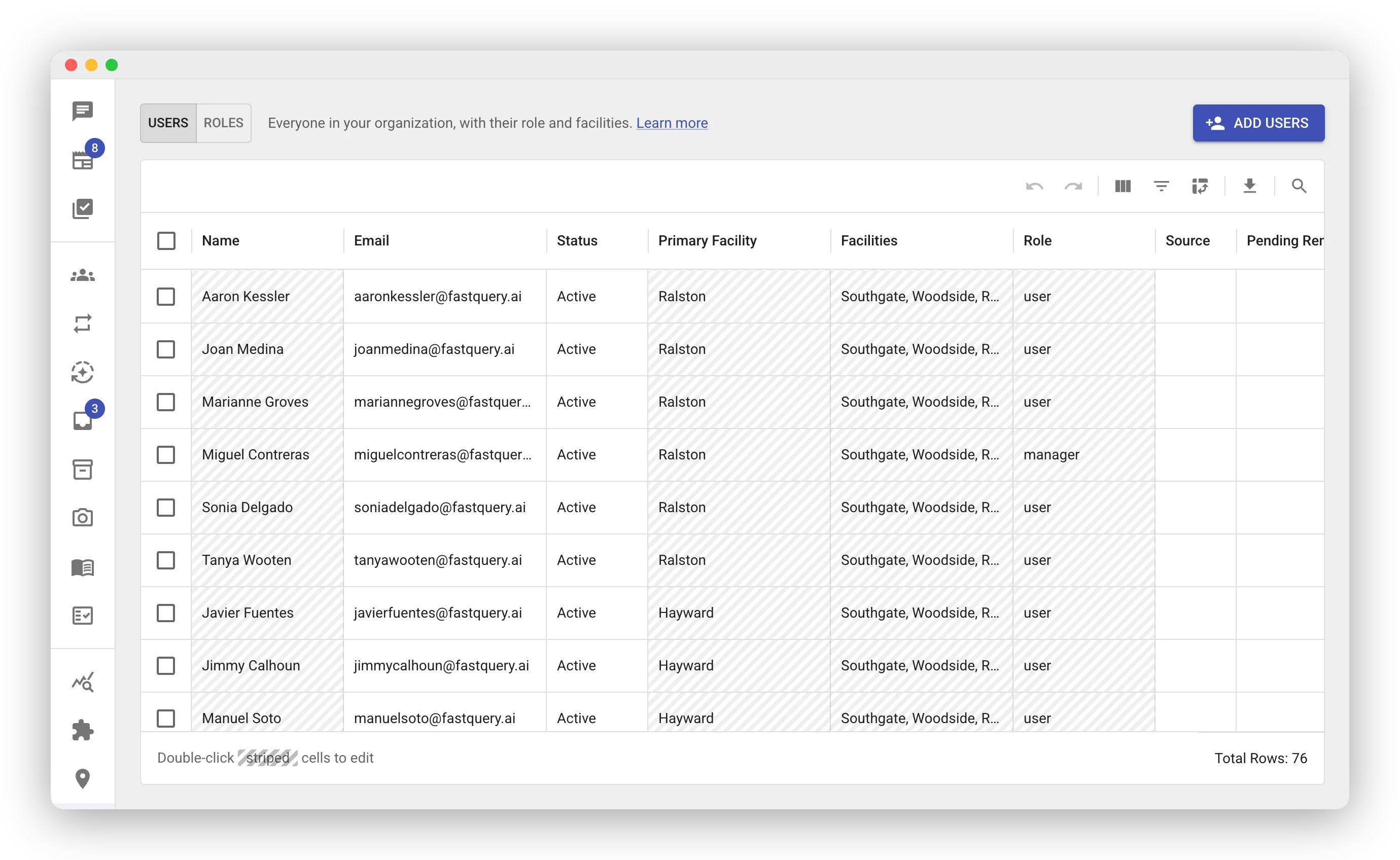
Cells with a striped pattern are editable. Double-click a striped cell to change it. The change saves when you press Enter or click away. To reverse a change, edit the cell back to its previous value.
Add Users
Section titled “Add Users”- On the Users tab, click Add Users. The Add New Users sheet opens.
- Type each person’s name and email address into a row.
- Select a Primary Facility for each person. This is their home facility.
- Select a Role for each person. The default role is user.
- Click Add Users. Each person receives an invitation email.
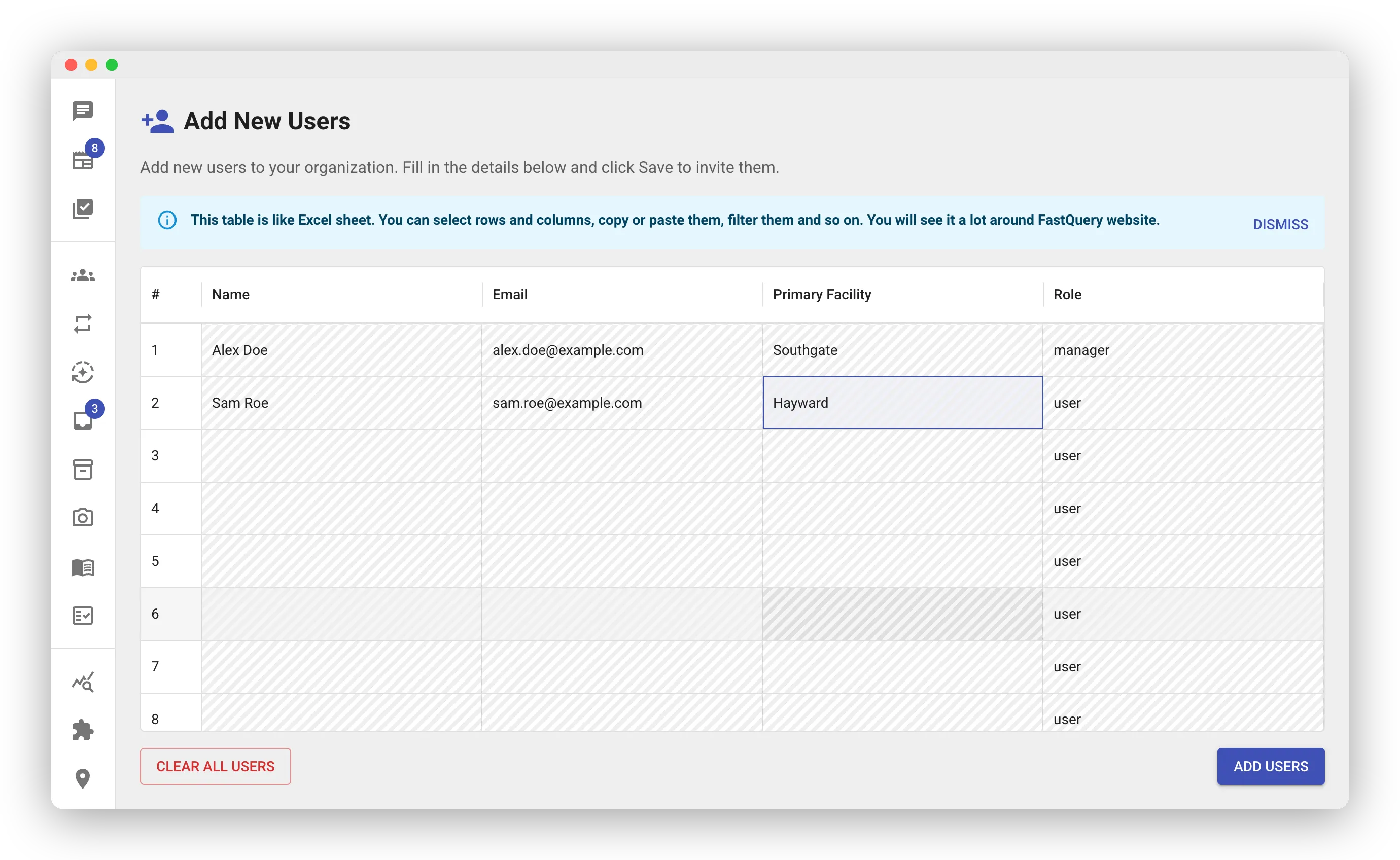
The sheet works like a spreadsheet. You can paste many rows at once from another sheet. Click Clear All Users to empty the sheet.
A new user starts with their primary facility and its nearby facilities. See Nearby Locations. Edit the Facilities cell before you save to change that list. You can also adjust their facilities at any time after that.
If several people need the same special access, create one role for it first. Then select that role on each row. See Customizing access.
Edit a User
Section titled “Edit a User”Edit a person directly in the Users grid:
- Name — double-click the Name cell and type the correction.
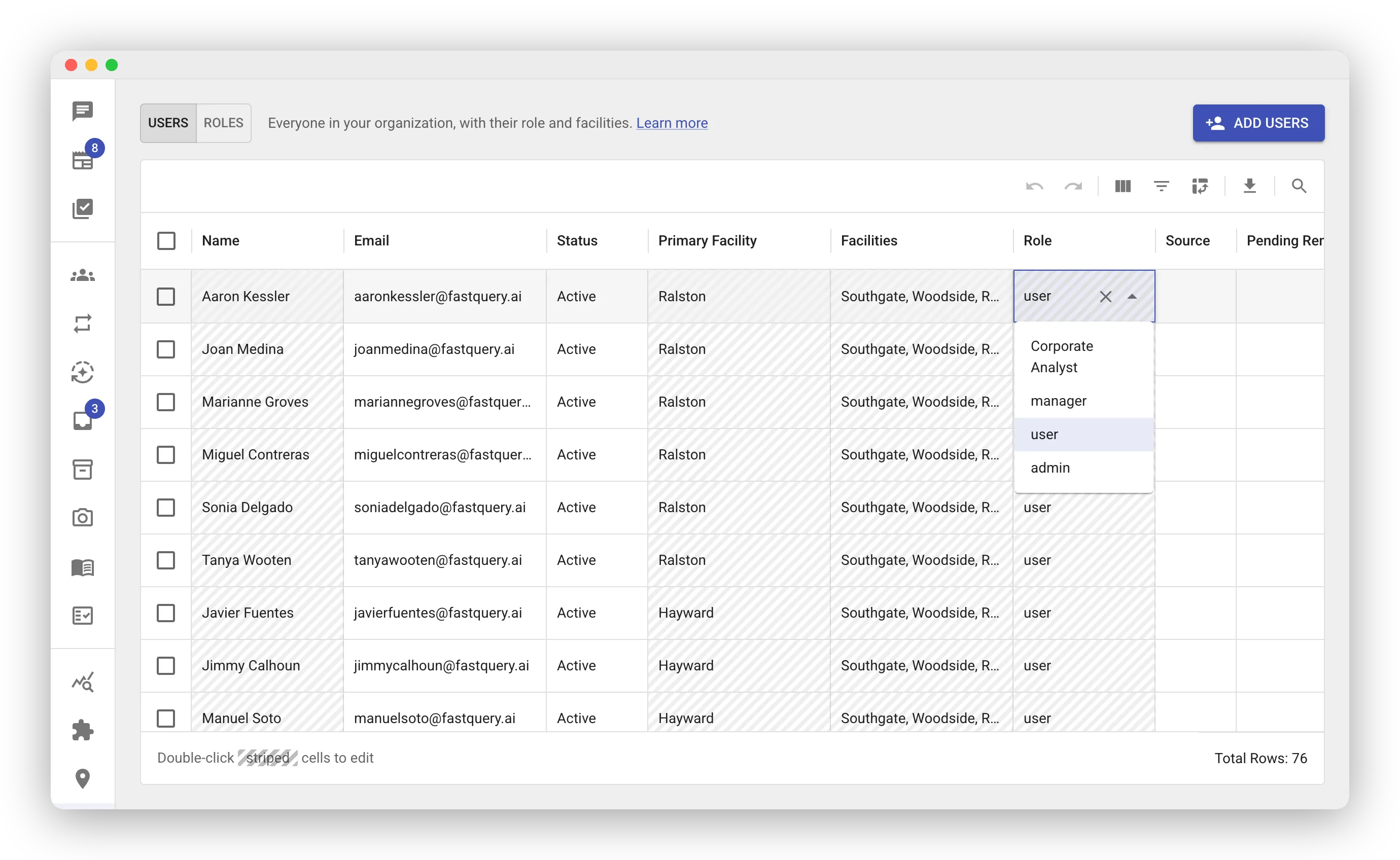
- Role — double-click the Role cell and select a role from the list.
- Primary Facility — double-click the cell and select the new home facility.
- Facilities — double-click the cell and select the facilities the person can access. Headquarters is in the list like any other facility. A warning icon marks a listed store manager who has no Headquarters access.
Changes apply immediately. When you change a role, the person’s permissions update to the new role.
Delete Users and Resend Invitations
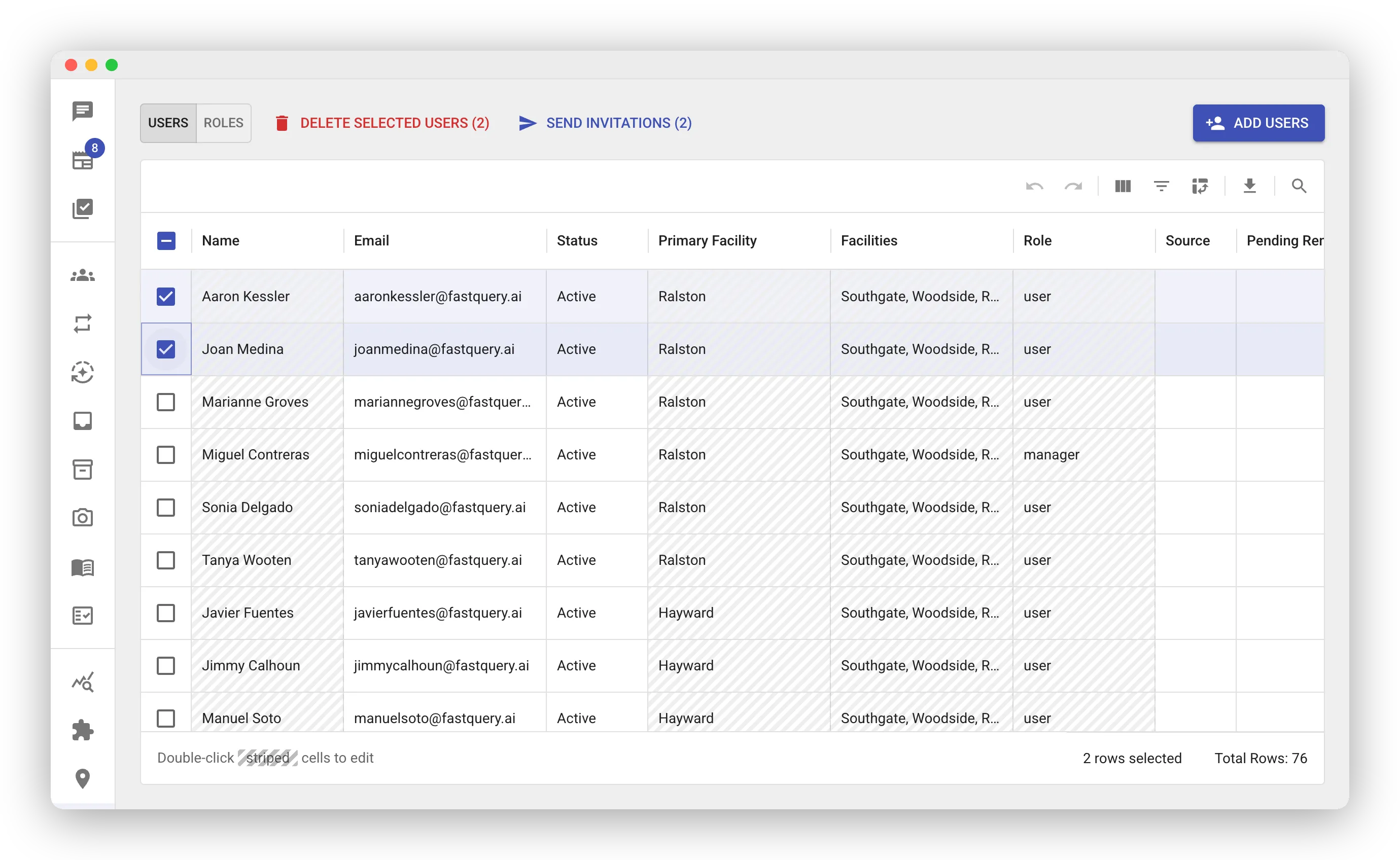
Section titled “Delete Users and Resend Invitations”Select one or more people with the checkboxes at the left edge of the grid. Two actions appear above the grid:
- Delete Selected Users removes the accounts. A dialog asks you to confirm first. Deleted people lose all access to FastQuery.
- Send Invitations sends the invitation email again. Use it when an invitation did not arrive or expired.
Facility Assignments
Section titled “Facility Assignments”A person sees only the inventory, tasks, and feed content of their assigned facilities. Their role decides what they can do at those facilities. For details, see Facilities and Roles and Permissions.
Manage Users on Mobile
Section titled “Manage Users on Mobile”Admins can also add, edit, and remove users in the FastQuery mobile app. This is useful when you set someone up on the store floor.