

Signing Up for FastQuery
Welcome to FastQuery! Getting started takes just a few clicks.
flowchart LR
    A["Sign Up"] --> B["Create Org"]
    B --> C["Add Facilities"]
    C --> D["Connect POS"]
    D --> E["Invite Team"]
Creating Your Account
Section titled “Creating Your Account”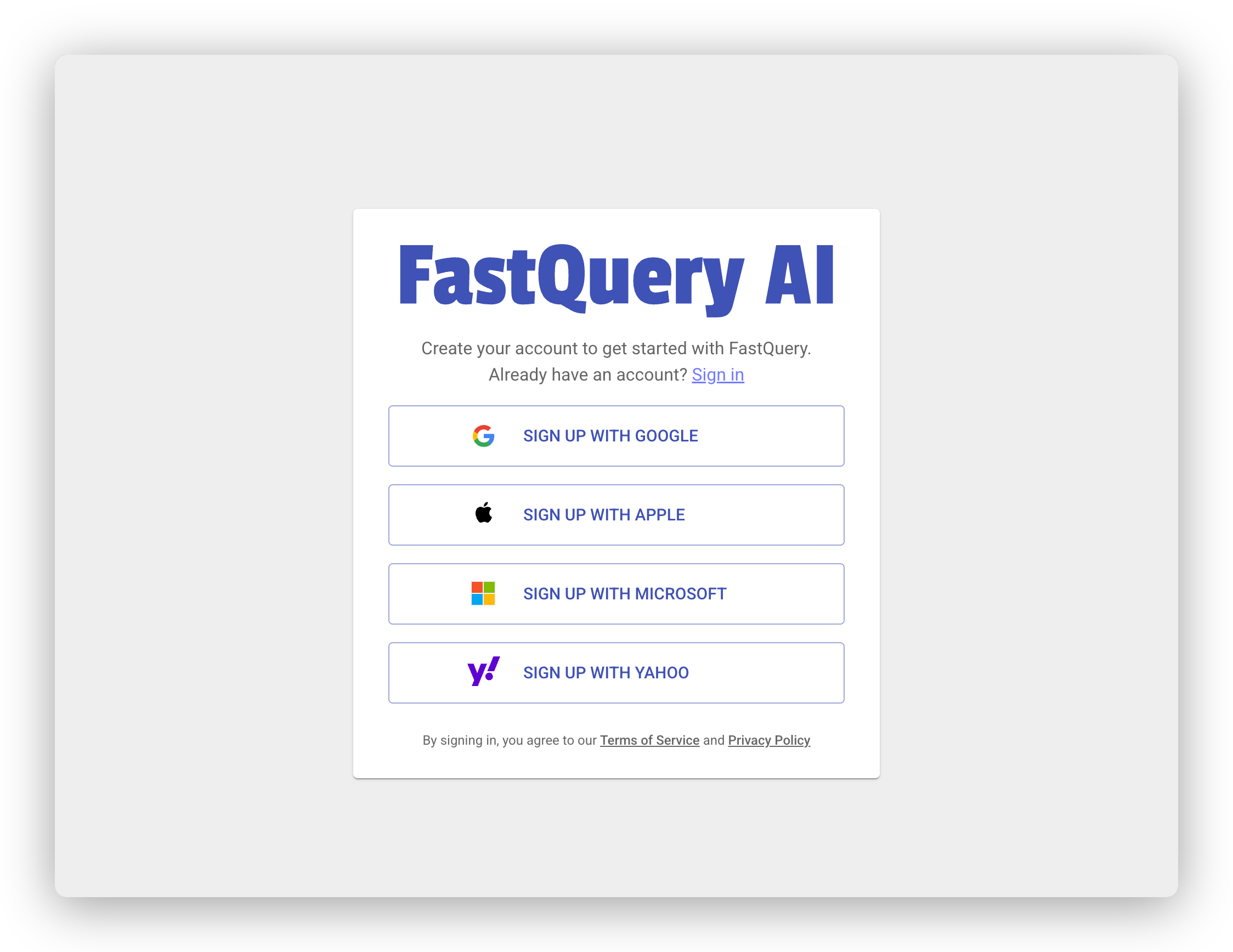
FastQuery uses secure sign-in through providers you already trust. You don’t need to create a separate password.
To sign up:
- Visit the FastQuery web app in your browser.
- On the sign-in screen, choose your preferred provider: Google, Microsoft, Yahoo, or Apple.
- Click the provider button and follow the prompts to authenticate.
- That’s it — you’re in!
You can use whichever provider is linked to your work or personal email. Just pick the one that’s easiest for you.
If your email isn’t with any of these providers, use the email code option instead: enter your email address and FastQuery sends you a short one-time code to sign in with — still no password to remember.
What Happens on First Login
Section titled “What Happens on First Login”When you sign in for the first time, FastQuery sets up your account automatically and guides you through a short onboarding flow.
If you’re the first person from your company, you’ll be asked to set up your organization (see Setting Up Your Organization).
If someone else from your company has already set things up, you’ll be connected to your team’s existing organization right away.
Either way, everyone then completes a quick personal profile — your name, a short interview about your job, and your work schedule — before the app opens up. Invited team members aren’t dropped straight into the app; they do this too. See Completing Your Profile for what to expect.
Already Been Invited?
Section titled “Already Been Invited?”Your admin may have already created an account for you before you ever signed in. This is common when a manager adds team members ahead of time.
If that’s the case, don’t worry — when you sign in for the first time, FastQuery will automatically link your sign-in to the account your admin created. Everything will be connected seamlessly, and you’ll have access to the facilities and roles your admin assigned to you.
Just make sure you sign in with the same email address your admin used when inviting you.
- Use your work email when possible so FastQuery can match you to your organization.
- Any supported provider works — pick whichever one is connected to the email your team uses.
- If you run into trouble signing in, reach out to your store admin or the FastQuery support team.