

Connecting Your POS System
FastQuery becomes even more powerful when it’s connected to your point-of-sale (POS) or ERP system. Once connected, your inventory data syncs automatically so FastQuery always has up-to-date information about what’s in stock.
Getting Started
Section titled “Getting Started”To set up an integration:
- Go to the Integrations page in FastQuery.
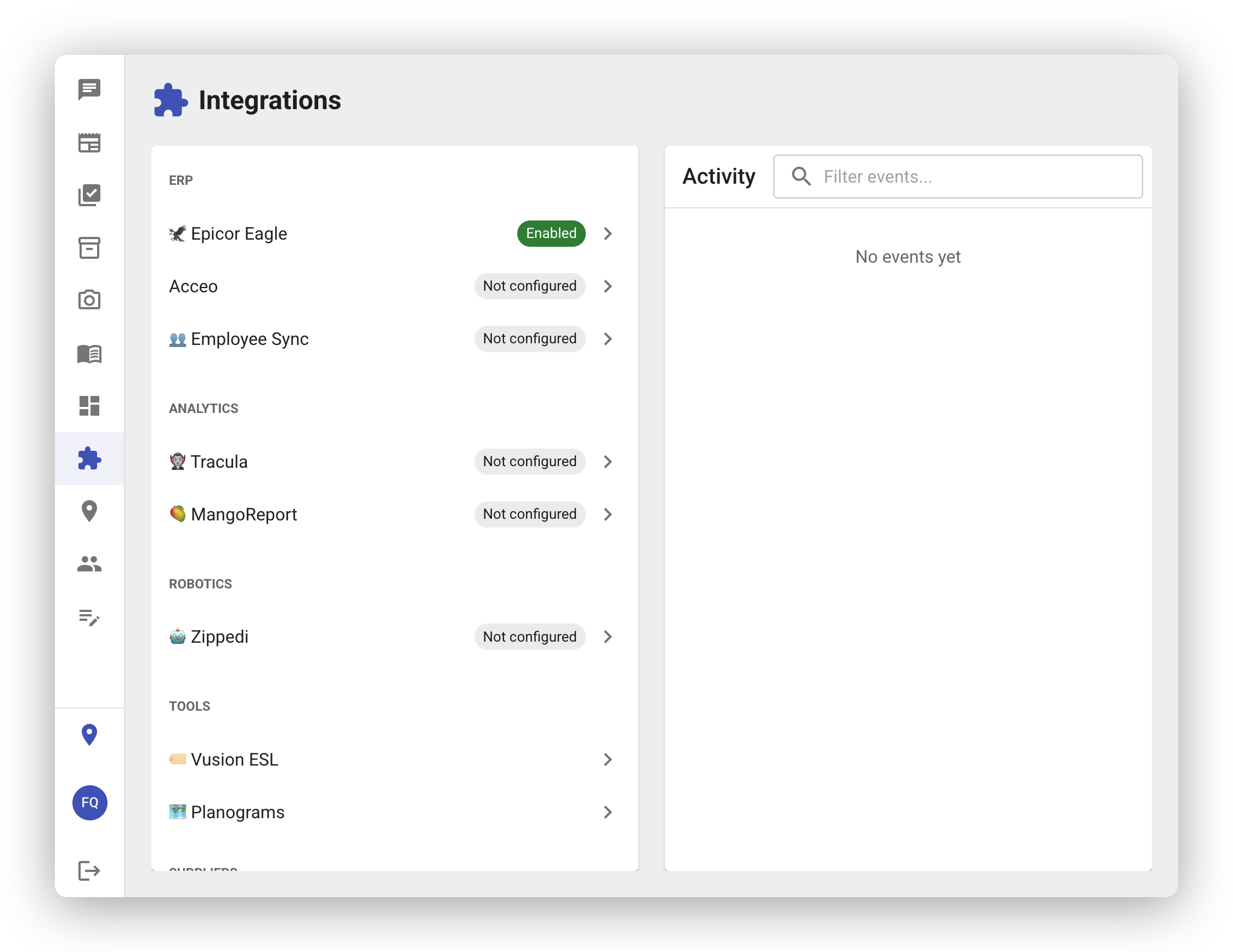
- Select your POS or ERP system from the list of supported providers.
- Follow the on-screen instructions to connect your account.
Supported Systems
Section titled “Supported Systems”FastQuery integrates with popular systems used by independent hardware and home improvement retailers, including Epicor Eagle and others. The Integrations page shows all currently available options.
Warehouse and Distributor Connections
Section titled “Warehouse and Distributor Connections”FastQuery also connects to major hardware distributors and buying groups. The Integrations page lists the supported partners; new ones are added over time.
Warehouse connections work a little differently — when you request a connection, it goes through an approval process. Once approved, your distributor data will start syncing into FastQuery.
To request a warehouse connection:
- Go to the Integrations page.
- Find the warehouse or distributor you’d like to connect.
- Submit an access request.
- You’ll be notified when your request is approved and the connection is active.
How Syncing Works
Section titled “How Syncing Works”Once a connection is set up, your inventory and product data syncs automatically on a regular schedule. You don’t need to do anything — FastQuery keeps everything up to date in the background.
Monitoring Your Integrations
Section titled “Monitoring Your Integrations”You can check the status of all your connections from the Integrations page. Here you’ll see:
- Whether each integration is active and healthy.
- Recent sync events — so you know when data was last updated.
- Any issues that may need your attention.
- Connect your POS first — this is the most important integration for getting started.
- If you don’t see your POS system listed, reach out to the FastQuery support team. New integrations are being added regularly.
- Warehouse connection approvals usually don’t take long, but timing can vary.