

Task Management
FastQuery’s task management system keeps your team organized and on track. Whether it’s restocking shelves, counting inventory, or completing daily checklists, tasks help everyone know what needs to be done and when.
What You Can Do with Tasks
Section titled “What You Can Do with Tasks”- Create tasks for any kind of work and assign them to team members — from the app, web, or by asking the AI assistant in chat
- Group related tasks into projects to run a bigger initiative — filter the list to one project and track its progress store by store
- Track progress with checklists, status updates, and activity logs
- Set priorities so the most important work gets done first
- Add due dates and receive automatic reminders before deadlines
- Attach photos and files to give your team the context they need
- Comment and collaborate directly on each task
Task Lifecycle
Section titled “Task Lifecycle”stateDiagram-v2
[*] --> Open: Created
Open --> Completed: Marked done
Completed --> Open: Reopened
A task is simply open or completed — there’s no separate “in progress” status to maintain. Everything else is a property of an open task: it’s unassigned until someone takes it, and overdue once it passes its due date, flagged in red wherever it appears.
What a Task Can Include
Section titled “What a Task Can Include”Every task starts the same: a title, a description, assignees, a priority, a due date. From there, add whichever pieces the work calls for — when you create the task or any time after:
- Checklists — free-text steps for procedural work that isn’t tied to specific products. See Checklists.
- Product list — specific SKUs to verify and check off, item by item.
- Count — a list of products to count against expected quantities, with a built-in barcode scanner. See Counting Tasks.
- Pick list — a list of products to pull off the shelf, each with a quantity you set — for orders and store transfers. See Picking Tasks.
- Form — typed evaluation questions (pass/fail, ratings, comments) filled out once per person or item — for observations and audits. See Forms.
- Attachments — photos and files for context or proof of work.
These combine freely: a store walkthrough might be a plain task with a checklist, while a section reset could carry a checklist, a product list, and photos.
Tracking Progress
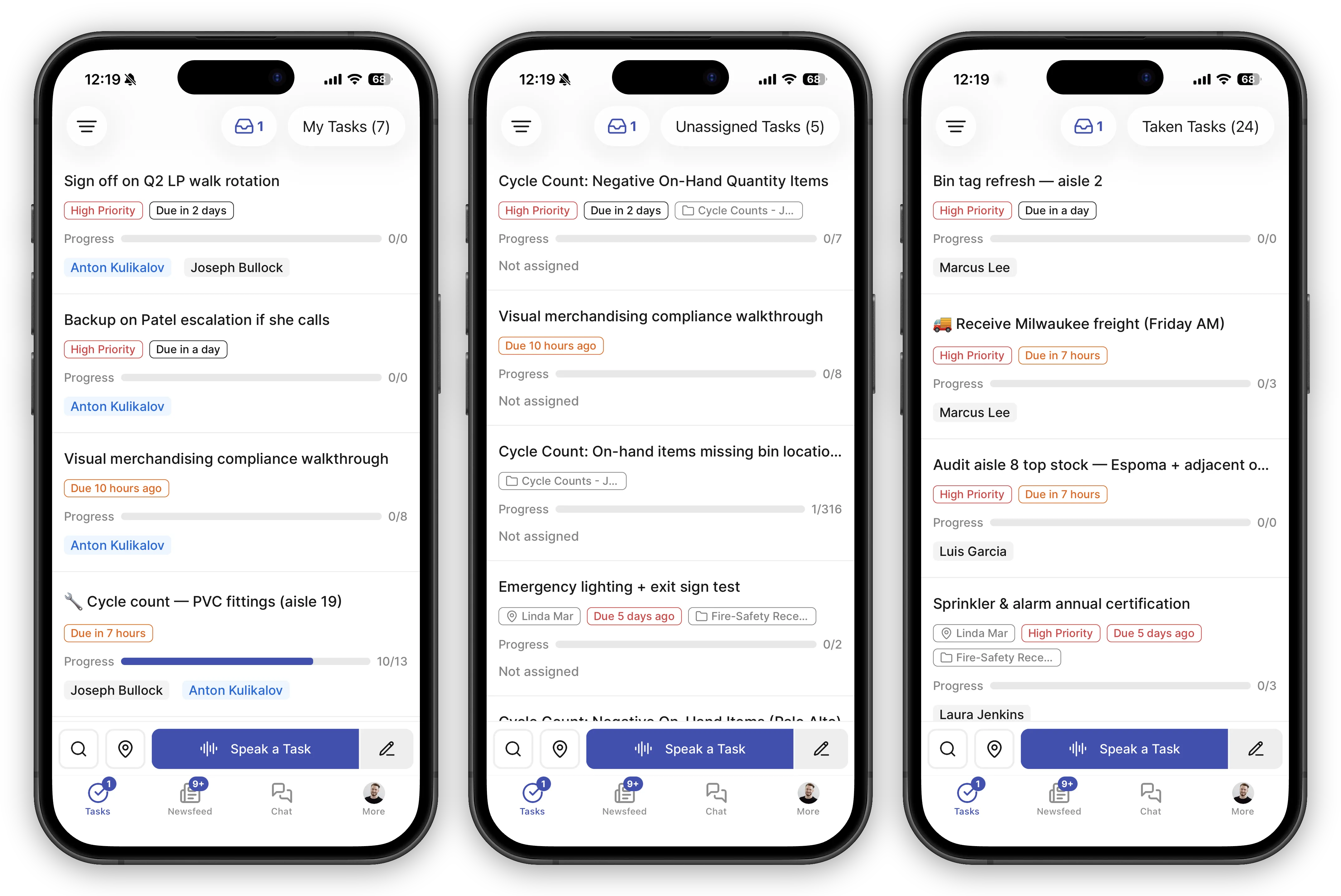
Section titled “Tracking Progress”The task list shows an X/Y progress indicator on every task. Y is the total number of trackable items — checklist steps, products to verify, items to count, and items to pick, all added together — so a task that mixes 3 checklist steps with a 12-SKU product list shows 0/15 until work begins.
The task card also shows an assignee label, reading “Not assigned” when no one has picked the task up yet.
Priority Levels
Section titled “Priority Levels”Every task has a priority level to help your team focus on what matters most:
- High — Urgent work that needs immediate attention
- Medium — Important but not time-sensitive
- Low — Can be done when time allows
Viewing Your Tasks
Section titled “Viewing Your Tasks”A menu at the top of the Tasks screen switches between your task lists:
- My Tasks — tasks assigned to you
- Unassigned Tasks — tasks waiting to be picked up
- Taken Tasks — tasks assigned to other team members
- Closed Tasks — finished tasks
The same menu also holds your notification Inbox, the progress Overview, your projects, and the Crew screen. See Managing Tasks for sorting and filtering by location.
Activity Log
Section titled “Activity Log”Every change to a task is recorded in the activity log. You can see exactly who did what and when, so nothing gets lost or forgotten.
Where to Access Tasks
Section titled “Where to Access Tasks”Tasks are available on both the mobile app and the web app, so your team can stay on top of their work whether they’re on the floor or at a desk.
Next Steps
Section titled “Next Steps”- Creating Tasks — Learn how to create new tasks
- Managing Tasks — Work with tasks day-to-day
- Projects — Group tasks into initiatives and track them across stores
- Crew — See everyone’s workload and rebalance it
- Counting Tasks — Run inventory cycle counts
- Picking Tasks — Pull order and transfer items off the shelf
- Out-Counts — Record out-of-stock items for reorder
- Recurring Tasks — Set up repeating schedules
- Personal Weekly Task — Give each employee one recurring task for their standing duties
- Checklists — Break tasks into smaller steps
- Forms — Run scored evaluations and audits, and review the results