
AI Assistant Overview

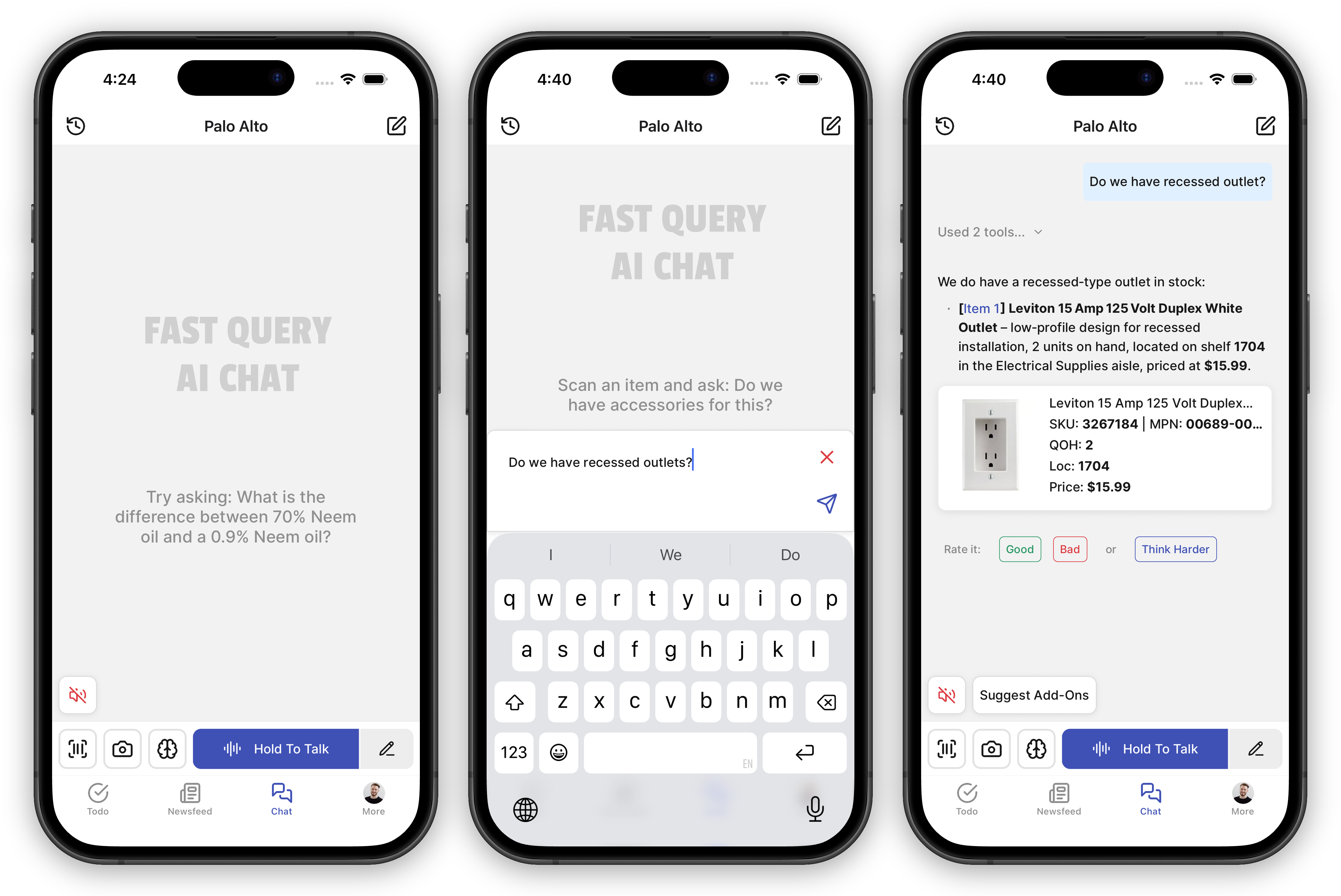
FastQuery’s AI assistant — Sam — is your command center. The Chat tab is where you get things done: search inventory, create and edit tasks, post to the newsfeed, analyze images, and run calculations — all by voice or text.
flowchart LR
    A["Ask a\nQuestion"] --> B["AI Searches\nInventory &\nHistory"]
    B --> C["Answer with\nLinks to\nDetails"]
What the AI Can Do
Section titled “What the AI Can Do”- Search inventory — Ask about stock levels, pricing, product details, or where to find an item.
- Create and edit tasks and posts — Tell the AI what you need and it will draft it for you.
- Analyze product images — Snap a photo of a product, label, or part and the AI will identify it or find a match in your inventory.
- Run calculations and comparisons — Ask the AI to crunch numbers, compare products, or summarize activity.
- Search across all your data — Inventory, tasks, posts, and team members — all in one place.
- Email your team — Ask the AI to send a note or a summary to a coworker (it can reach the people in your organization).
- Run recurring jobs on a schedule — Set up an automation once and the AI runs it for you in the background — a morning task digest, a weekly low-stock sweep, and so on.
- Search the web and research the market — For questions your own data can’t answer, the AI can search the public web and the news in any chat; local businesses and demand trends are part of Advanced Mode. (See Advanced Features.)
Clickable Mentions
Section titled “Clickable Mentions”When the AI mentions a product, task, person, or post in its reply, the name is a link. Tap or click it to open the full details — pricing and stock for a product, the full task view for a task, the profile for a teammate, and so on.
You don’t need to remember any codes — just refer to things by name in your follow-ups and the AI will know what you mean.
Picking the Right Model
Section titled “Picking the Right Model”On mobile, a small button next to the chat input lets you trade speed for depth: it starts on Auto, which picks the best model for each question on its own — fast answers for quick floor questions, more capable ones for harder problems. The web runs every chat on Smart; for the hardest questions, use Think Harder under a reply or start an Advanced Mode chat. See Choosing How the AI Responds.
Suggested Next Steps
Section titled “Suggested Next Steps”After a reply, the AI sometimes offers a single tappable suggestion underneath — a useful follow-up question, or a nudge to start a fresh chat when you’ve changed topics. Tap it to act, or ignore it. See Suggested Next Steps.
Web Search and News
Section titled “Web Search and News”For questions your own data can’t answer, the AI can search the public web — product facts and spec sheets, how-tos, vendor details — and open a result to read the full page, or pull one specific answer out of a long one. It can also check recent news headlines, with sources and dates.
- “What’s the mixing ratio for this two-part epoxy?”
- “Is this Milwaukee battery compatible with their older M18 tools?”
- “What’s happening in town this weekend?” — a festival downtown means foot traffic; a road closure means the opposite.
- “Any news on the lumber tariffs?” — a supply story today is a pricing conversation next month.
Replies cite their sources, so you can open the page the AI drew from and judge for yourself. Web search, news, and page reading are included in the subscription — no permission needed, nothing metered, in every chat.
Beyond Your Store’s Data
Section titled “Beyond Your Store’s Data”Most of what the AI does draws on your own live inventory, tasks, posts, and team — all part of the subscription, with no metering beyond everyday fair use, and so are the web and news searches above. A set of advanced features reaches further out — Advanced Mode chats that run on the most capable model with your point-of-sale data and a library of tested procedures for standard retail jobs, market-research lookups (local places, demand trends), and helpers for bigger requests. Those are metered against a monthly advanced budget your organization controls — see Advanced Features for what each one does and how the budget works.
Approval Before Action
Section titled “Approval Before Action”When the AI wants to create or change something — like adding a task or editing a post — it will ask for your approval first. You’ll see exactly what it plans to do before anything happens.
If you’d rather skip the confirmation step for certain actions, you can enable auto-approval for those action types.
Getting Started
Section titled “Getting Started”Open the Chat tab. Hold the talk button and speak, or type your question. The AI responds immediately.