

Browsing Your Inventory
The Inventory page in the FastQuery web app gives you a complete view of every product in your store. Whether you have a few hundred items or over 100,000, the inventory grid is built to keep things fast and easy to navigate.
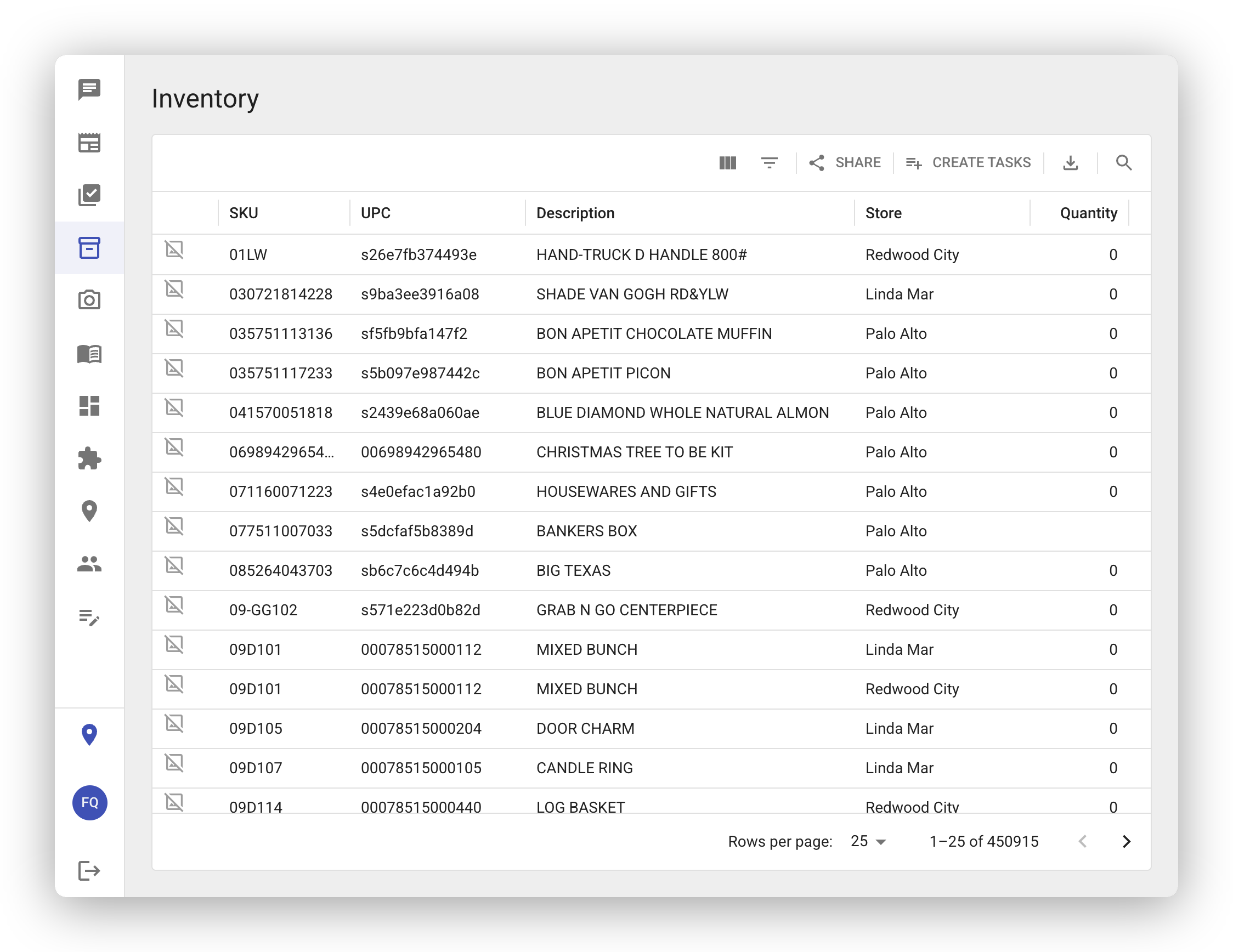
The Inventory Grid
Section titled “The Inventory Grid”When you open the Inventory page, you’ll see your products displayed in a data grid with columns including:
- Description - the item’s display name and description
- SKU - your internal stock-keeping unit number
- UPC - the universal product code (barcode number)
- Price - current selling price
- Quantity - how many units you have on hand
- Department - which department the product belongs to
- Bin - where it’s shelved in your store
- Manufacturer - who makes the product
There are additional columns available too, so you can customize the view to show exactly what you need.
Filtering and Sorting
Section titled “Filtering and Sorting”You can narrow down your inventory in several ways:
- Column filters - Click the filter icon on any column to filter by that field. Depending on the column type, you’ll get text search, number ranges, or dropdown selections.
- Sort - Click any column header to sort your inventory by that field. Click again to reverse the sort order.
- Quick Filter - Use the Quick Filter bar at the top to search across all fields at once. Just start typing and the grid updates instantly.
These tools make it easy to find exactly what you’re looking for, even in a very large catalog.
Paging Through Results
Section titled “Paging Through Results”The grid loads one page of results at a time, which keeps things fast even if your store carries tens of thousands of products. Just page through your results or apply filters to jump to what you need.
Exporting Data
Section titled “Exporting Data”Need your inventory data in a spreadsheet? Use the Export option to download the current filtered view. Whatever filters and sorting you’ve applied will carry over to the export, so you get exactly the data you’re looking at.
Creating Bulk Tasks from Inventory
Section titled “Creating Bulk Tasks from Inventory”You can turn any filtered view of your inventory into work for your team — a feature called bulk task creation. It’s the fastest way to create many tasks at once from a list of SKUs, instead of building each task by hand. It’s especially useful during store remodels and resets, when you need to pull, relocate, or recount large groups of product.
Apply filters to narrow down the products you want — by Department, Fineline, Class, Vendor, Manufacturer, or Bin — then click Create Tasks in the toolbar. A filter is required; bulk task creation can’t run against your entire catalog.
In the dialog you can:
- Choose what the tasks carry — a count to verify quantities, or a product checklist for general work on those products.
- Set the details — title, priority, due date, and description.
- Set the task size — Items per task controls how many items each task targets. It defaults to 1,000 and can be set anywhere from 25 to 20,000, so you can make a few large tasks or many small ones to suit how you want to divide the work.
- Assign people — pick one or more assignees, with an option to split the work evenly among them (round-robin).
What happens when a department (or fineline) has more than one task’s worth of items?
Section titled “What happens when a department (or fineline) has more than one task’s worth of items?”FastQuery handles up to 35,000 items at a time. Your selection is first grouped by store, then each store’s items are split into multiple tasks along bin (shelf location) lines. Each task targets the Items per task size you set (1,000 by default, adjustable from 25 to 20,000), but items that share a bin are always kept together in the same task — a shelf is never split across two tasks. (If a single bin holds more items than your target size, it stays together as one larger task.) So a large department or fineline becomes several tasks organized by shelf location, which keeps each count physically contiguous as you walk the aisle — you don’t need to break the list up by hand. A preview shows exactly how many items and how many tasks will be created before you confirm, and it updates as you change the task size.
For more detail, see Creating Tasks and Counting Tasks.
Switching Facilities
Section titled “Switching Facilities”If you manage multiple stores, the inventory grid shows products across all your accessible facilities at once. Use the Store column filter to narrow the view to a specific facility.