

Floor Maps
Floor maps help everyone in your store — from new hires to seasoned staff — find products quickly. When a customer asks where something is, FastQuery can use your floor map to give clear, accurate directions.
Setting Up a Floor Map
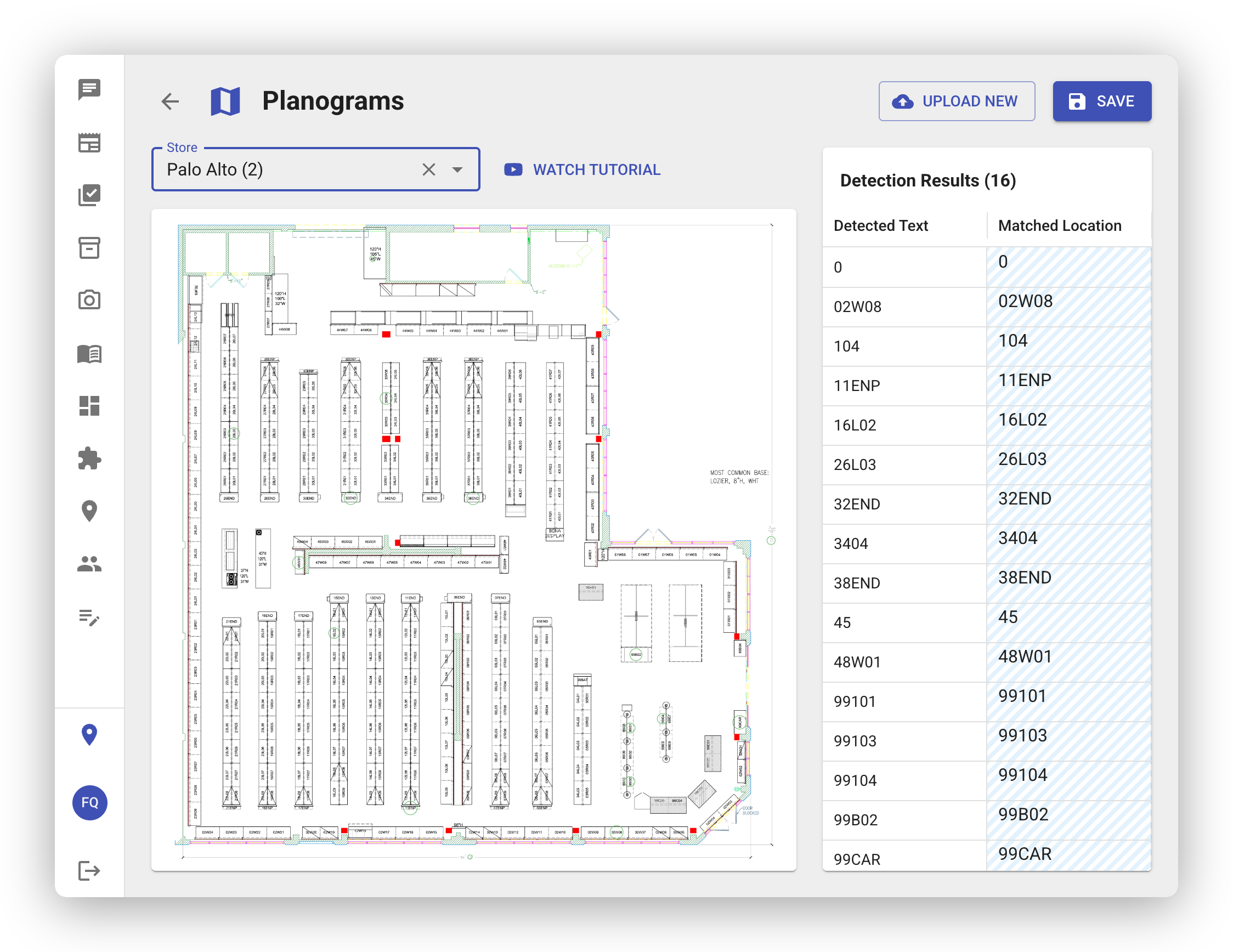
Section titled “Setting Up a Floor Map”Admins can upload floor maps through the Planograms page in the web app. Simply upload an image of your store’s floor plan — this could be an architectural drawing, a hand-drawn layout, or any image that shows your store’s layout and aisle labels.
Once uploaded, FastQuery’s AI analyzes the image to detect text, shelf labels, and section markers on the floor plan. This information is used to understand your store’s layout and connect products to physical positions on the map.
How the AI Uses Floor Maps
Section titled “How the AI Uses Floor Maps”When a customer or team member asks where to find a product, FastQuery combines the product’s bin with your floor map to provide helpful directions. Instead of just saying “Aisle 5,” the AI can give context-aware guidance based on your actual store layout.
Viewing Floor Maps on Mobile
Section titled “Viewing Floor Maps on Mobile”On the mobile app, you can view your store’s floor map as an interactive image:
- Pinch to zoom in and out for more or less detail
- Pan by dragging to move around the map
- See your store’s layout at a glance to orient yourself or help a customer
One Map Per Facility
Section titled “One Map Per Facility”Floor maps are facility-specific. If you manage multiple stores, each store can have its own floor map that reflects its unique layout. When you switch facilities in the app, the floor map updates to show the correct store.