
Creating Tasks
There are several ways to create tasks in FastQuery. Pick whichever method works best for your situation.
From the Mobile App
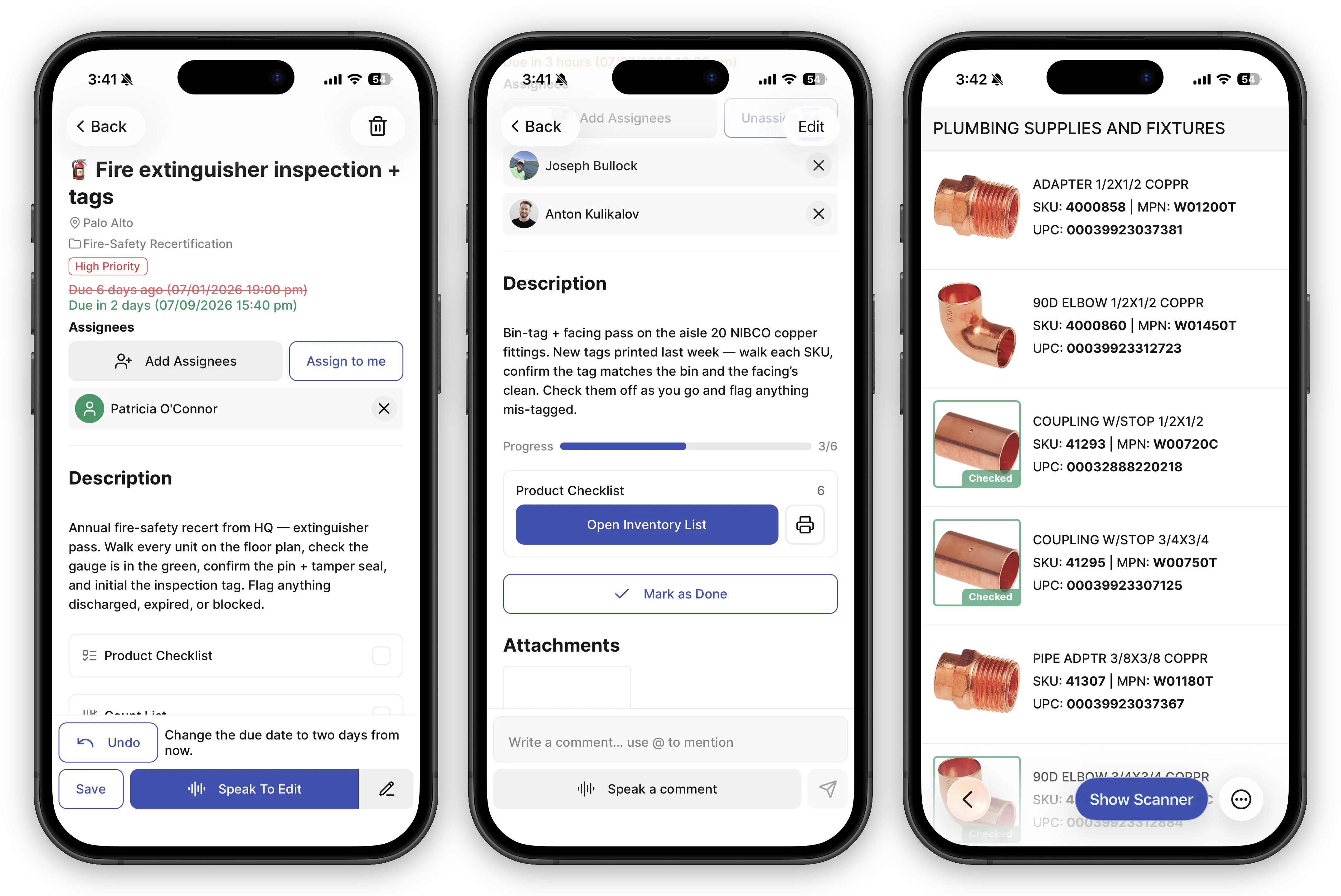
Section titled “From the Mobile App”The fastest way is to say it: hold Speak a Task at the bottom of the Tasks screen and describe the work in plain language — “High priority for Patricia: inspect the fire extinguishers by Thursday.” The AI fills in the whole form from what you said — title, description, priority, due date, assignees, project, even checklist steps — and you just review and tap Create. Prefer typing? The pencil button next to it takes a task written in plain English instead.
You can also build the task by hand:
- Open the Tasks tab
- Tap the + button
- Fill in the task details:
- Title — A short, clear description of the work
- Description — Additional details or instructions (supports markdown formatting)
- Assignees — One or more team members
- Priority — High, Medium, or Low
- Due date — When the task should be completed
- Project — The bigger initiative this task belongs to, if any
- Attachments — Photos or files
- Checklists — Break the task into steps
- Private — Restrict the task to you, its assignees, and its followers. See Private Tasks.
- Tap Create
Using the AI Assistant
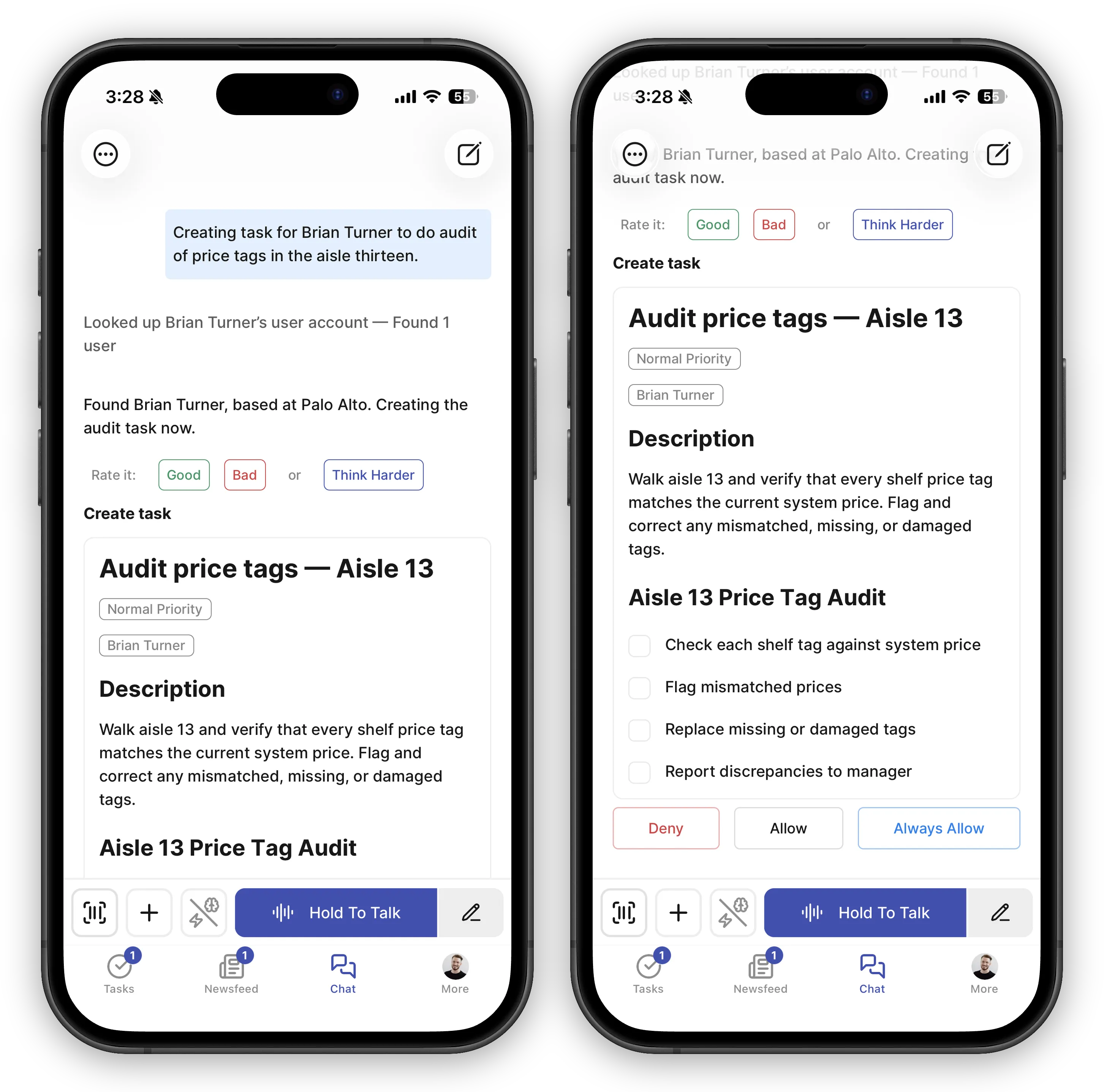
Section titled “Using the AI Assistant”You can ask FastQuery’s AI to create tasks for you — by voice or text from the chat screen. Just say something like:
- “Create a task to restock aisle 5”
- “Make a task for the team to check the paint display”
- “I need someone to clean up the lumber section”
The AI will draft the task with a title, description, and suggested details — including assignees it looks up by name and checklist steps where they make sense. Review the proposal and choose Allow to create the task, or Deny to discard it. Always Allow lets the assistant create tasks for you without asking again.
Sometimes the AI offers this without being asked: after answering a question — say, about an out-of-stock item — it may show a one-tap suggested next step like “Make a restock task for this.”
From the Web App
Section titled “From the Web App”- Click Create Task from the task management screen
- Fill in the same details as above
- Click Create
Enter a title and Similar past tasks suggests matching tasks from the store. Pick one and the whole task — checklist and all — copies onto your draft as a starting point, with an Undo link to take it back off. The personal weekly task page shows this in action.
Assigning More Than One Person
Section titled “Assigning More Than One Person”When you pick several assignees, FastQuery asks how the work should be shared:
- One shared task — everyone works on the same task, and it’s completed once. Use this when the crew does the job together, like “Unload the truck.”
- A separate copy for each person — every assignee gets their own task and completes it individually. Use this when each person must do the work themselves, like “Watch the forklift safety video.”
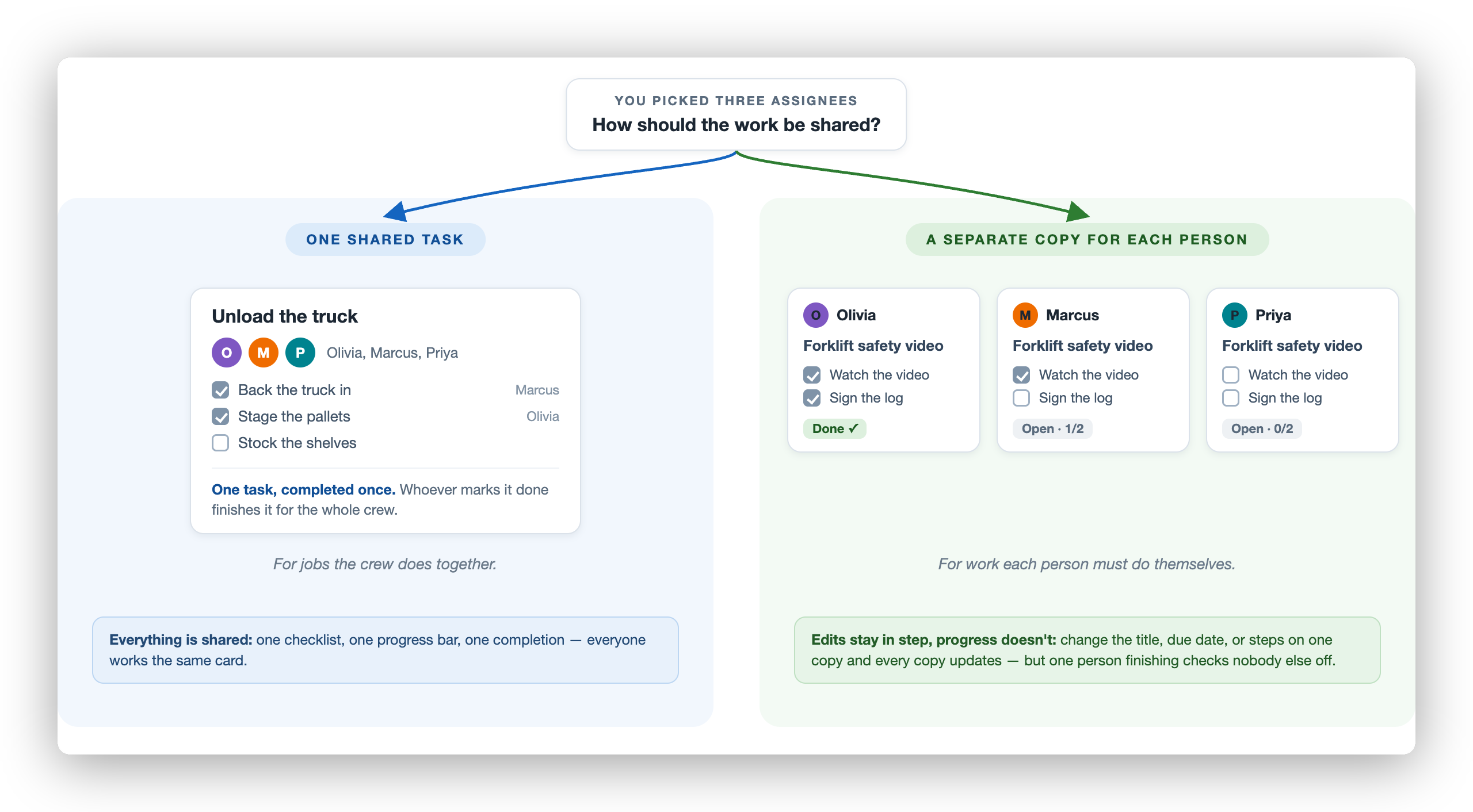
Copies stay in step after creation: if you later edit the title, description, due date, or checklist steps on one copy, every copy gets the update. Completion and checklist progress stay individual — one person finishing doesn’t check anyone else off.
Looking to bundle different tasks together instead — say, everything for a season reset? That’s a project, not multiple assignees.
From Inventory
Section titled “From Inventory”When you spot products that need attention in the inventory grid:
- Apply filters in the inventory grid (web app) to narrow down the products — for example by department, fineline, class, or vendor
- Click Create Tasks in the toolbar
- FastQuery generates tasks for the filtered products, split by store and pre-filled with the relevant product details
This is called bulk task creation, and it’s a quick way to turn a filtered list of SKUs into actionable work. Large selections are split automatically — grouped by store, then divided into tasks along bin (shelf location) lines. You choose the target task size (Items per task, defaulting to 1,000 and adjustable from 25 to 20,000), up to a total of 35,000 items. See Creating Bulk Tasks from Inventory for the full workflow.
Via Email
Section titled “Via Email”If your admin has configured email task creation, you can send an email to a designated address to create tasks. The email subject becomes the task title and the body becomes the description. Check with your admin to see if this is set up for your store.
Automatic Task Creation
Section titled “Automatic Task Creation”Some integrations can create tasks automatically when they detect issues:
- Shelf-scanning robots (Zippedi, Badger) — When robots find out-of-stock items or price mismatches, tasks are created automatically
- Other integrations — Your admin may configure additional automatic task sources