

Product Details
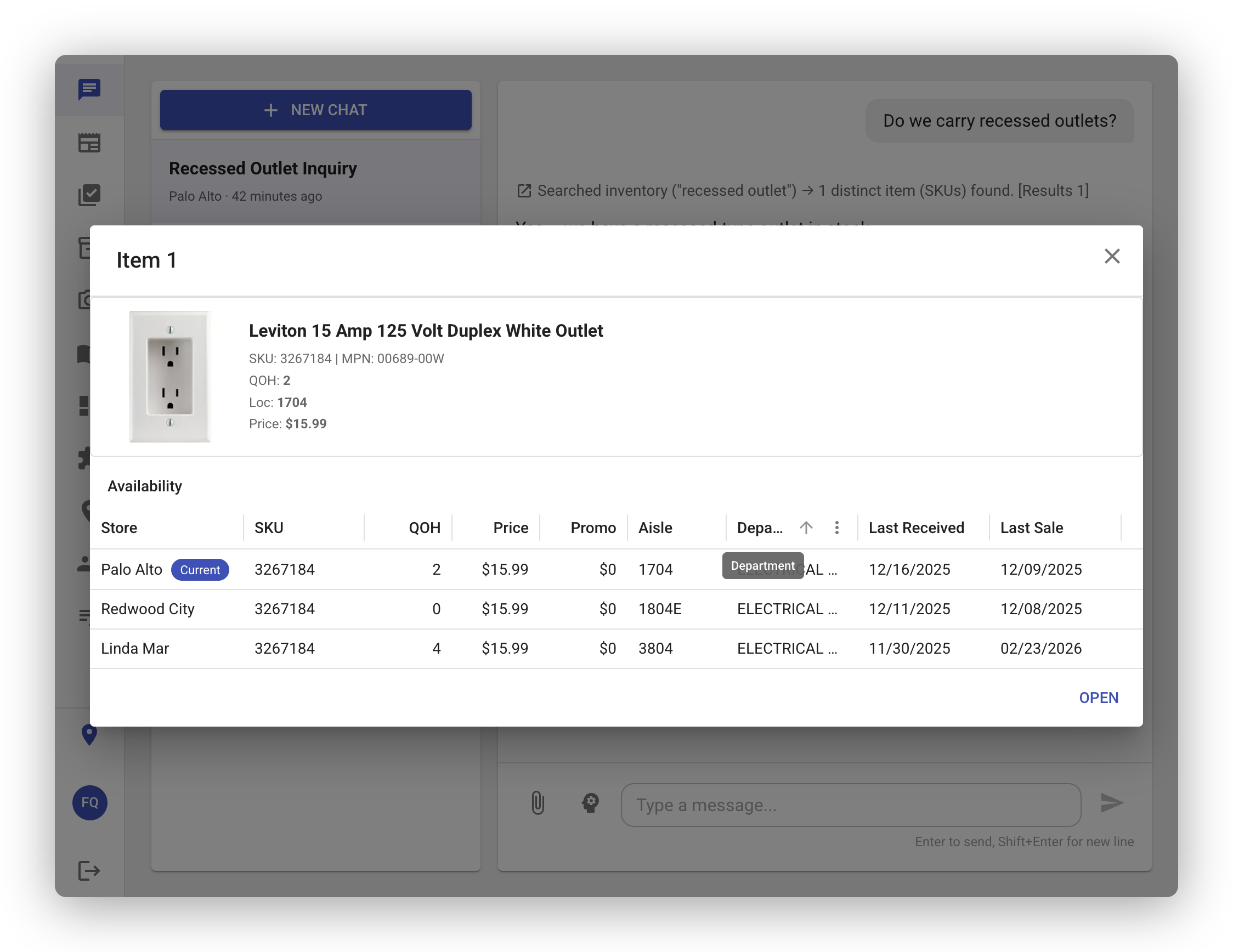
Every product in FastQuery comes with rich, detailed information to help you manage your inventory and answer customer questions quickly.
Viewing Product Details
Section titled “Viewing Product Details”There are a few ways to pull up a product’s details:
- Tap a reference in chat - When the AI mentions a product, tap it to see the full details.
- Scan a barcode - Use the barcode scanner on your mobile device to instantly look up any product.
- Browse inventory - Find a product in the inventory grid and select it.
What You’ll See
Section titled “What You’ll See”Basic Info
Section titled “Basic Info”- Product Name - the item’s display name
- Description - a detailed product description
- UPC - the universal product code (barcode number)
- SKU - your internal stock-keeping unit number
Pricing
Section titled “Pricing”- Current Price - what the product sells for today
- Promotional Price - a temporary sale price, if one is active
Stock Levels
Section titled “Stock Levels”- Quantity on Hand - how many units are currently in the store
- Quantity on Order - how many units are on their way from suppliers
Key Dates
Section titled “Key Dates”- Last Sale Date - when this product was last sold
- Last Receipt Date - when you last received a shipment of this product
- Last Physical Count Date - when this product was last physically counted
- Added - when this product was first added to your inventory
- Last Price Change - when the retail price was last updated
Ordering Info
Section titled “Ordering Info”- Minimum Order Point - the lowest stock level before reordering is triggered
- Order Point - the stock level at which a new order should be placed
- Max Stock Level - the most units you want to keep on hand
Classification
Section titled “Classification”- Department - which department the product belongs to
- Class - product class/category (e.g., from your POS classification hierarchy)
- Fineline - product fineline/subcategory (a finer-grained classification within a class)
- Manufacturer - who makes the product
- Manufacturer Part Number - the manufacturer’s own identifier for this item
Status Flags
Section titled “Status Flags”- Discontinued - whether the manufacturer has stopped making this product
- Closeout - whether this product is being cleared out of your inventory
- Popularity Code - how well this product sells relative to others
Sales History
Section titled “Sales History”- Last 12 Months Sales - a breakdown of sales data over the past year, so you can see trends and seasonality at a glance
- Bin - where this product is shelved in your store, so you or your team can find it quickly. If your store has a Floor Map uploaded, the AI can translate the bin code into directions on the visual layout.
Images
Section titled “Images”- Product Photos - images pulled from supplier catalogs or photos you’ve added yourself
Flashing the Shelf Label
Section titled “Flashing the Shelf Label”If your store uses Vusion electronic shelf labels, the product detail screen on mobile has a Flash Label button. Tap it and the matching ESL on the shelf lights up for about 10 seconds — useful for walking a customer over or confirming the label is in the right spot. See Integrations.
Multi-Facility Availability
Section titled “Multi-Facility Availability”If you manage more than one store, product details include availability across all your facilities. You can quickly see which stores have the item in stock and how many units each is carrying. This is especially helpful when a customer needs something that’s out of stock at your current store.