
Managing Tasks
Once tasks are created, here’s how to work with them day-to-day.
Viewing Tasks
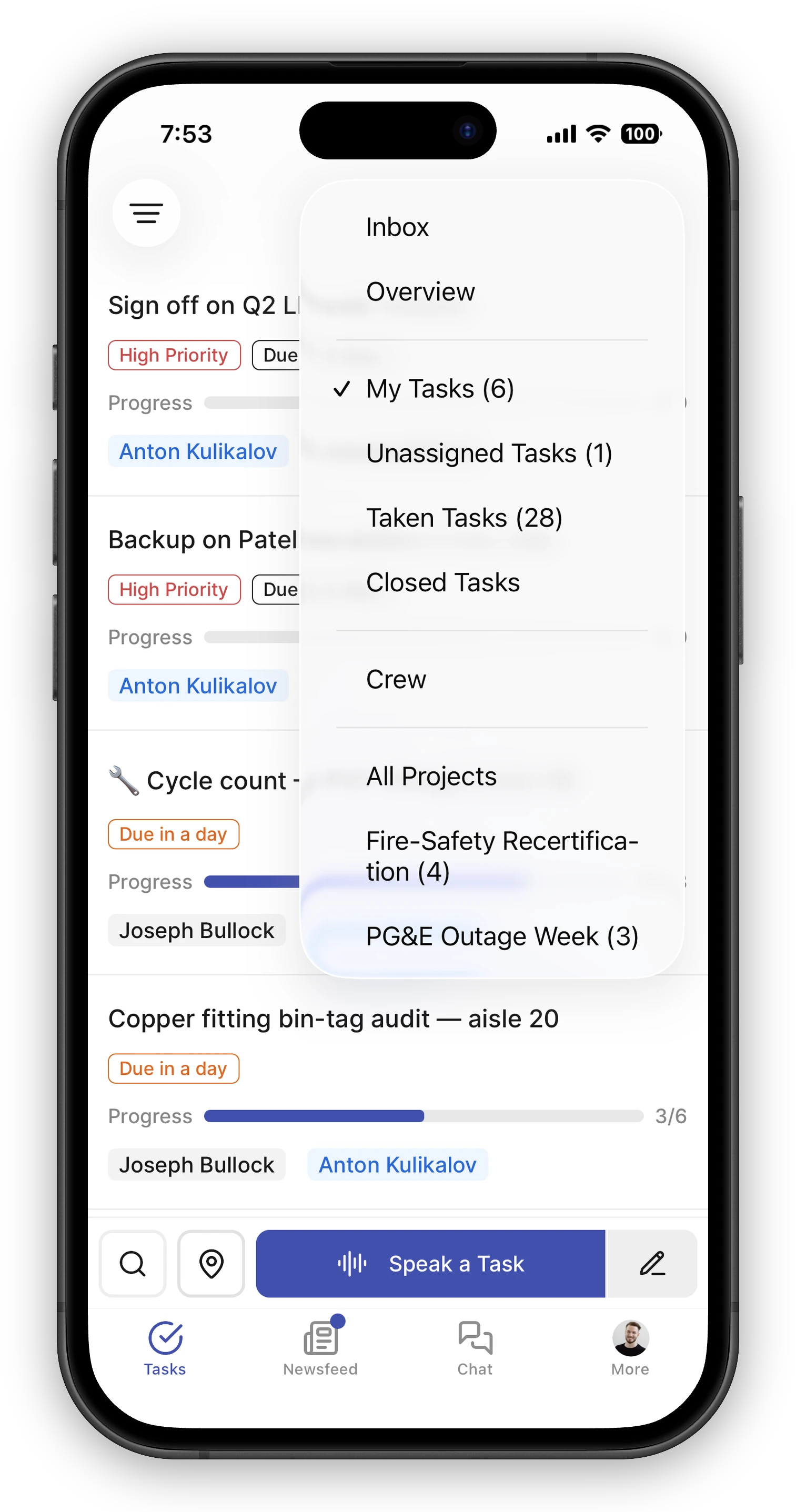
Section titled “Viewing Tasks”The menu at the top of the Tasks screen switches between your task lists:
- My Tasks — everything assigned to you
- Unassigned Tasks — tasks waiting to be picked up by someone on the team
- Taken Tasks — tasks assigned to other team members, so you can see what everyone’s working on
- Closed Tasks — finished tasks for reference
The same menu is home to your notification Inbox, the Overview screen, your projects, and — on mobile — the Crew screen.
A few more ways to slice the lists:
- Sort — next to the list menu, switch between the default order, due date, and priority. Sorting My Tasks by due date also groups it into Overdue / Today / Upcoming / No due date sections.
- Locations — if you cover more than one store, the location button opens a facility picker: choose any set of facilities (recent selections are one tap away) and the Unassigned, Taken, and Closed lists narrow to them. My Tasks is the exception — it always shows your own work from every store, so your plate follows you wherever you’re filtered. On your phone the choice is remembered even after you close the app; on the web it lives in the page’s address, so bookmarks keep it. See Working Across Multiple Stores.
- Search — the search button on the Tasks screen (a search field at the top on the web) finds tasks by title, description, or assignee name — so typing a teammate’s name pulls up their tasks. Search looks across every store you have access to and every status, completed tasks included, and returns the 50 best matches — narrow a broad term if what you’re after isn’t among them.
Selecting Several Tasks at Once
Section titled “Selecting Several Tasks at Once”Some work is batch work — closing out a finished initiative, assigning a pile of unassigned tasks, sweeping last week’s stragglers into a project. Instead of opening tasks one by one, select them and act on all of them together:
- On the web — click Select above the list, then check tasks (or use the select-all checkbox in the bar).
- On mobile — long-press any task card to enter selection mode, then tap to add or remove tasks.
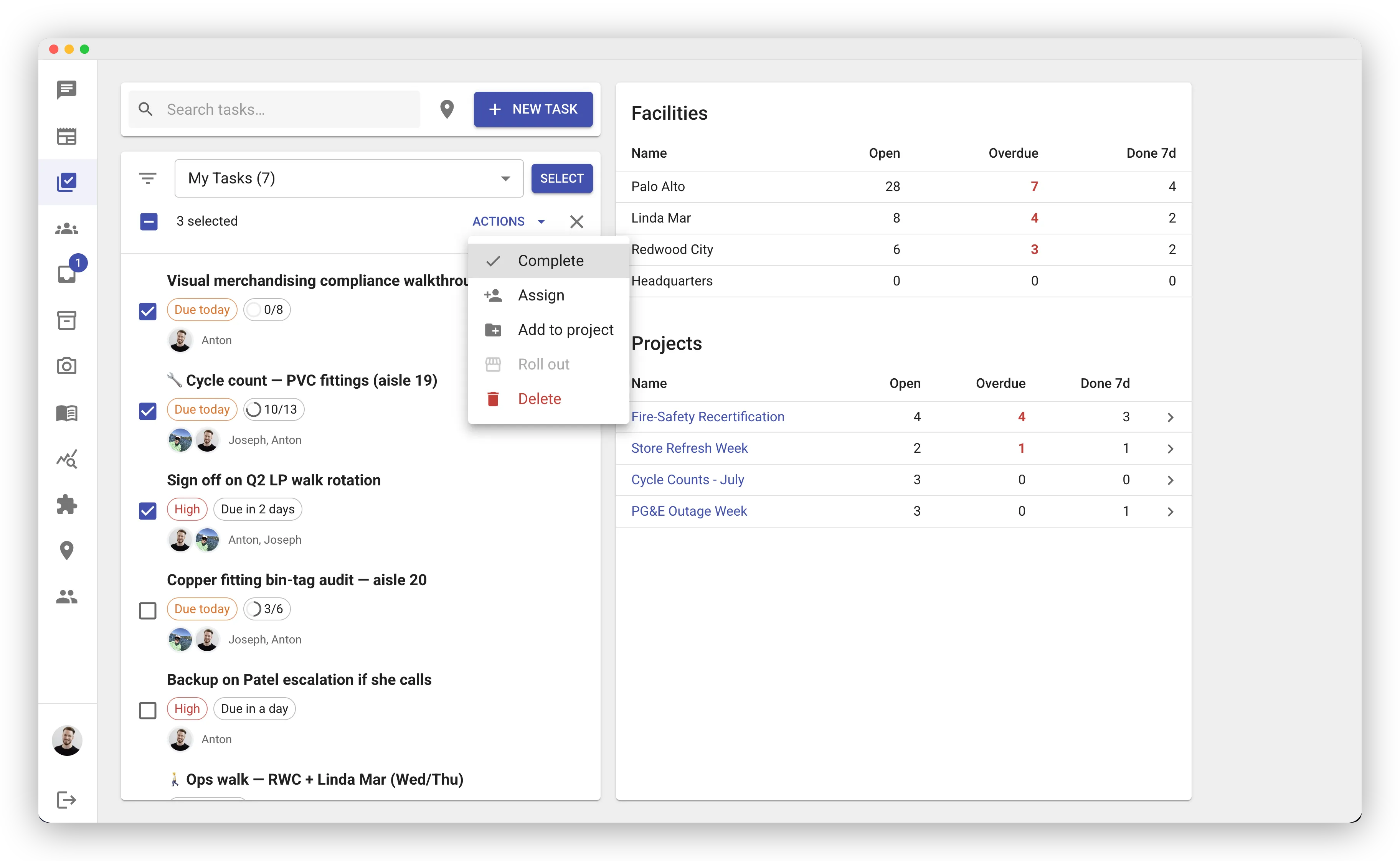
The Actions menu applies one action to the whole selection: Complete, Reopen, Assign, Add to project, Delete — and, if you manage more than one store, Roll out (see Rolling Out a Project). Bulk assigning is polite about notifications: each person gets one notification covering everything just assigned to them, not one push per task.
Selection works on search results too — search for a keyword, select what comes back, and act on tasks that were scattered across different lists.
Organizing Tasks with Projects
Section titled “Organizing Tasks with Projects”A project groups related tasks under one initiative — say “Spring Reset” or “Supplier Transition” — so you can filter to just that work, track its progress store by store, and roll it out across locations. See Projects for the full guide.
Seeing What the Team Is Working On
Section titled “Seeing What the Team Is Working On”The fastest way is to just ask the AI:
- “What did the team finish today?”
- “What’s everyone working on right now?”
- “What got done in the paint department this week?”
The AI pulls from tasks, completions, and recent activity to summarize it for you.
If you’d rather browse:
- Taken Tasks list — tasks currently assigned to other team members.
- Closed Tasks list — finished tasks; tap any one to see who completed it and when.
- Crew screen — everyone’s workload at a glance, with each person’s open and overdue counts.
- Newsfeed — system events post automatically when tasks are completed, assigned, or reassigned. See Newsfeed Overview.
- Per-task Activity Log — open any task to see its full history. Useful for shift handoffs and after-the-fact review.
Opening and Editing a Task
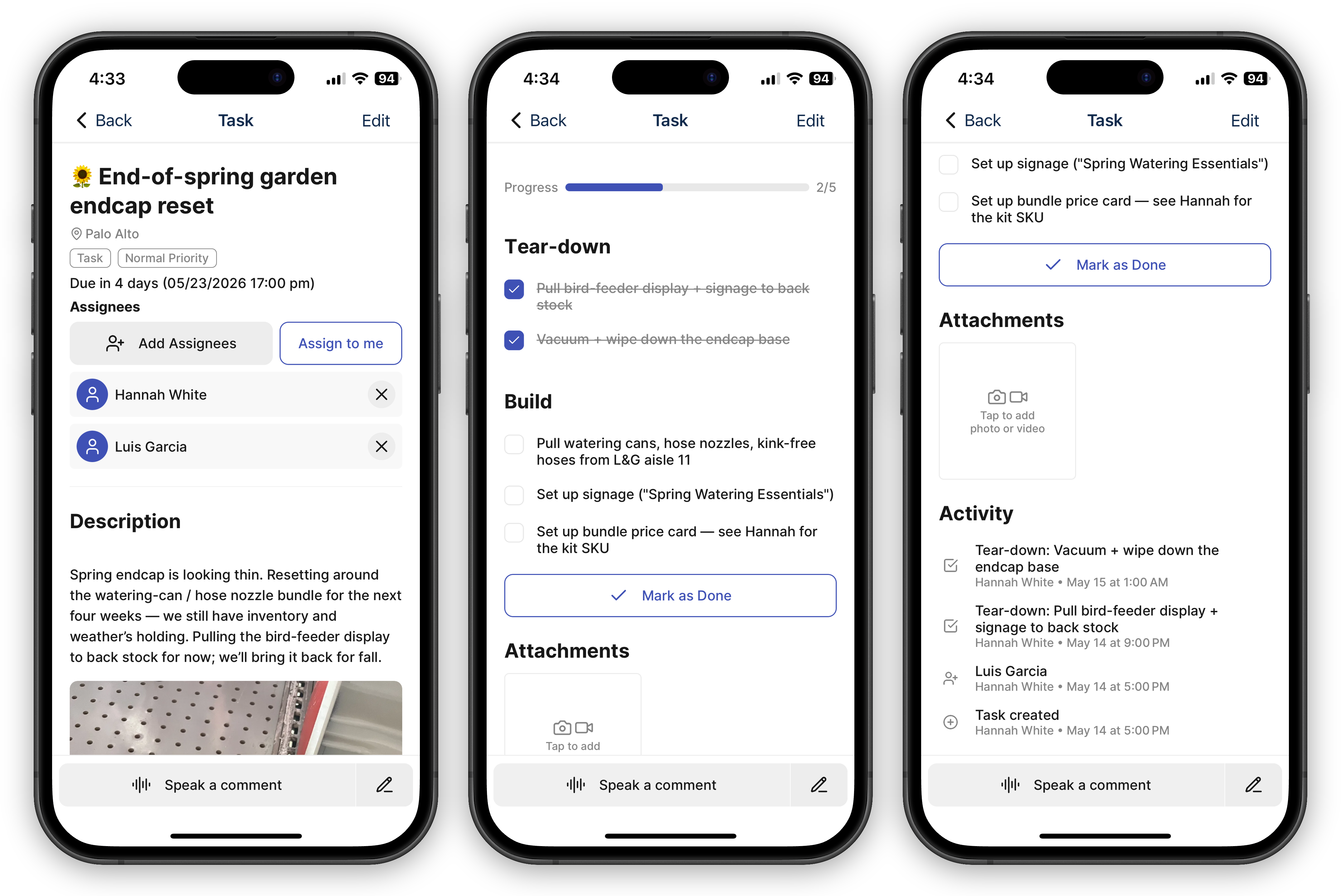
Section titled “Opening and Editing a Task”Tap or click any task to open its detail screen. From there you can:
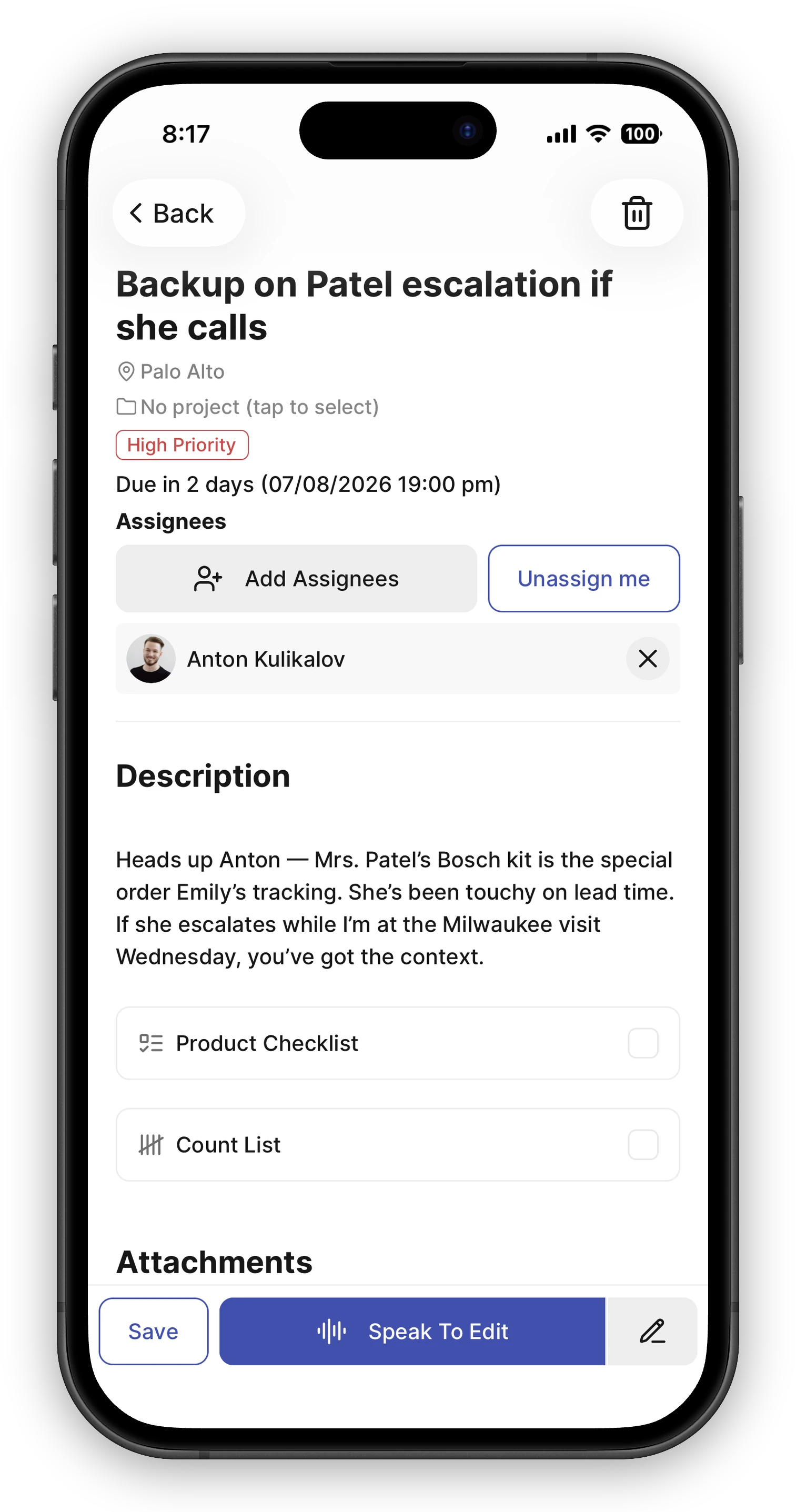
- Edit the title or description
- Change the assignees — add or remove team members
- Update the priority level
- Adjust the due date
- Add or remove attachments
- Work through checklists
Changes are saved automatically and recorded in the activity log.
On mobile you can also edit by voice: hold Speak To Edit and say the change — “push the due date to Friday,” “add Marcus,” “make it high priority.” The form updates to match, and Undo reverts a change the AI got wrong.
Completing a Task
Section titled “Completing a Task”When the work is done, mark the task as complete. It moves to the Closed Tasks list so your team can see the progress, and the task’s followers are notified.
If a task was completed by mistake or needs more work, you can reopen it. The task moves back to the active lists and followers are notified.
Deleting a Task
Section titled “Deleting a Task”If a task was created by mistake or is no longer needed:
- Open the task and tap Edit.
- Tap the trash icon in the top-right.
- The task is removed for everyone — it disappears from all the task lists.
Deletion is recorded in the activity log so the team can see what happened. Attached photos and files are removed along with the task.
If you’re trying to unstick a paused Tracula integration by clearing its backlog, either delete or finalize the existing Tracula tasks until you’re below the 3-task limit.
Comments
Section titled “Comments”Use comments to discuss a task with your team. Comments are great for:
- Asking a question about the work
- Sharing an update on progress
- Noting something unusual you found
- Leaving instructions for the next shift
Anyone who can open the task can read and reply. New comments notify the task’s followers, so a question reaches the person who created the task — not just the assignees. To pull in someone specific, mention them: type @ in the comment box — on mobile or the web — and pick them from the suggestion list. They’re notified directly and start following the task. On mobile, dictation and typed @mentions compose in the same comment, so you can speak the update and then tag who needs to see it.
Following a Task
Section titled “Following a Task”Every task has followers — the people kept in the loop as it moves along. You follow a task automatically when you create it, get assigned to it, comment on it, or are @mentioned in a comment. Followers are notified when the task is completed or reopened and when someone comments.
Want updates on a task you’re not otherwise involved in — or fewer updates on one you are? Use the Follow bell on the task screen to follow or unfollow at any time.
Private Tasks
Section titled “Private Tasks”Some work isn’t for the whole store — a sensitive HR follow-up, a personal reminder, a surprise you’re planning. Mark a task Private and it’s visible only to its participants: the person who created it, its assignees, and its followers. For everyone else the task simply doesn’t exist — it stays out of the task lists, search, summaries, the Newsfeed, and even the AI assistant’s answers.
To make a task private, tap the Private chip on the create form, or ask the AI assistant for a private task — the approval card shows a Private tag before you confirm. Privacy is chosen when the task is created and can’t be changed afterwards, by anyone. If a task should switch, create a new one with the right setting. A private task shows a Private tag on its card and task view, so participants always know they’re looking at restricted work.
A few things to know:
- Sharing is just adding people. Assign someone or add them as a follower (an @mention in a comment does this too) and they can see the task. Remove them and they can’t.
- Participants work normally. Assignees get their notifications, check off steps, and complete the task like any other — privacy changes who can see it, not how it works.
- The Newsfeed stays quiet. Creating or completing a private task doesn’t announce anything to the store.
- Recurring series are private too. A private task with a schedule generates private occurrences. See Recurring Tasks.
- Private tasks aren’t templates. They never appear in the create form’s template suggestions — not even your own.
- Private tasks don’t roll out. A rollout copies tasks to other stores’ teams, so a selection that includes a private task is refused — remove it from the selection first.
Attachments
Section titled “Attachments”Add photos or files to a task at any time. This is helpful for:
- Showing the current state of a problem
- Sharing a document or reference
- Providing proof that work was completed
Activity Log
Section titled “Activity Log”Every task has a full history of changes. The activity log shows:
- When the task was created and by whom
- Assignment changes
- Priority or due date updates
- Comments added
- Checklist progress
- When the task was completed or reopened
This makes it easy to understand what happened and when, especially during shift handoffs.
Notifications
Section titled “Notifications”FastQuery sends push notifications to keep you informed.
flowchart LR
    A["24h\nbefore"] --> B["1h\nbefore"]
    B --> C["Due"]
    C --> D["Overdue\nimmediately"]
    D --> E["+24h"]
    E --> F["+48h"]
    F --> G["+72h"]
You’ll be notified when:
- A task is assigned to you — so you know about new work right away
- A new unassigned task appears at your store — everyone who’s been active at the store that day gets a “New task available” heads-up so the work can be picked up or assigned (this one is push-only — it doesn’t land in the Inbox)
- A task you follow is completed or reopened — so you can verify the work you delegated (see Following a Task)
- Someone comments on a task you follow, or @mentions you — so questions don’t go unanswered
- A task is due soon — reminders to assignees at 24 hours and 1 hour before the deadline
- A task is overdue — alerts immediately when the deadline passes, then follow-ups at 24, 48, and 72 hours
Missed a push? Every one of these also lands in your notification Inbox, so you can catch up after a day off.
Off-Hours
Section titled “Off-Hours”Notifications respect each person’s work schedule — anything generated while someone is off shift is held and delivered when their next shift begins, so nobody is woken up because a task was created at midnight. Pushes are held up to about a day; if the next shift is further out than that, the push is skipped and the notification waits in the Inbox instead. Without a schedule set, a default daytime window (8 AM to 7 PM in the facility’s timezone) applies. See When Notifications Arrive.