

Automations
An automation is a saved instruction the AI runs for you on a schedule — no one has to be at the keyboard. You describe the job once (“every Monday morning, check what’s running low across paint and post a summary to the newsfeed”), pick how often it runs and what it’s allowed to do, and from then on FastQuery runs it in the background and tells you how it went.
Think of it as a standing request you’d otherwise have to remember to type in yourself each time.
flowchart LR
    A["Describe the\njob in chat"] --> B["Approve the\nschedule &\npermissions"]
    B --> C["Runs on\nschedule"]
    C --> D["You get the\nresult by\nemail & push"]
    D --> C
Creating an Automation
Section titled “Creating an Automation”You don’t fill out a form — you just ask the assistant, the same way you’d ask for anything else:
- “Every weekday at 7am, list the tasks due today and post them to the newsfeed.”
- “Once a week, look for products with no photo and make a task to photograph them.”
- “Each morning, summarize yesterday’s completed tasks and email it to me.”
The assistant turns that into a proposed automation and shows it to you before anything is saved. You’ll see:
- The prompt — the exact instruction it will run each time.
- The schedule — how often and when (with your facility’s timezone).
- The permissions — the specific things it’s allowed to do on its own, like creating tasks or posting to the newsfeed. This is the important part: an automation runs unattended, so it can only take the actions you approve here, nothing more.
Review it, edit anything that’s off, and confirm. Once you approve, it’s live.
What an Automation Can Do
Section titled “What an Automation Can Do”An automation runs with the same abilities you have in chat — searching your inventory, tasks, posts, and team, rolling up summaries, and running calculations. Beyond looking things up, it can take actions only within the permissions you granted when you created it, and it can never do more than you yourself are allowed to do at that facility.
For safety, a few limits always apply:
- It can’t create or manage other automations — no automation can spin up more of itself.
- Every run has a built-in ceiling on how much work it does, so a runaway instruction stops itself rather than churning forever.
- Runs happen no more often than once an hour — automations are for recurring background work, not real-time reactions.
Seeing the Results
Section titled “Seeing the Results”You never have to go looking for what an automation did. On every run — success or failure — FastQuery sends you a push notification and an email with the outcome. The email contains the assistant’s actual write-up, with links back into the app and any files or images it produced attached. If the run tried to use a permission or workflow that you can grant on the automation but have not, the email names it first, so you can add it and let the next run do the job unattended. The email also tells you if the run hit the automation’s written-items-per-run limit.
Each run is also saved as a normal conversation in your chat list, named after the automation (for example, Morning Task Digest #14). Open it to read exactly what happened, step by step, just like any other chat.
Managing Your Automations
Section titled “Managing Your Automations”From the automations list (on web and mobile) you can:
- See each automation’s last run — whether it succeeded or failed, and when.
- Edit the prompt, schedule, or permissions.
- Pause an automation to stop it temporarily, then re-enable it later.
- Run Now to test it immediately without waiting for the next scheduled time — handy right after you create one.
- Delete it when you no longer need it.
If a run fails a few times in a row, FastQuery automatically pauses the automation and notifies you, so a broken instruction doesn’t keep firing and filling your inbox. Fix it and switch it back on. An automation also pauses on its own if the person who created it loses access to the facility it runs against.
Who Can Create Automations
Section titled “Who Can Create Automations”Creating automations is a per-facility permission (automations:manage) that an admin grants — see Roles and Permissions. Each automation belongs to the person who created it: only its creator can edit, run, or delete it, and coworkers never see each other’s automations. Automations are part of FastQuery’s advanced AI capabilities, so they run against your organization’s advanced budget; if that runs out for the month, scheduled runs keep going on the standard AI tier rather than pausing.
What Admins Can See and Do
Section titled “What Admins Can See and Do”Org admins are the one exception to “only the creator sees it”: an admin’s automations list shows every automation in the organization, each labeled with who created it. That way there’s always someone who can answer “what’s set up to run around here?” — even after the person who set it up is gone. The visibility covers the automation’s definition only: its prompt, schedule, and permissions. The runs themselves stay in the creator’s own chat list, so an admin sees what’s deployed, never anyone’s conversations.
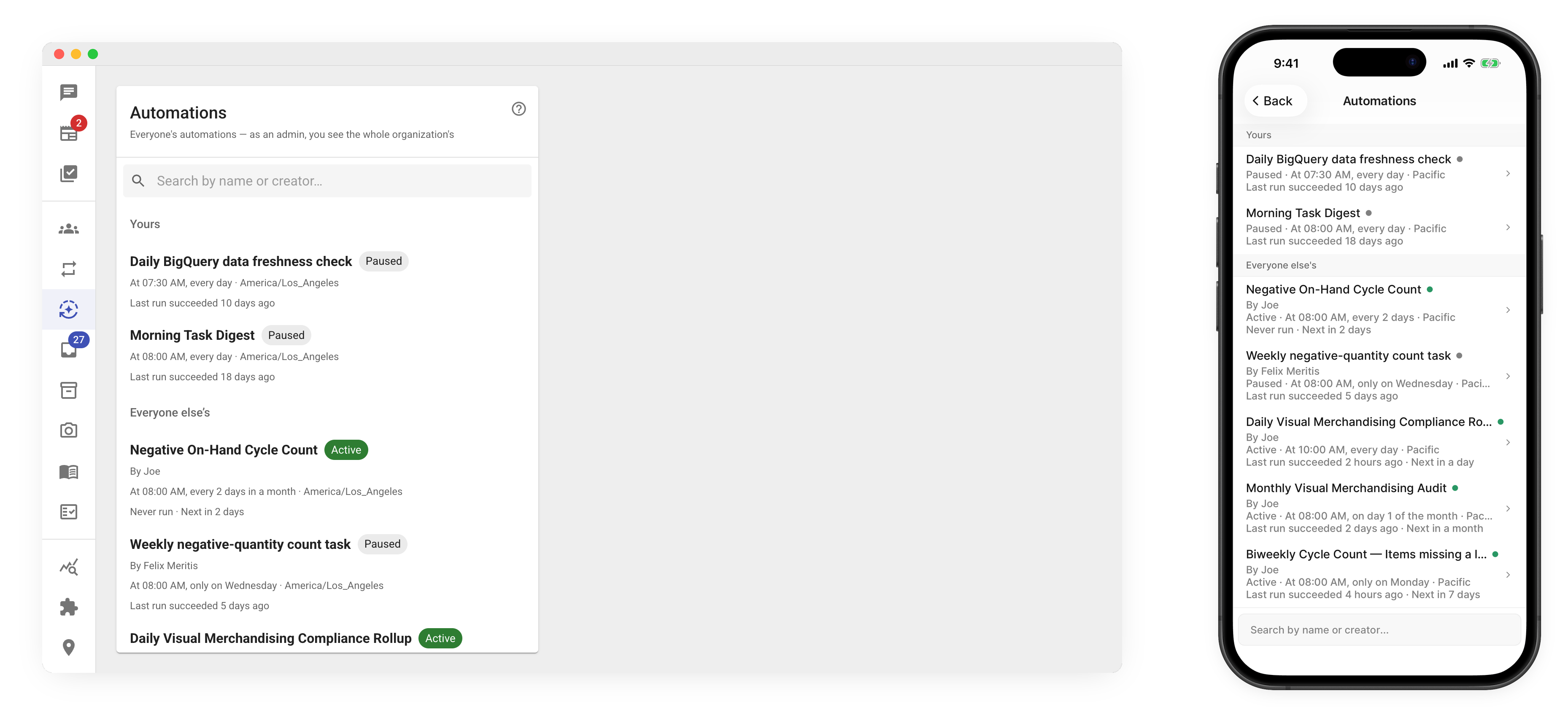
On someone else’s automation, an admin can do three things:
- Pause it (and unpause later) — the emergency stop when an automation is misbehaving and its creator isn’t around.
- Copy it — this opens a form pre-filled from the original; saving creates the admin’s own automation, which from then on runs with their access, on their budget, with results going to them.
- Delete it — but only when its creator has left the organization. While the creator is still around, deleting their automation is theirs to do.
Editing and running someone else’s automation stay creator-only, always.
When someone leaves the organization, their automations stop running and show up to admins marked “Owner left”. The admin then decides each one’s fate: delete it if the job died with the person, or copy it to take the job over under their own name.