

Working Across Multiple Stores
If your company runs more than one facility, FastQuery lets you choose which stores you’re looking at. The AI chat, the Tasks screen, and the Newsfeed each have a location selector. This page explains how they work, what you can see, and what the app remembers. If you have a single store, you can skip this page — everything simply shows your store.
Your Home Store
Section titled “Your Home Store”Every user has a primary facility — your home store, the place you work most of the time. Chat, Tasks, and the Newsfeed all start out showing just your home store.
You can’t change your own home store — only an admin can, on the User Management page (see Facilities). That’s deliberate: your home store isn’t just a viewing preference. Permissions hang off it — for example, it decides where a User-role teammate can create and manage tasks — so moving it is an access decision, the same kind as assigning someone to a facility. If you’ve moved to a different store, ask your admin to update your Primary Facility.
You Only See Your Own Stores
Section titled “You Only See Your Own Stores”Every store list in FastQuery is limited to the facilities you’ve been given access to. Most team members see only the store or stores they’re assigned to; admins see every store in the company. This isn’t just cosmetic — even a hand-typed request for another store’s data is refused. If a store you need is missing from your pickers, ask your admin to grant you access to it.
Tasks and the Newsfeed: the Facility Picker
Section titled “Tasks and the Newsfeed: the Facility Picker”The Tasks screen and the Newsfeed share the same picker. You’ll find it behind a map-pin button:
- On the web — in the Newsfeed it’s the button next to the search box, labeled with what you’re currently viewing (“All facilities”, a store name, or “3 facilities”). In Tasks it’s the map-pin icon in the toolbar; it only appears if you have access to more than one store.
- In the mobile app — the map-pin button at the bottom of the Tasks and Newsfeed screens.
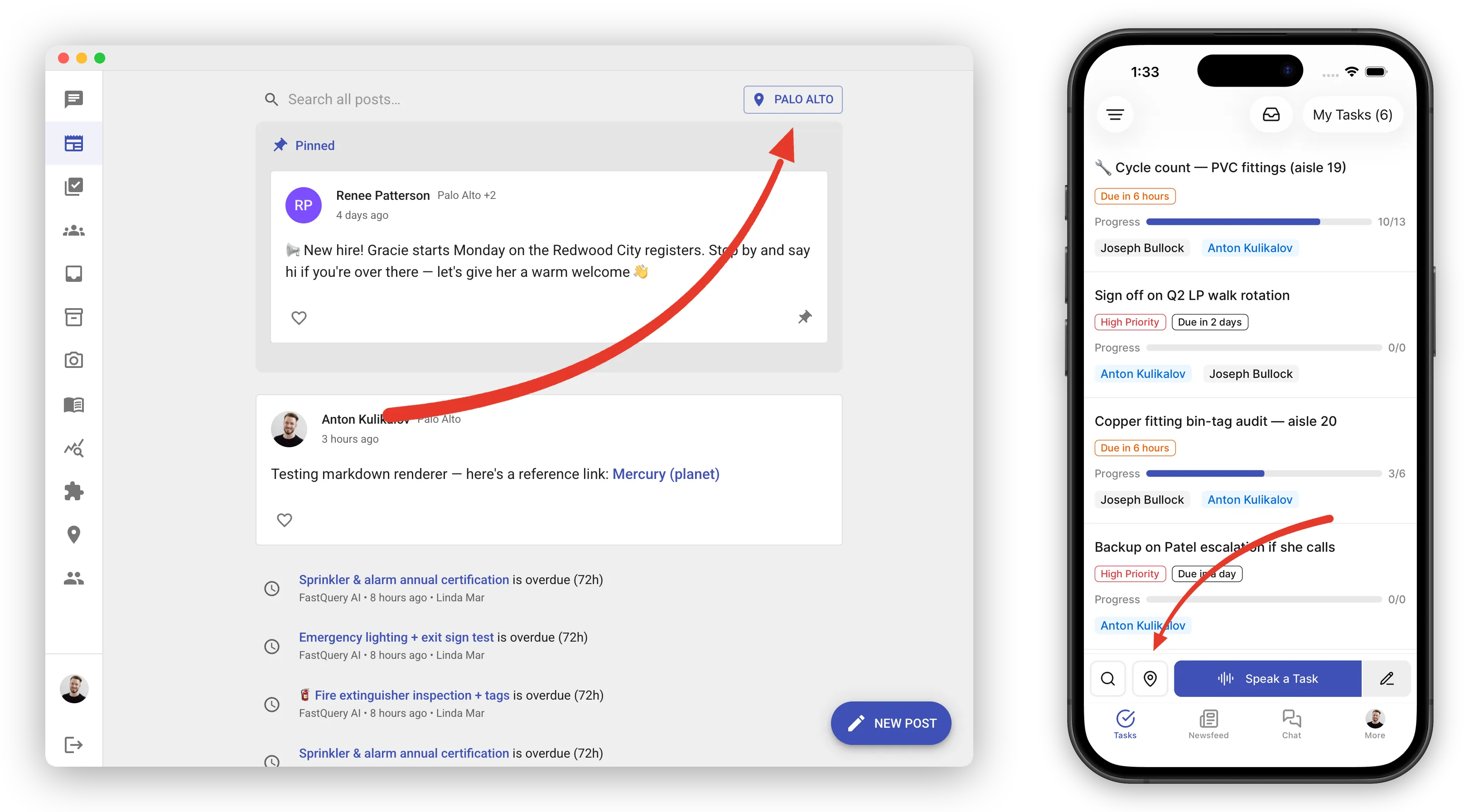
The picker itself is a checklist:
- All facilities — one checkbox at the top that selects everything.
- Recent — the last few store combinations you applied, ready to reuse with one tap.
- The full store list, A to Z, with your home store marked Primary. Check any combination you like, or use the search box to find a store by name.
Your choice takes effect when you close the picker.
What the choice affects
Section titled “What the choice affects”- Newsfeed — you see posts addressed to at least one of the stores you’re viewing. When you’re viewing specific stores, a new post you compose starts out addressed to those same stores.
- Tasks — the Unassigned, Taken, and Closed lists narrow to the stores you picked. My Tasks is the exception: it always shows your own tasks from every store, so your plate follows you no matter what’s picked.
What the app remembers
Section titled “What the app remembers”- On the web, your store choice is kept in the page’s web address. Refresh the page and it stays; bookmark the page and the bookmark opens with the same stores; a fresh tab starts back at your home store.
- On your phone, the two screens behave differently on purpose. Tasks remembers your choice even after you close the app — a manager’s phone keeps its region view, a store’s shared tablet stays on its own store. The Newsfeed starts fresh at your home store every time the app launches.
- Both the web and the phone remember your last five store combinations for the picker’s Recent list. That list belongs to the device, so your phone and your desk computer each build their own.
Chat: One Store per Conversation
Section titled “Chat: One Store per Conversation”The AI chat works differently — each conversation belongs to a single store, chosen when the chat starts. A new chat starts at your home store unless you pick another one. The AI treats that store as “here”: stock, prices, bin locations, and counts in its answers are about the conversation’s store. It can still look at your other stores when it’s useful — for example, if something is out of stock, it may tell you which other store has it.
To ask about a different store, start a chat there:
- On the web — click the location pin next to the New Chat button and pick the store. In a brand-new empty chat, you can also click the store name shown above the input.
- In the mobile app — on a new chat’s empty screen, tap the store badge; or open the menu in the chat header, where the store name appears with a map-pin icon. Either opens a store list to pick from.
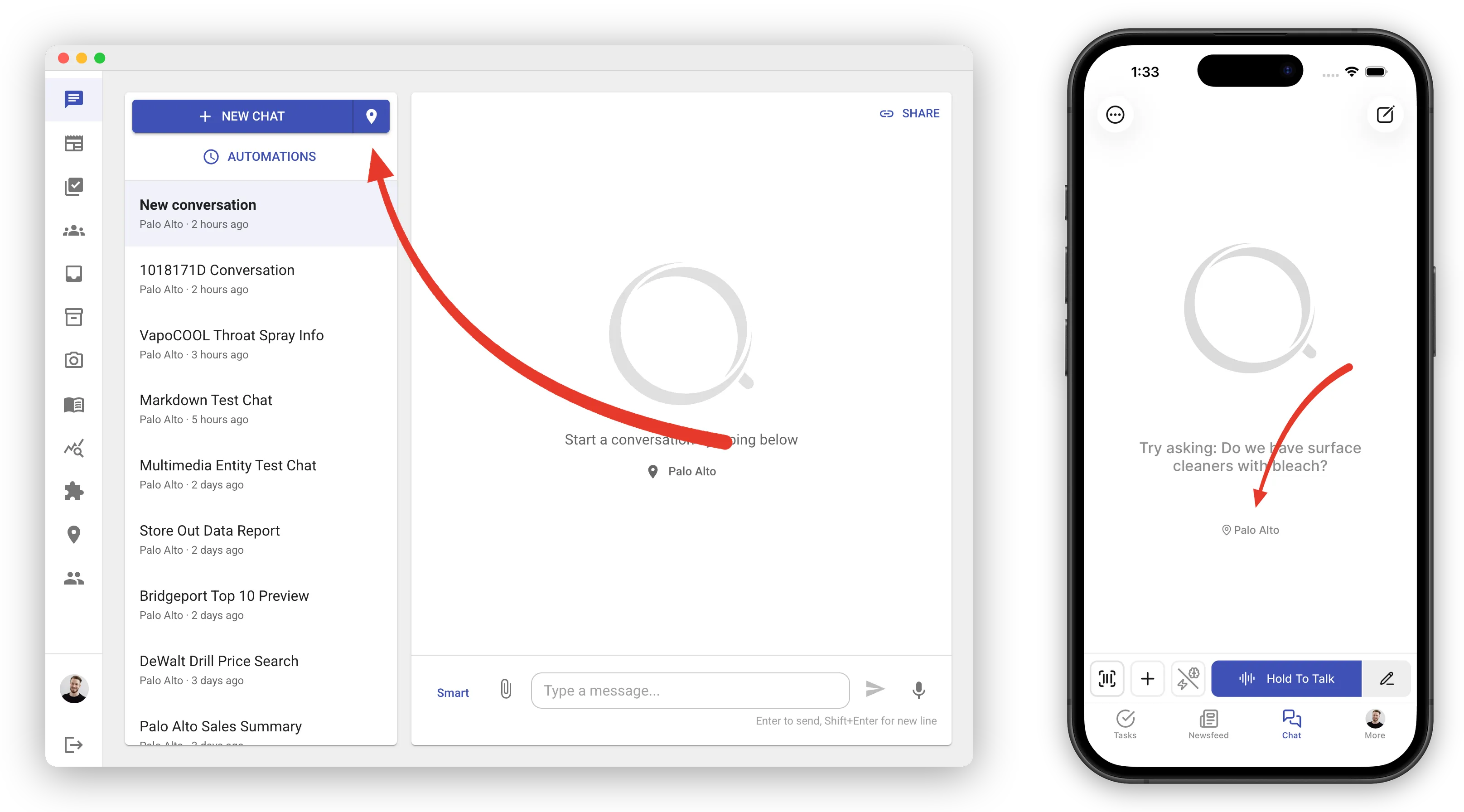
A conversation’s store can’t be changed after the fact — picking a different store simply starts a fresh chat there. The store is saved with the conversation itself, so reopening an old chat on any device brings back the same store. Your conversation history keeps chats from every store, each labeled with its store name.