

Completing Your Profile
The first time you sign in, FastQuery walks you through a short profile setup. Everyone does this — admins and invited team members alike — and the app unlocks once you finish. It only takes a minute or two.
You’ll set your name and photo, tell FastQuery about your job so it can tailor itself to you, and pick the hours you’re on shift. You only do this once: finish on any device and you’re set everywhere.
The role interview
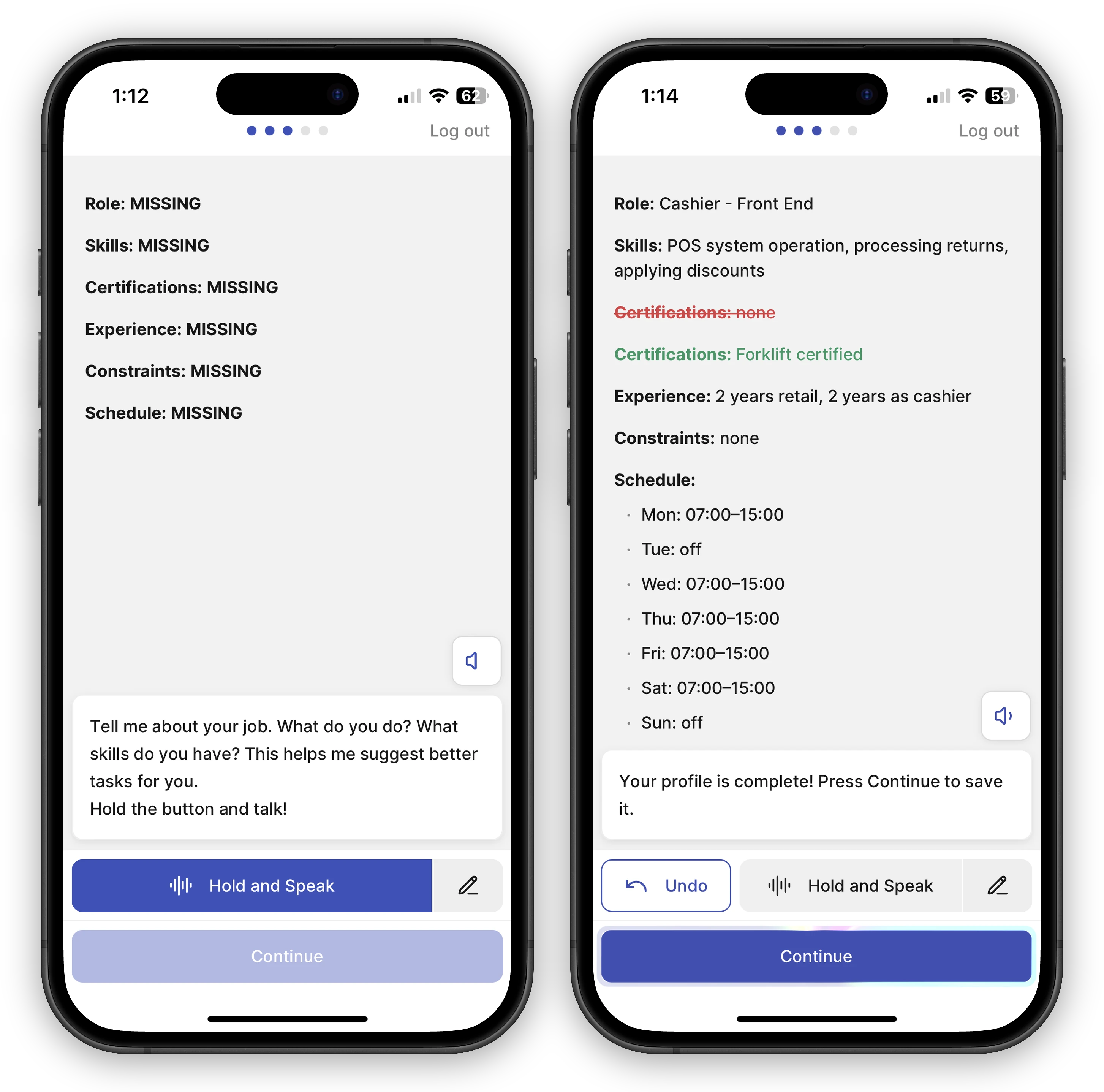
Section titled “The role interview”The heart of the setup is a quick conversation about what you do. FastQuery asks about your job — for example, “What’s your role at the store, and what do you spend most of your day on?” — and you answer out loud or by typing. It listens, asks a follow-up question or two until it has a clear picture, and then Continue becomes available.
There’s no wrong answer here. The more naturally you describe your work — “I run the paint counter and handle special orders” — the better FastQuery tunes its answers to what you actually do.
Your work schedule
Section titled “Your work schedule”You’ll also set your work schedule — the hours you’re normally on shift. FastQuery uses this to decide when to send you push notifications, so you’re not pinged about tasks and updates when you’re off the clock.
On a phone you can also turn on the option to snooze notifications outside your scheduled hours. You can always change your schedule later from your profile.
On a computer
Section titled “On a computer”On the web, profile setup is two quick steps: your name and photo, then the role interview. If your computer doesn’t have a microphone, you can type your answers instead — nothing is lost.
A note on screen size: the FastQuery web app is built for large screens. If you open it in a small browser window or on a phone, you’ll see a message asking you to install the mobile app instead. That’s expected — for anything on a small screen, reach for the mobile app.
On a phone
Section titled “On a phone”In the mobile app the setup is a little longer — around five steps. Along with your name, photo, role interview, and work schedule, the app asks for a few permissions so its best features work:
-
Microphone — so you can ask questions by voice instead of typing.
-
Camera — for scanning barcodes and snapping product photos.
-
Notifications — so task updates and alerts reach you during your shift.
Granting all three gives you the best experience, but you can grant them later from your phone’s settings if you skip one now.
Editing your profile later
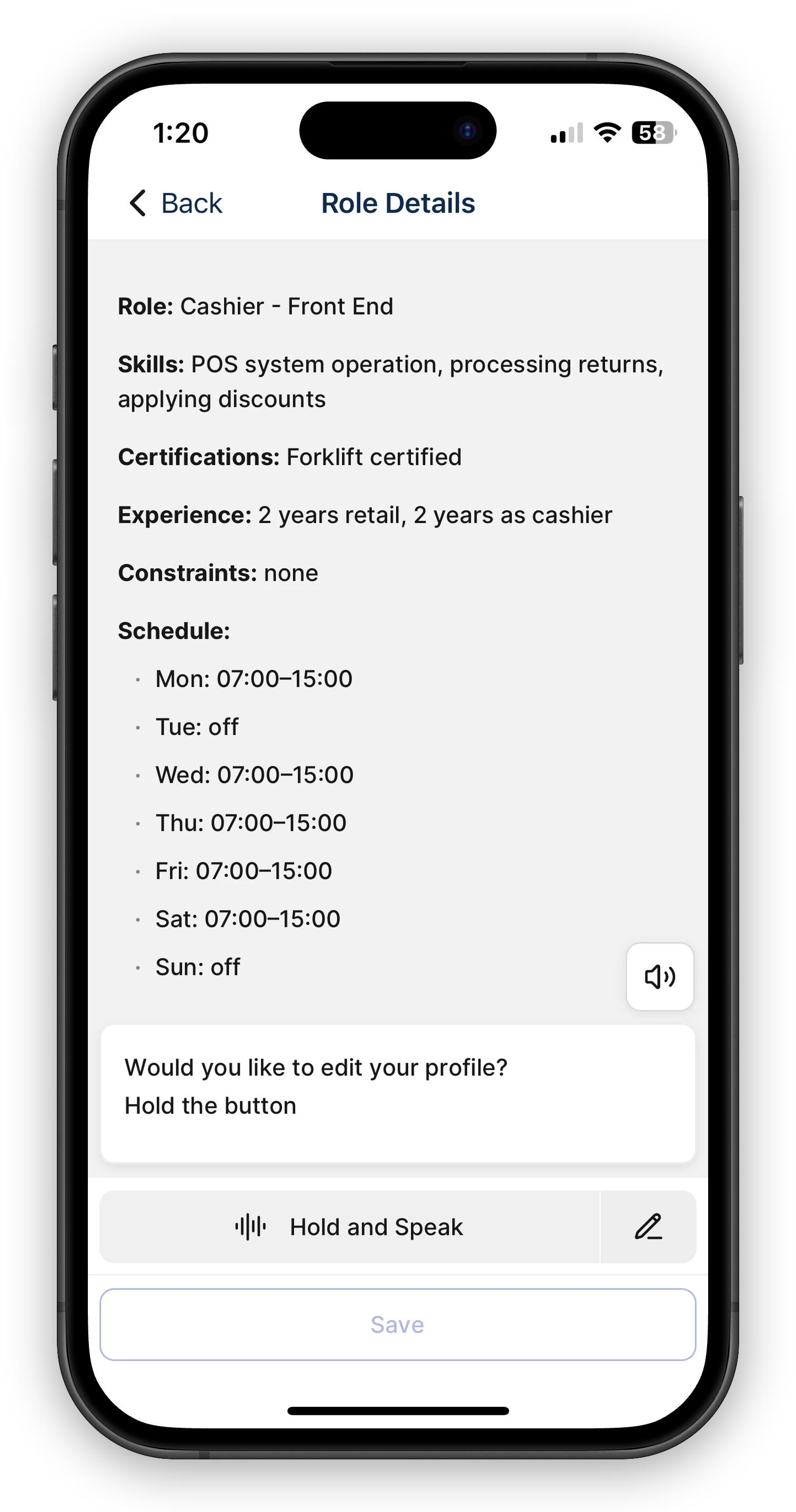
Section titled “Editing your profile later”Your profile isn’t locked in. Open your profile any time to update your name, photo, role description, or work schedule — change your hours when your shift changes, or refine how you describe your job so FastQuery’s answers stay on point.
When a manager updates it for you
Section titled “When a manager updates it for you”Your store manager can update your profile too, by asking the assistant — for example, “set Maria’s hours to Monday to Friday, 6 am to 2 pm” after a shift change, or filling in a new hire’s role and certifications from the roster. Every change made by someone else lands in your inbox as an email that names who made it and lists each field with its old and new value, so nothing changes behind your back. Managers can only edit people whose home store they manage; org admins can edit anyone. See Roles and permissions for the profiles:manage grant.