

Comments
Discuss a post right where it lives. Every user post and weekly report carries its own comment thread, on both the mobile app and the web app.
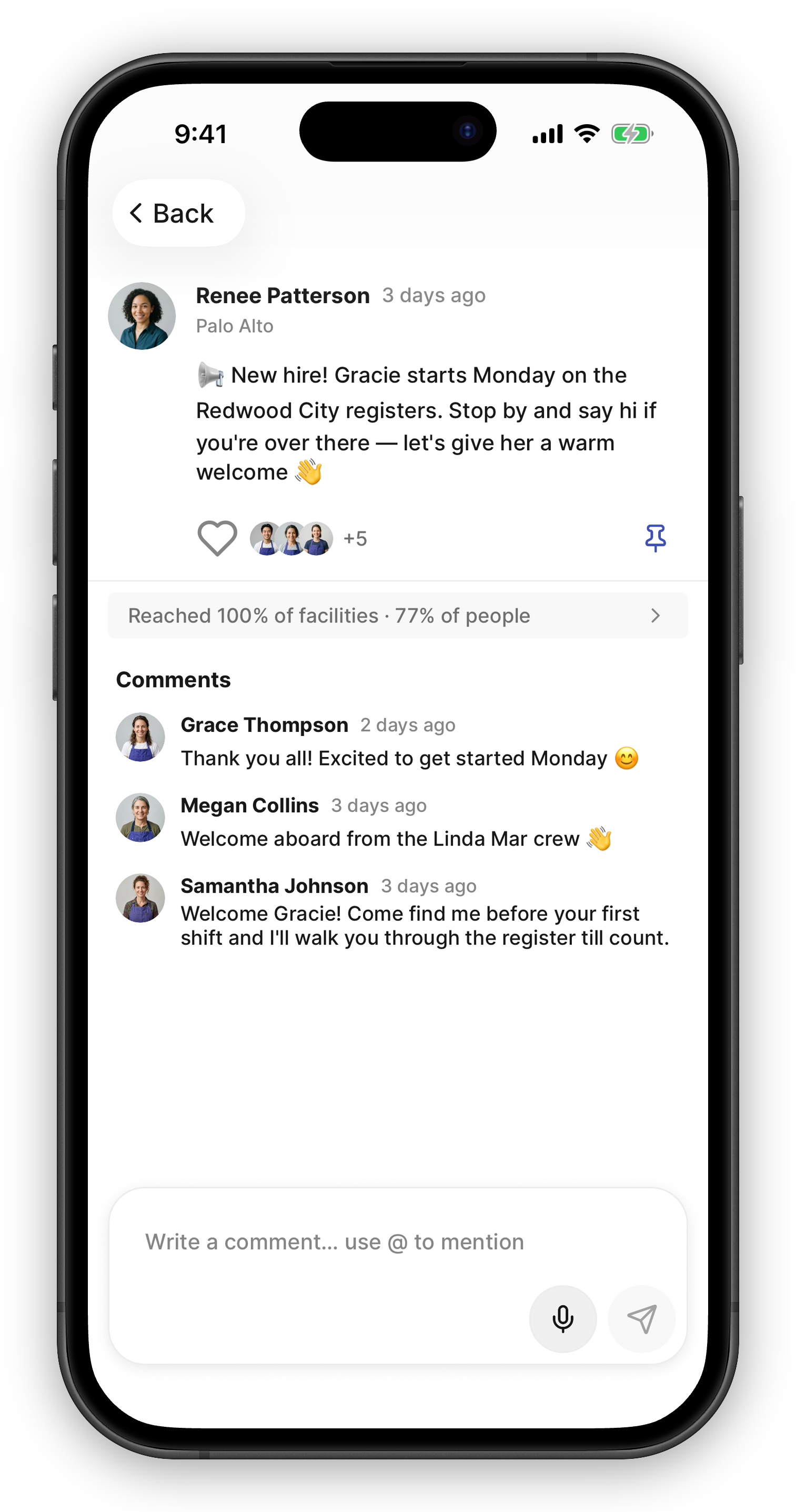
Adding a Comment
Section titled “Adding a Comment”- Every post that takes comments shows a speech-bubble icon with its comment count. Tap it (or open the post) to see the thread.
- Write your comment in the composer — on mobile it floats at the bottom of the post. Prefer talking? Press and hold the microphone on either app to dictate; release when you’re done and the transcript lands in the text field.
- Send. Your comment appears at the top of the thread — newest comments are shown first.
Comments are plain text, up to 1,000 characters.
Mentioning Teammates
Section titled “Mentioning Teammates”Type @ in the composer to bring up a list of your teammates, then pick one to mention them. Mentioned teammates get a notification that links straight to the post, so it’s the fastest way to pull the right person into a conversation.
Who Gets Notified
Section titled “Who Gets Notified”Comment notifications go out as push notifications and land in the notification inbox:
- Mentioned teammates — “mentioned you in a comment”
- The post author — “commented on your post”
- Earlier commenters — anyone who already commented on the post is kept in the loop when the conversation continues
You’re never notified about your own comments.
Editing and Deleting
Section titled “Editing and Deleting”Comments can’t be edited — delete and repost instead.
- On the web — hover over a comment and click the trash icon.
- On mobile — long-press a comment to open its menu: Copy copies the text, Delete removes it.
You can delete your own comments. Admins and anyone with post moderation at the store can delete any comment.
What Takes Comments
Section titled “What Takes Comments”User posts and weekly reports take comments. System events (automatic task updates) don’t — they’re status noise, not conversations.