

Crew
The Crew screen shows your team through the lens of their workload — who’s behind, what’s on each person’s plate, and the tools to fix it. Open it from the menu at the top of the Tasks screen in the mobile app.
Who’s Behind
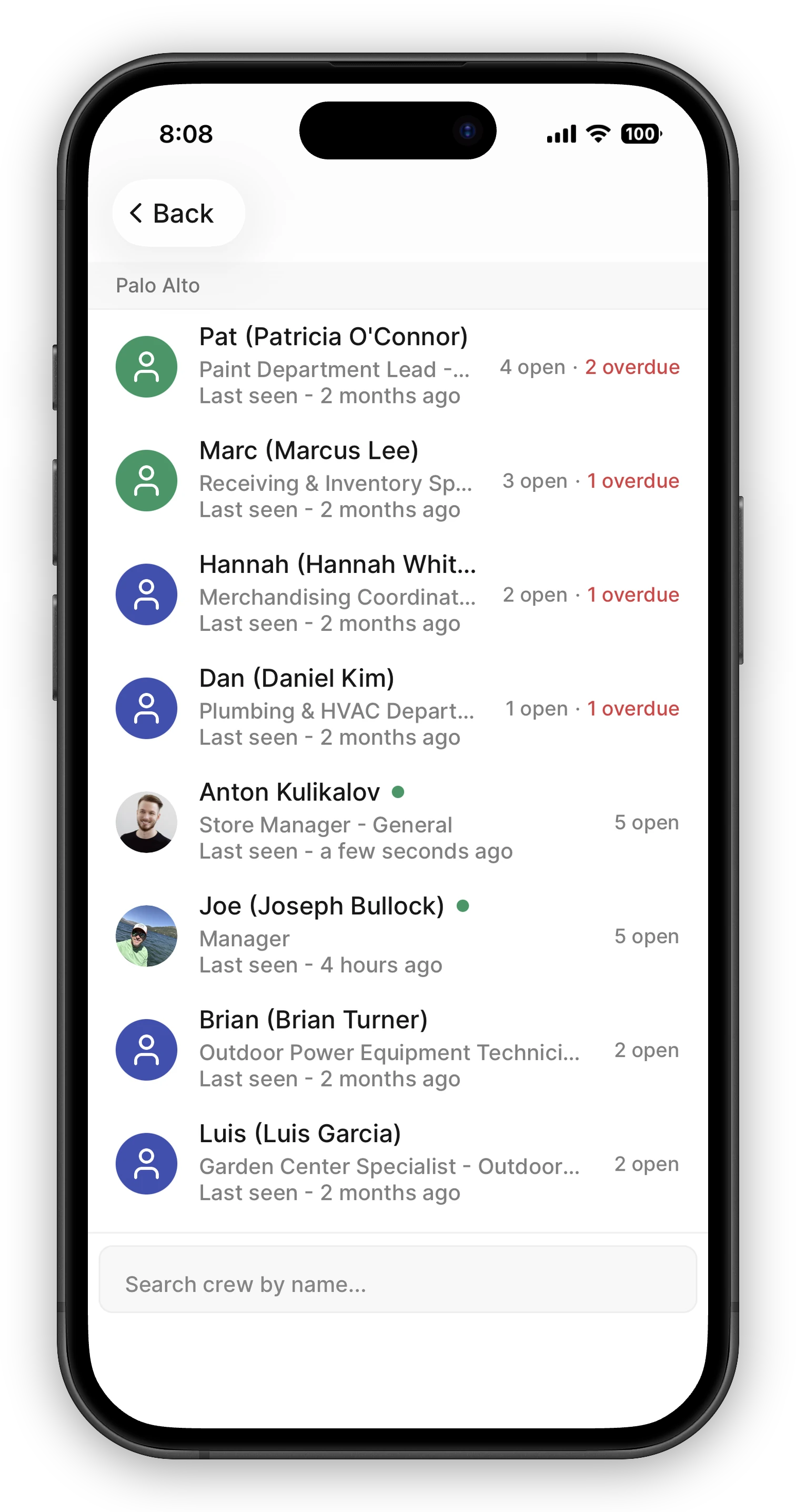
Section titled “Who’s Behind”The crew list groups your team by location and shows each person’s plate right on their row — “5 open · 2 overdue” — with the people who are furthest behind sorted to the top. Counts cover a person’s whole plate across every location you can see, so the number means the same thing everywhere. A search box finds anyone by name.
One Person’s Plate
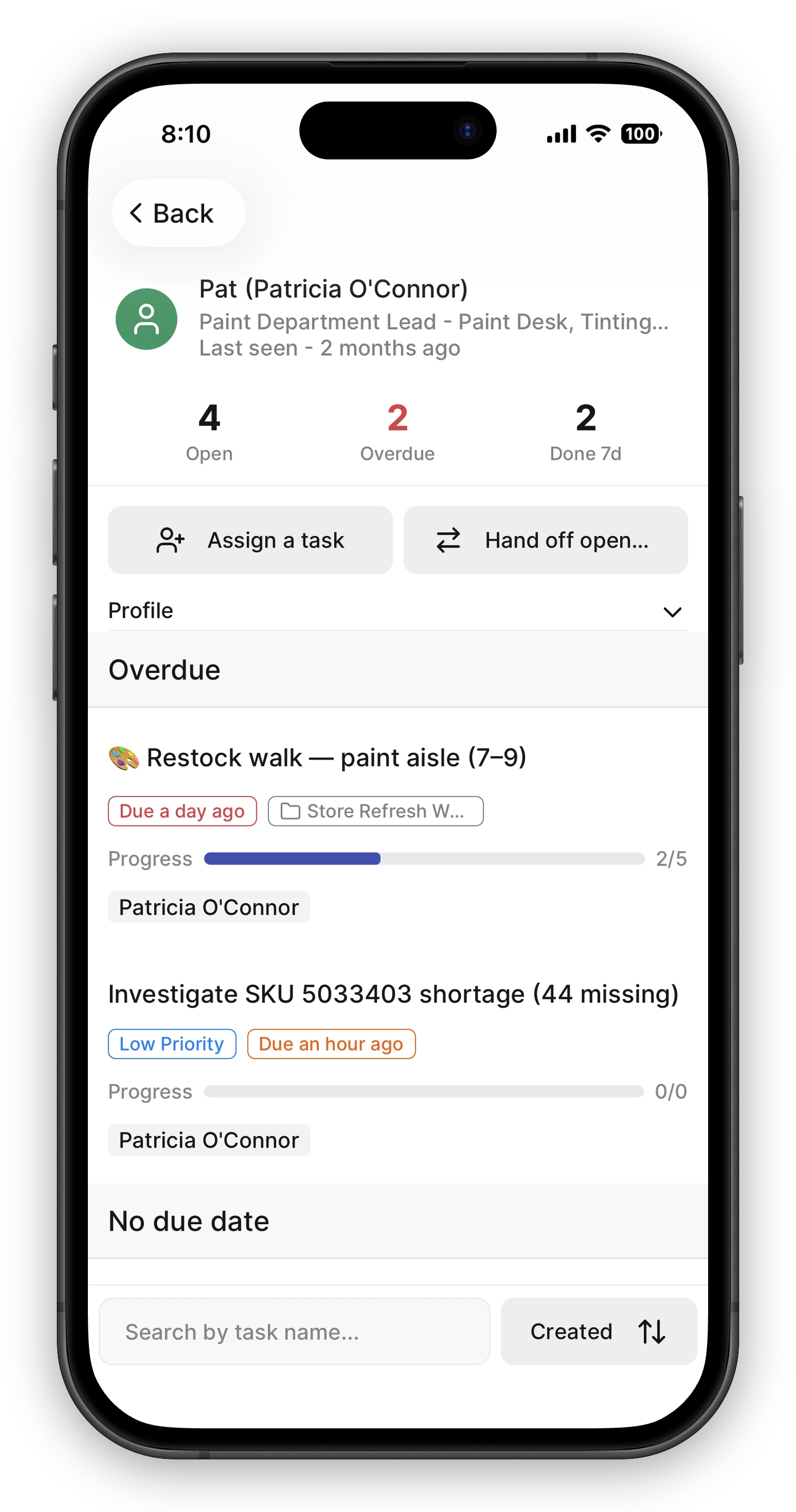
Section titled “One Person’s Plate”Tap a crew member to see their tasks. The header sums up their plate — Open, Overdue, and Done 7d (completions in the last week) — and the list below is grouped by urgency: Overdue, Today, Upcoming, and No due date, with completed tasks available too. You can search and filter within the list.
Below the stats, a profile section shows the skills, certifications, and schedule the person shared when setting up their profile — the “can I give them this task?” check, right where you assign. It appears only when the member filled that in. If it is out of date, a manager can ask the assistant to update it — see Completing your profile.
Rebalancing Work
Section titled “Rebalancing Work”If you manage tasks at the facility, the member page is also where you act:
- Assign a task — opens the task form with the person already assigned.
- Reassign / Unassign — select one or more of their tasks, then hand them to someone else or return them to the unassigned pool. Reassigning keeps any co-assignees on shared tasks.
- Hand off open tasks — moves someone’s entire open plate to one teammate in a single step. Handy any time a plate needs to move, and especially when someone is leaving — members flagged as leaving in your roster show a Departing badge on their row as a reminder to hand their work off.
Without manage permissions the page is read-only — you can still see workloads, just not change them.