

Projects
A project groups related tasks under one initiative — say “Spring Reset” or “Fire-Safety Recertification.” Where assignees say who does a task, a project says what bigger effort it belongs to. Filter your task list down to one project, track its progress across your team, and — if you run multiple stores — roll it out and see exactly which stores are done and which are behind.
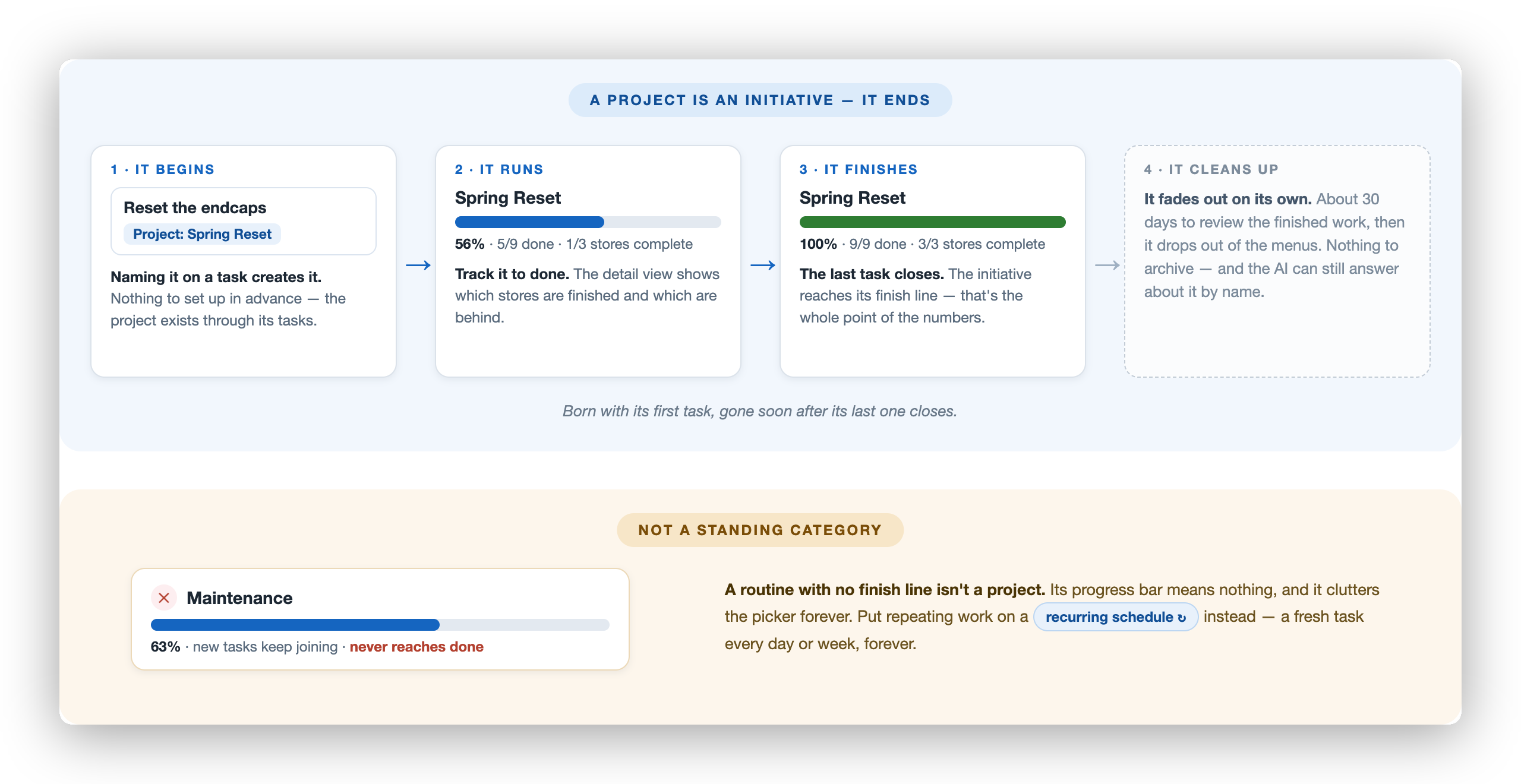
A project is a one-time effort with a finish line, not a standing category. It exists through its tasks — born when the first task names it, tracked to 100%, and gone from the menus soon after the last task closes. Work that repeats forever — cleaning, maintenance, weekly walks — belongs on a recurring schedule, not in a project.
Adding Tasks to a Project
Section titled “Adding Tasks to a Project”- On the task form or task detail — pick an existing project or type a new name. There’s nothing to set up in advance; naming a project creates it.
- In bulk — select several tasks in the list and add them all to a project in one go.
A task belongs to at most one project, and any kind of task can join — plain to-dos, counts, recurring tasks.
Filtering by Project
Section titled “Filtering by Project”The menu at the top of the Tasks screen lists your projects, each with its count of active tasks. Pick one and every view narrows to that initiative — the list shows the project’s active and completed tasks together, so you see the whole effort in one place. Pick All Projects to widen back out.
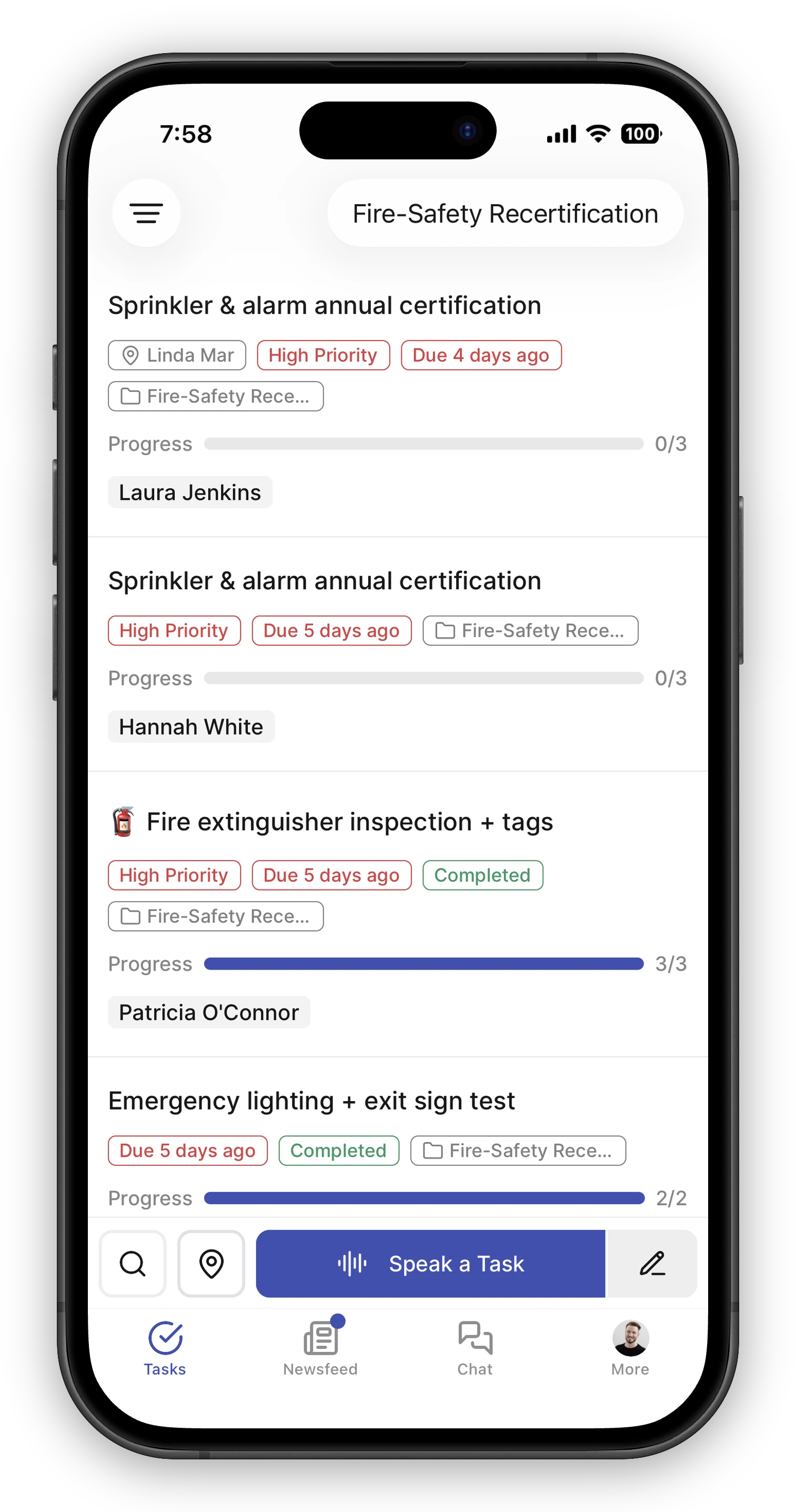
Tracking Progress: the Overview Screen
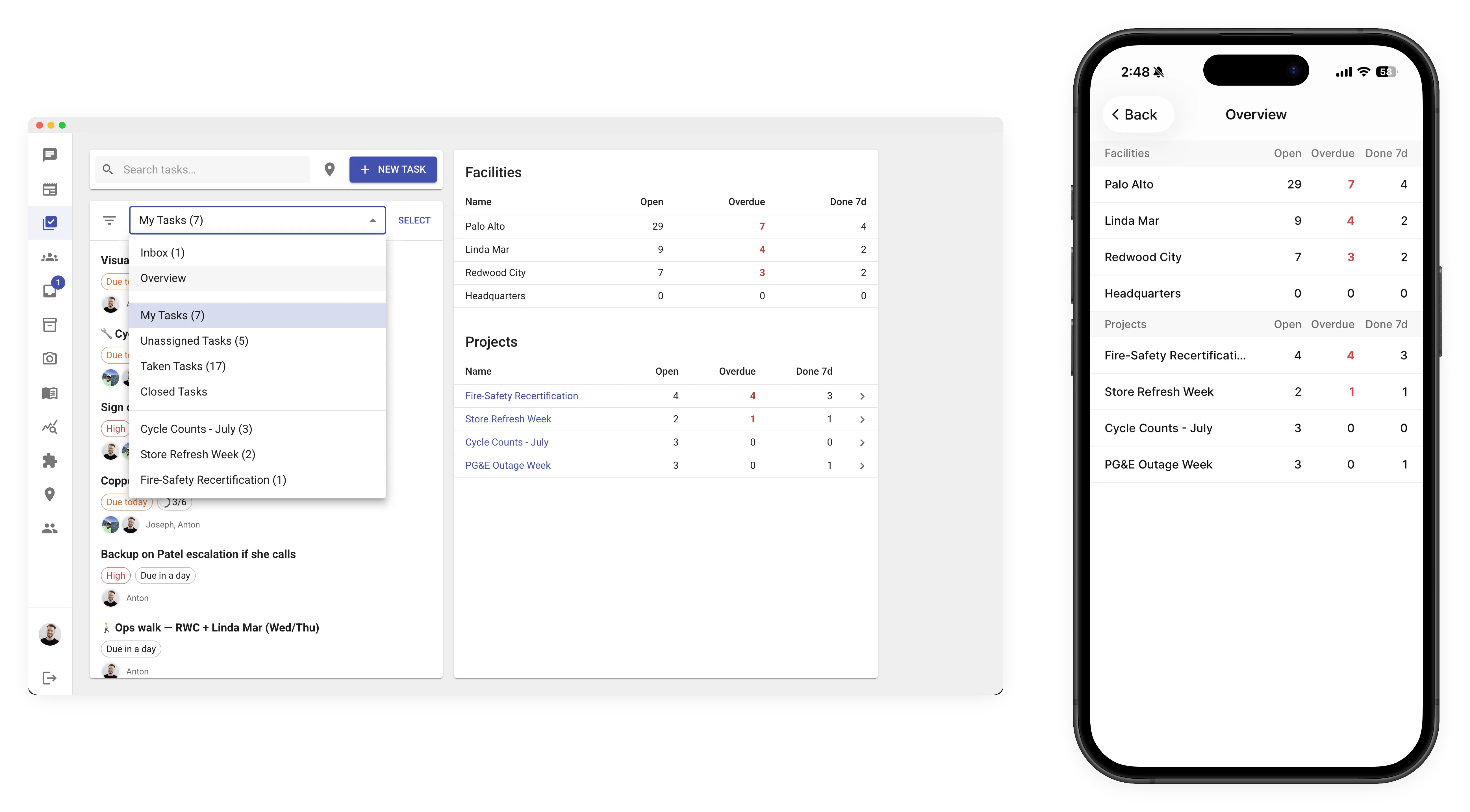
Section titled “Tracking Progress: the Overview Screen”The Overview shows how work is distributed: two breakdowns — one row per facility and one row per project — each with open tasks, overdue tasks, and completions from the last 7 days. On the web it sits right next to the task list; on mobile, open Overview from the Tasks menu. It’s the quickest answer to “where are we behind?” The whole team also gets a weekly pulse like this on the newsfeed — see Weekly Reports.
Which Stores Are Behind: the Project Detail
Section titled “Which Stores Are Behind: the Project Detail”Tap a project on the Overview screen to open its detail — the accountability view for a multi-store initiative.
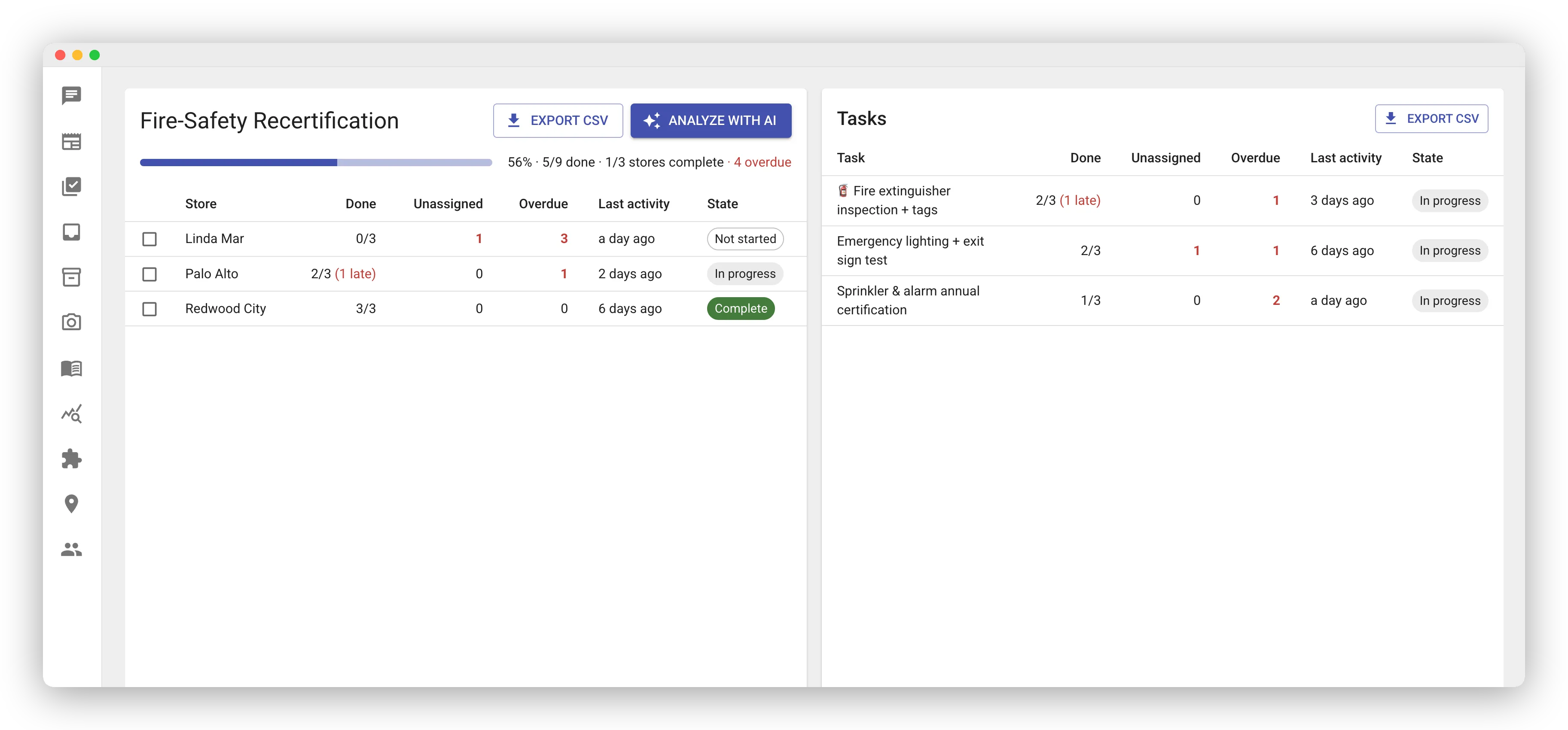
The header sums it up: a completion bar with done/total counts, how many stores are fully complete, and the overdue total. Below it, the same work is broken down two ways:
- By store — each participating store’s row shows tasks done (flagging any completed late), open tasks still unassigned (nobody has even picked up the work), overdue count, last activity, and a state chip: Complete, In progress, or Not started. Stores that are furthest behind are easy to spot at a glance.
- By task — the same rollout viewed per task, so you can tell a struggling store from a stuck task. If one task is open in most stores, the task is the problem, not the stores.
The two tables work together: point at (or check) a store row and the task table narrows to just that store’s breakdown. Click a store row to jump to its full task list, filtered to that project and store.
Export CSV on either table downloads the numbers for your own reporting.
On mobile, the Overview screen offers the same drill-down: tap a project to see its per-facility breakdown, then a facility to see its tasks.
Analyze with AI
Section titled “Analyze with AI”The numbers say which stores are behind; the Analyze with AI button asks the assistant why. It opens a chat that reads the same breakdown plus the tasks’ comments, and reports back — for example, that three stores are all blocked on the same vendor, or that one store hasn’t assigned the work at all.
You can also just ask in any chat, any time:
- “How’s the Fire-Safety Recertification going?”
- “Which stores haven’t finished the spring reset, and what’s holding them up?”
Rolling Out a Project to Multiple Stores
Section titled “Rolling Out a Project to Multiple Stores”If you manage more than one store, you can roll out a project: select its tasks in the list and use Roll out to copy them to the stores you choose. The project detail above then tracks every store’s progress against the same set of tasks.
How a rollout behaves:
- Roll out appears only if you manage tasks at two or more stores, and it lights up when the selected tasks all share one project — the project is what a rollout fans out.
- Each store receives its own copies. Title, description, priority, due date, checklists, and attachments all carry over; checklists arrive with every item unchecked. Copies arrive unassigned so each store’s manager decides who does the work; teammates active in the app at that store get a single notification that new project tasks landed, and everyone else simply sees them in the Unassigned list.
- Safe to run again. A store that already has active tasks in the project is skipped, so re-running the same rollout with a wider store list only fills in the stores you added — no duplicates. The flip side: a store mid-project won’t pick up tasks you add to the project later; late additions need their own tasks at those stores.
- You see the result per store. When the rollout finishes, each chosen store shows either how many tasks it received or that it was skipped because it already had the project — so you know exactly what landed where. A rollout copies up to 100 selected tasks at a time.
- Count and product-list tasks stay home. They’re tied to one store’s SKUs, so they’re skipped from a rollout; the plain tasks in the selection fan out normally.
- Private tasks don’t roll out. A rollout hands copies to other stores’ teams — the opposite of a private task’s promise — so a selection that includes one is refused. Remove the private task from the selection and roll out the rest.
- Per-person copies roll out once. A task that was created as a separate copy for each person counts as one task — each store receives a single unassigned copy, not one per original assignee.
When a Project Ends
Section titled “When a Project Ends”Projects clean up after themselves. While a project has active tasks it appears in pickers and filters with its count; once the last task closes it lingers for about 30 days (without a count) so you can still review the finished work, then drops out of the menus on its own. There’s nothing to archive — and you can always ask the AI about a past project by name.
Projects vs. Copies per Person
Section titled “Projects vs. Copies per Person”These solve different problems. Assigning a task to several people with “a separate copy for each” hands the same to-do to each person (see Assigning More Than One Person); a project bundles different tasks that serve one goal. They combine naturally — a copied-per-person task can belong to a project, and it joins with all its copies.