

Form Recipes
This page gives step-by-step setups for common evaluations. Each recipe combines a form with a recurring task. Some add private answers or run at several stores at once.
Find your case in the table, then follow that recipe:
| Your case | Recipe |
|---|---|
| The crew scores each other — peer reviews, sales observations between co-workers | Peer observation, private |
| A manager or mystery shopper scores each cashier or associate | Manager observation round |
| Inspect many units — fire extinguishers, ladders, forklifts, propane cages | Equipment inspection round |
| Run the same walk or audit at every store | Multi-store audit |
| Log a reading every day — freezer temperature, gauge pressure | Daily readings log |
Every recipe follows the same pattern. You build one task with a form on it. A schedule creates a fresh copy on your cadence. All the fills, across every copy, collect into one series on the Form Results page.
Peer Observation (Private)
Section titled “Peer Observation (Private)”Use this recipe when associates evaluate each other. Example: each sales associate observes one co-worker every week — did they greet the customer, did they offer an add-on. The observed co-worker must not read the observation about them. That keeps honest answers and avoids conflict in the crew.
The setup has two owners. Whoever runs the program — an executive or an admin — owns the form: one recurring task that lands at every store. Each store manager owns the people: a line in every associate’s personal weekly task reminds them to do their observation. Neither side maintains the other’s setup.
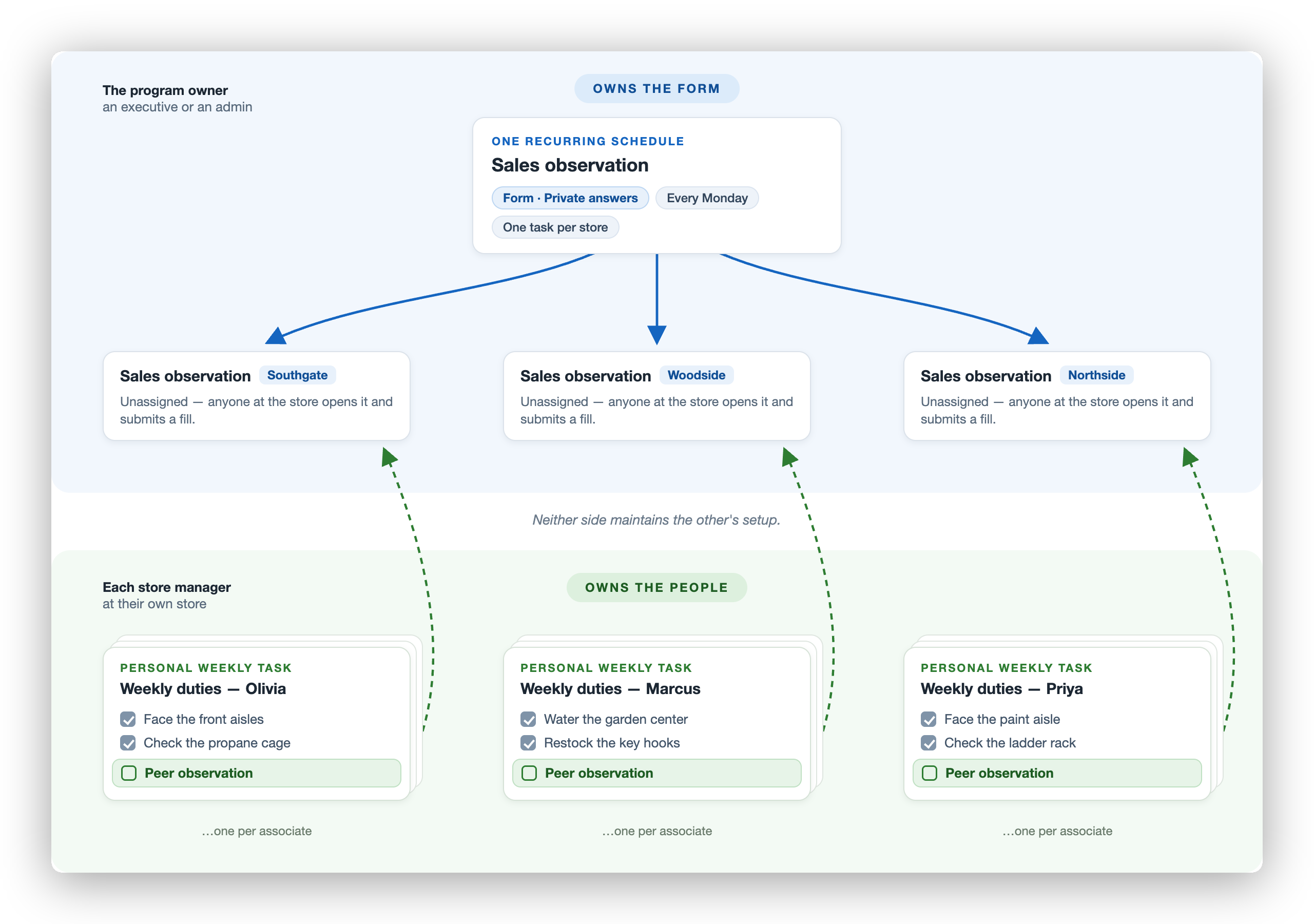
What you set up: one weekly recurring task with a form, Private answers turned on, rolled out one task per store and left unassigned; one checklist line in each associate’s personal weekly task; the forms:review permission for whoever reads the results.
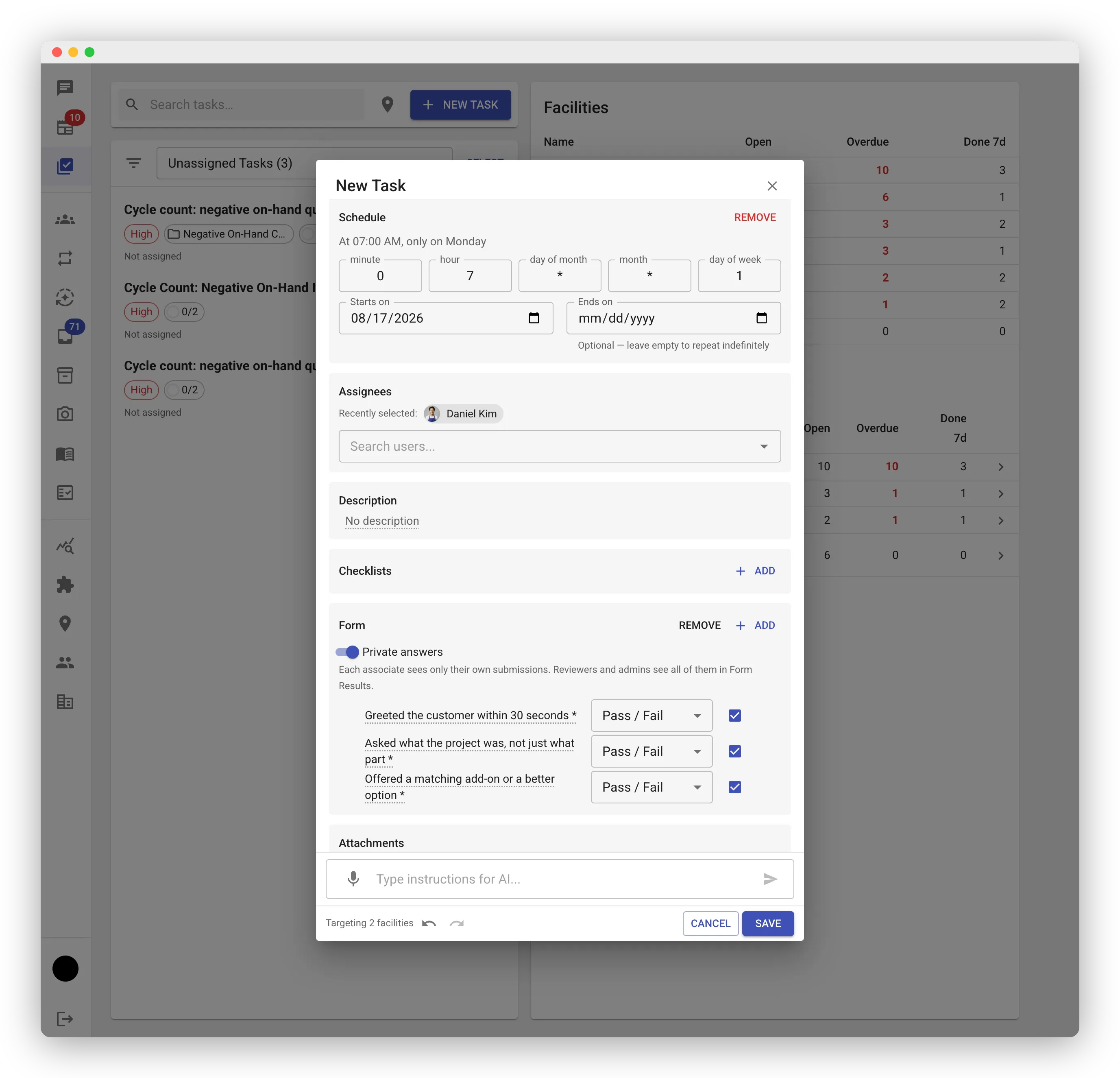
Steps for the program owner:
- In the web app, create a task. Name it after the evaluation, for example “Sales observation”.
- Add the form questions. Keep it short — a few pass/fail lines, a rating, and a text question work well.
- In the Form section, turn on Private answers.
- Pick every store that runs the program (see One Task per Store). Leave the assignees empty — the crew fills through store access, and everyone active at a store gets a heads-up when its copy appears.
- Set the due date. For a Monday-to-Sunday week, set it to the coming Sunday.
- Open the Schedule section and set the repeat: weekly, Monday morning. Save the task.
- In Roles and Permissions, grant
forms:reviewat each store to its reviewing manager. Admins can already review everything.
Steps for each store manager:
Add one line to every associate’s personal weekly task: “Peer observation — open the Sales observation task and submit one fill about a co-worker.” A new hire picks the line up automatically when their weekly task is cloned from a teammate’s. That is all — the form task needs no assignment and no roster.
Or ask the AI: “Set up a weekly sales observation form, one task per store at every store, created Monday morning and due Sunday. Make the answers private.”
Keep the form itself off the personal weekly tasks. The store task is the form’s one home, so every fill from every store lands in one series. A form copied onto personal tasks scatters the results into small disconnected series that never line up.
How it runs:
- Every Monday each store gets its own “Sales observation” task, unassigned. Everyone active at the store gets a “New task available” heads-up.
- Each associate’s personal weekly task carries the reminder line. They open the store task, start a submission, pick the observed co-worker as the subject, answer, submit, and check their line off.
- All the store tasks feed one series. Each associate sees only their own answers; the fill counts stay visible.
- The reviewing manager reads every fill on the Form Results page; the facility column shows each fill’s store. To find who skipped a week, compare the names on that week’s fills against the crew.
- A store task nobody filled goes Missed when next Monday’s copy appears. That record is per store; per-person skips show up as missing names on Form Results and unchecked lines on the personal tasks.
Good to know:
- No roster lives on the form schedule. Hiring and offboarding touch only the personal weekly tasks at the store.
- Private is not anonymous. Reviewers see who wrote each fill. Tell the crew this up front.
- The privacy promise is permanent: once the form has a submission, Private answers cannot be turned off.
- The AI answers with what you can see: reviewers and admins get the actual answers, everyone else gets the fill count only.
- The store’s weekly report shows counts only. The full submissions ride the executive summary, so set up an executive channel if leadership should see them.
At a Single Store: One Copy per Person
Section titled “At a Single Store: One Copy per Person”Running the program at one store only? You can point the schedule at people instead of stores, so it hands each associate their own copy of the observation task. Each person then gets a personal reminder and a personal Missed record, with no separate weekly-task line needed.
Set it up as above, with two changes: pick every sales associate as an assignee, and choose a separate copy for each person when asked:
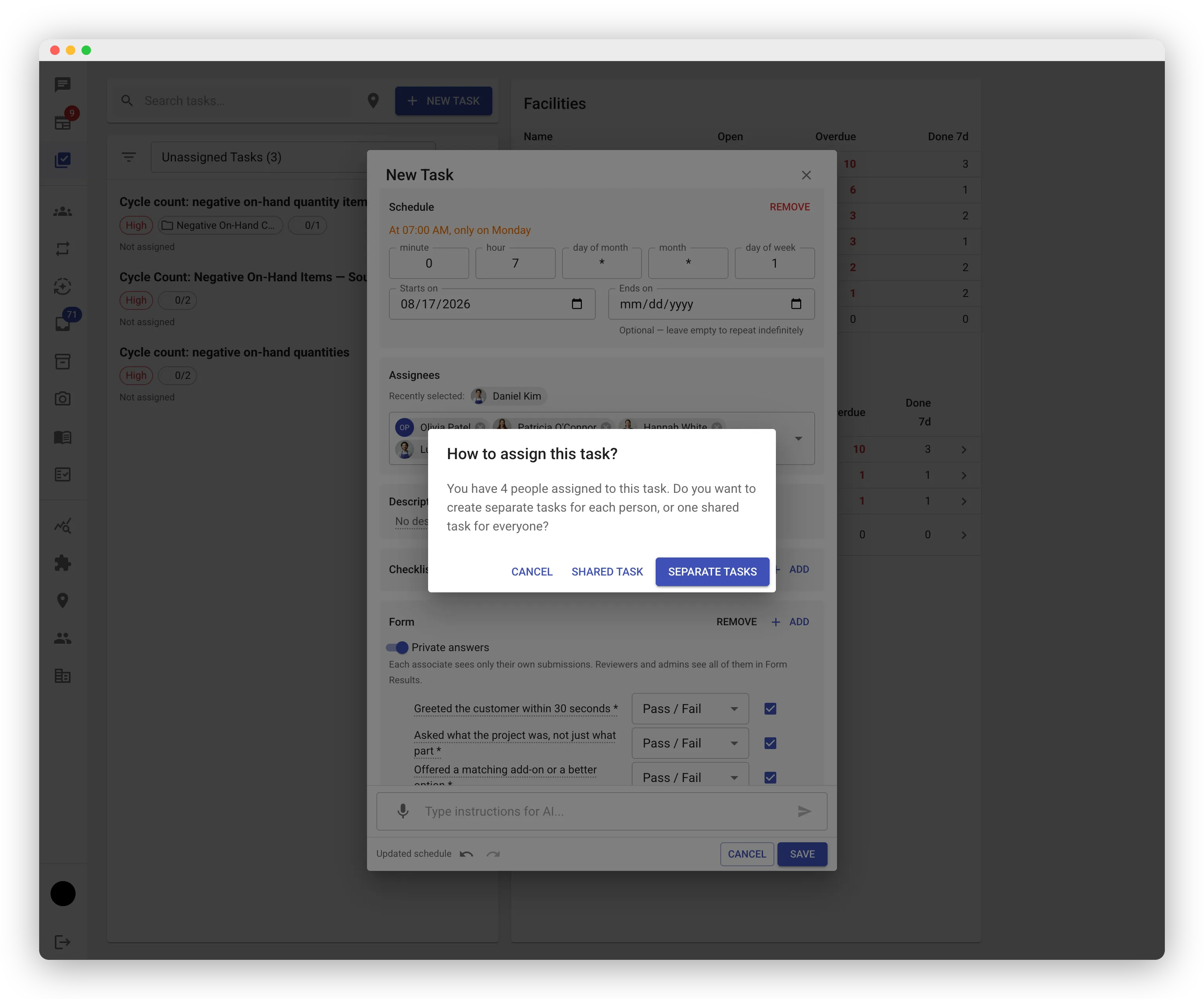
Do not choose one shared task for the whole crew. Any assignee can complete a shared task, and one early tap closes the week’s work for everyone. Separate copies complete one by one.
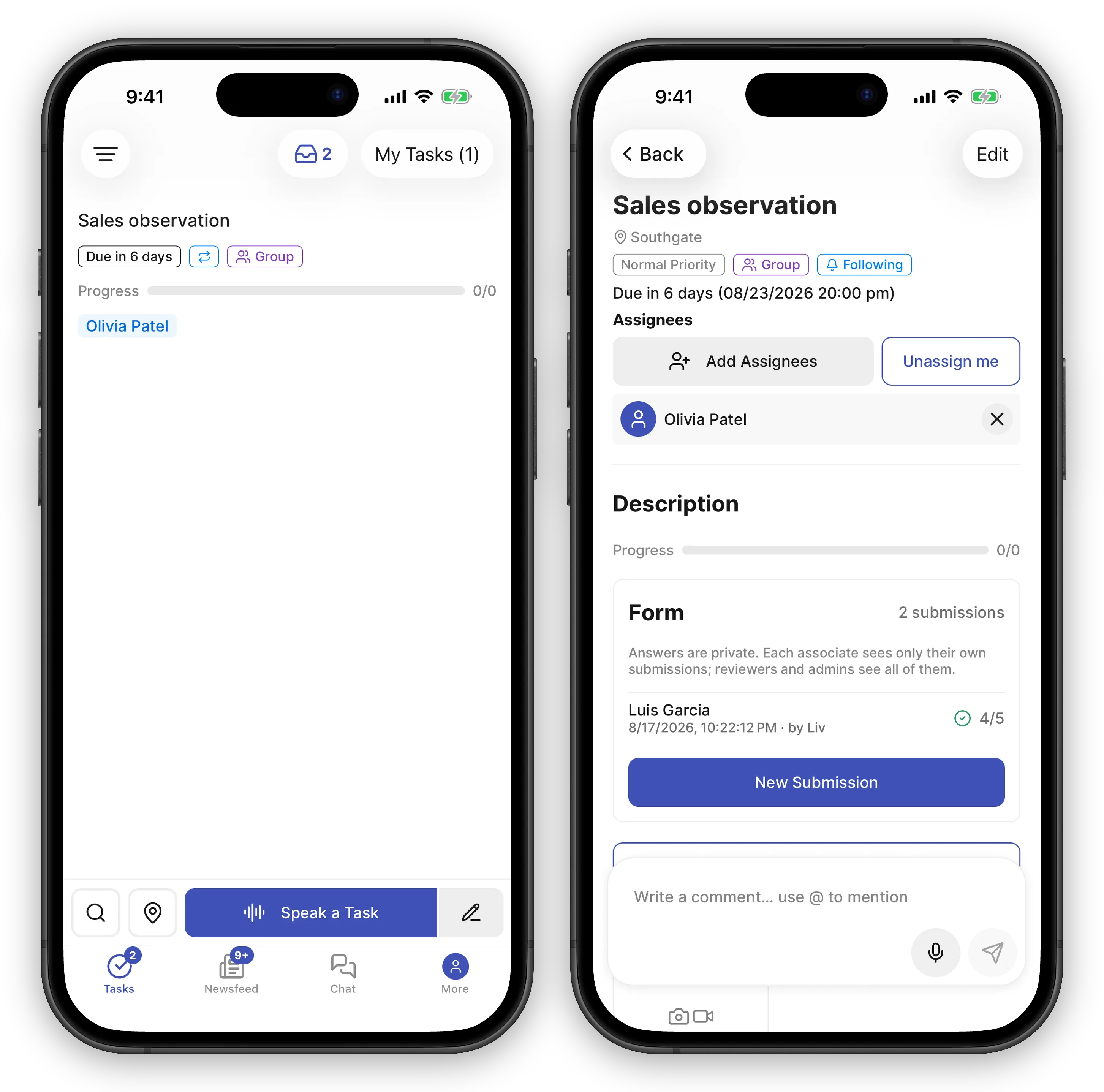
- Every Monday each associate finds their own copy in My Tasks, due that Sunday. Due-date reminders reach each person on their own task.
- All the copies feed the same series. A copy nobody completed goes Missed — an honest, per-person record of a skipped week.
- When someone joins or leaves the team, edit the schedule’s assignees on the Recurring Tasks screen. The change applies from the next firing.
Or ask the AI: “Set up a weekly sales observation form at Hayward. Every sales associate gets their own copy each Monday, due Sunday. Make the answers private.”
Manager Observation Round
Section titled “Manager Observation Round”Use this recipe when one evaluator scores every person on the team. Example: a monthly cashier observation, or a mystery-shopper round. One task per month; the manager adds one fill per cashier.
Steps:
- Create the task and its form on the web, as above.
- Set the repeat to monthly.
- Assign the task to the evaluator only.
During the round, the evaluator starts one submission per person and picks that person as the subject. Separate fills per person are what build individual score histories — resist bundling three cashiers into one fill.
If the crew should not read their own or each other’s scores, also turn on Private answers. Without it, anyone who can see the task can read every fill. The evaluator needs no extra permission — they wrote the fills, so they always see their own. Grant forms:review only to other people who should read the results, as in the peer recipe.
Or ask the AI: “Create a monthly cashier observation form at Woodside, assigned to Maria. One fill per cashier. Keep the answers private.”
Equipment Inspection Round
Section titled “Equipment Inspection Round”Use this recipe when the same checks apply to many physical units. Example: monthly fire extinguisher checks, ladder inspections, or a forklift walk-around.
Steps:
- Create the task with a form: pass/fail lines for the checks, a number question for any reading (gauge PSI, hours), and a photo question for proof.
- Set the repeat — monthly for extinguishers, daily for a forklift pre-use check.
- Assign it to whoever walks the round.
The inspector starts one submission per unit and types the unit as a text subject — “Receiving dock unit”, “Paint aisle 8”. Use the same labels every round, so each unit builds its own history on Form Results. Answer N/A on lines that do not apply; pass rates skip N/A automatically.
Or ask the AI: “Set up a monthly fire extinguisher inspection at Hayward with pass/fail checks for gauge, pin and seal, and access, a PSI number field, and a photo.”
Multi-Store Audit
Section titled “Multi-Store Audit”Use this recipe when every store runs the same evaluation. Example: a weekly store walk, a merchandising audit, or a seasonal endcap check.
Steps:
- Create the task with its form, as above.
- Set the schedule, then pick every store, so each firing creates one task per store (see One Task per Store).
- Leave the copies unassigned — each store’s manager takes theirs, and everyone active at the store gets a heads-up when an unassigned task appears. The schedule can’t assign different owners per store; if you do assign, the same assignees land on every store’s copy.
Every store’s fills land in the same series on Form Results — the facility column shows which store each row came from, and the grid’s filter can narrow the view to one store, so you can compare stores side by side or ask the AI which store trails on a question. For a walk, no subject is needed; for a section-by-section audit, use text subjects like “Plumbing” or use section headers inside one fill.
Daily Readings Log
Section titled “Daily Readings Log”Use this recipe when you record the same measurement on a fixed cadence. Example: freezer temperature, propane cage checks, compressor gauge readings.
Steps:
- Create the task with a small form: one number question per reading, plus a pass/fail or text line for anything unusual.
- Set the repeat to daily (a schedule can fire up to twice a day).
- Assign it to the openers. Choose one shared task when asked — the reading is taken once a day. Whoever records it completes the task.
Each day’s fill is one row in the series. The trend is the payoff: ask the AI “Chart the walk-in freezer temperature for the last 30 days” instead of eyeballing the grid.
Running an Evaluation Once
Section titled “Running an Evaluation Once”No schedule is needed for a one-off — a vendor inspection, an incident review, a trial run of a new scoresheet. Create a normal task with a form and fill it. If you run it again later, use Copy an existing form when creating the new task; the copy joins the same series, so the results line up in one table.