

Forms
Forms turn a task into a structured evaluation: typed questions — pass/fail, ratings, comments — filled out as many times as the work calls for. One fill per cashier observed, per extinguisher checked, per store walked. Every fill records who filled it out and who or what it was about, so results build into a history you can review, export, and ask the AI about.
A form is different from a checklist: a checklist tracks steps you complete once, while a form collects answers — again and again — and keeps every fill as a permanent record.
For ready-made setups — peer observations, inspection rounds, multi-store audits — see Form Recipes.
When to Use a Form
Section titled “When to Use a Form”- Employee observations — score the same questions for each cashier or associate, and watch individual scores build into a history round over round
- Safety and compliance audits — fire extinguisher checks, store walks, opening inspections, with one fill per unit or area
- Vendor and facility inspections — anything where you’d otherwise print a paper scoresheet
Question Types
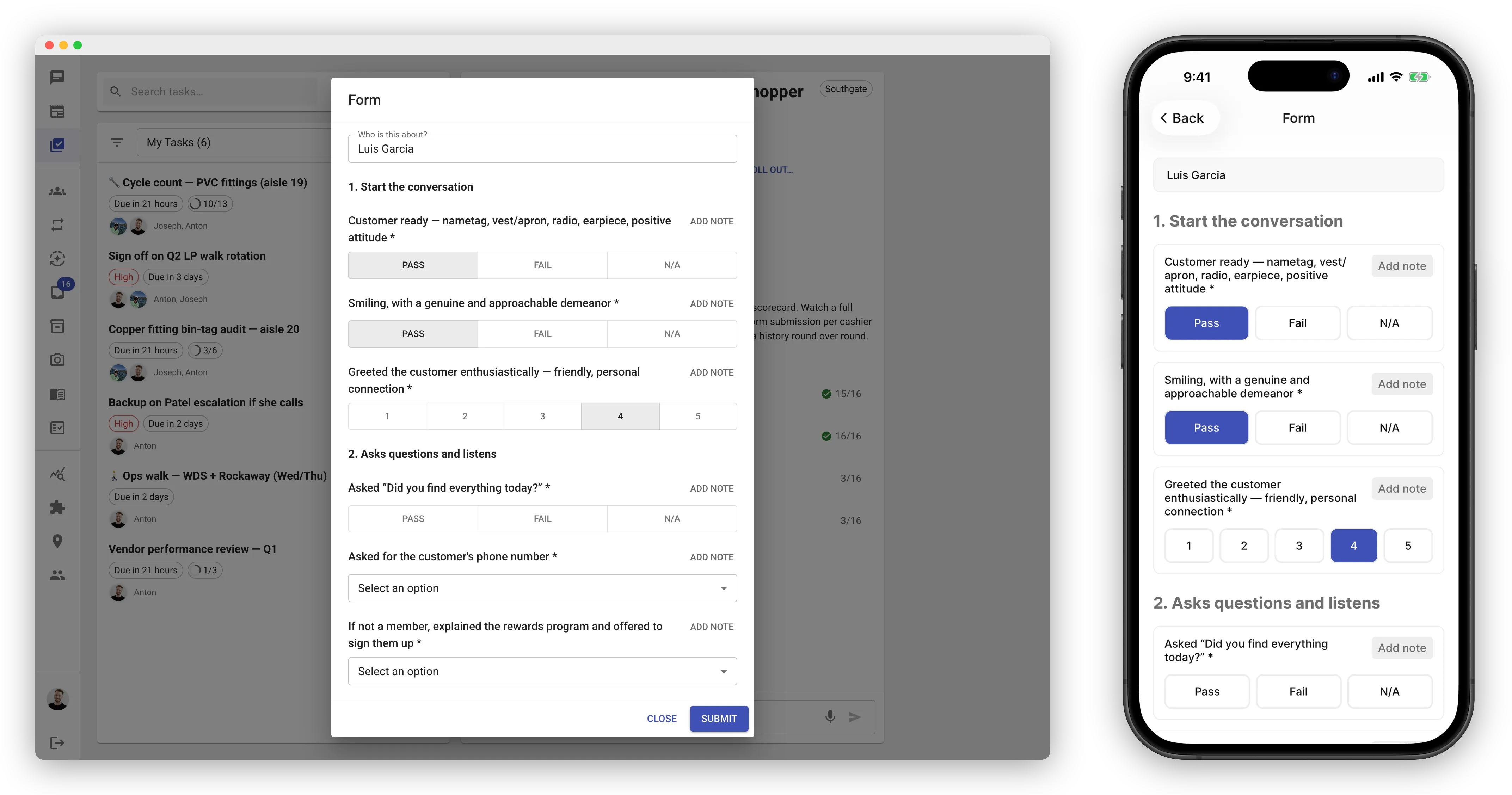
Section titled “Question Types”- Pass / Fail — with a built-in N/A option, because real audits always have lines that don’t apply
- Rating — a 1–5 scale
- Number — any numeric reading (a gauge pressure, a temperature)
- Single choice and Multiple choice — pick one option, or any that apply
- Text — free-form comments
- Photo — attach one or more photos as the answer
- Section headers — group questions into named sections, like pages on a paper form
Every answer can also carry a short note — use it to explain a fail or an N/A.
Adding a Form to a Task
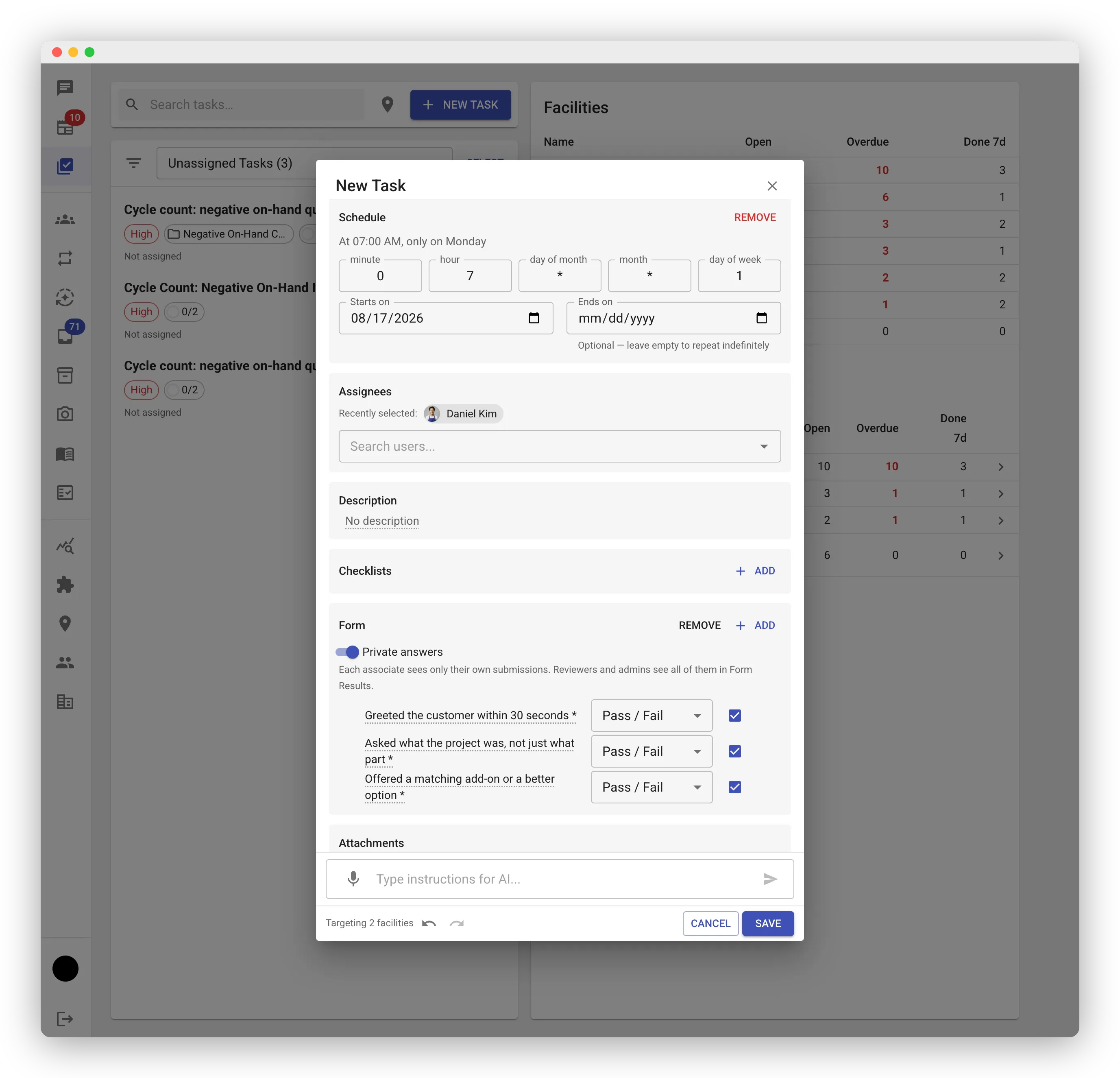
Section titled “Adding a Form to a Task”On the web app, open the task editor and find the Form section — it works like the checklist section. Add questions, choose each one’s type, mark the important ones as required, and drop in section headers to group them. The form doesn’t have a separate name: the task’s title is the form’s name.
Two shortcuts instead of typing every question:
- Copy an existing form (when creating a task) — pick any task that already has a form, and the new task gets the same questions. Results from both tasks land in the same series on the Form Results page, so this is the way to run the same evaluation again.
- Import from Google Forms — click Import, sign in with your Google account, and pick the form in your Google Drive. The questions land in the editor, ready to review and save. This works for any form you own or can edit, whatever its sharing settings; if a question type doesn’t translate exactly, the editor shows a note explaining what was adjusted.
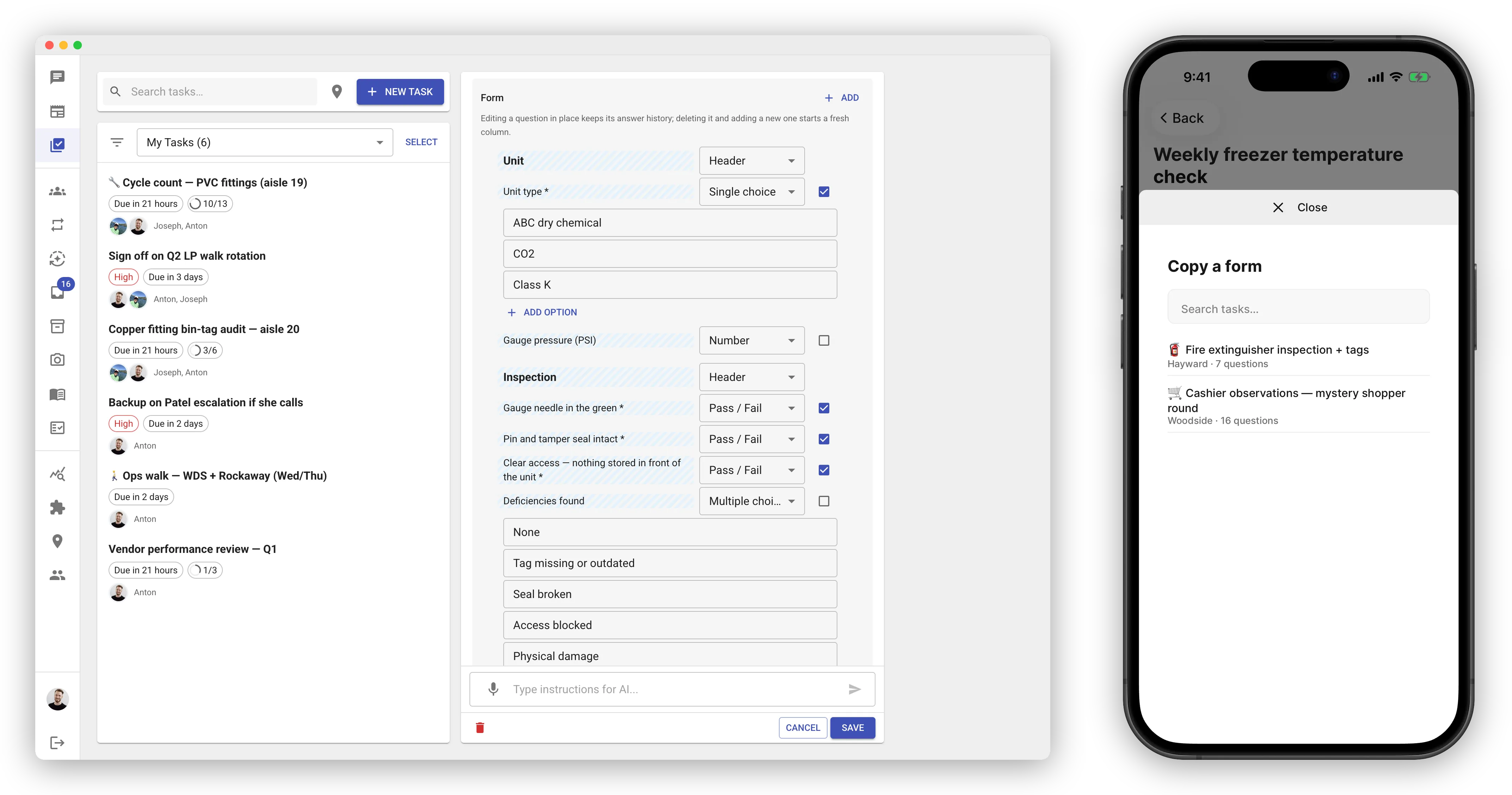
On the mobile app, a new task can copy an existing task’s form from the Form card on the create screen. Editing questions is done on the web.
Adding a form to a recurring task works the same way — edit the schedule’s template. Every occurrence then carries the form, and all their fills accumulate into one series: a monthly cashier observation becomes a running scoreboard, not twelve disconnected tasks.
Filling Out a Form
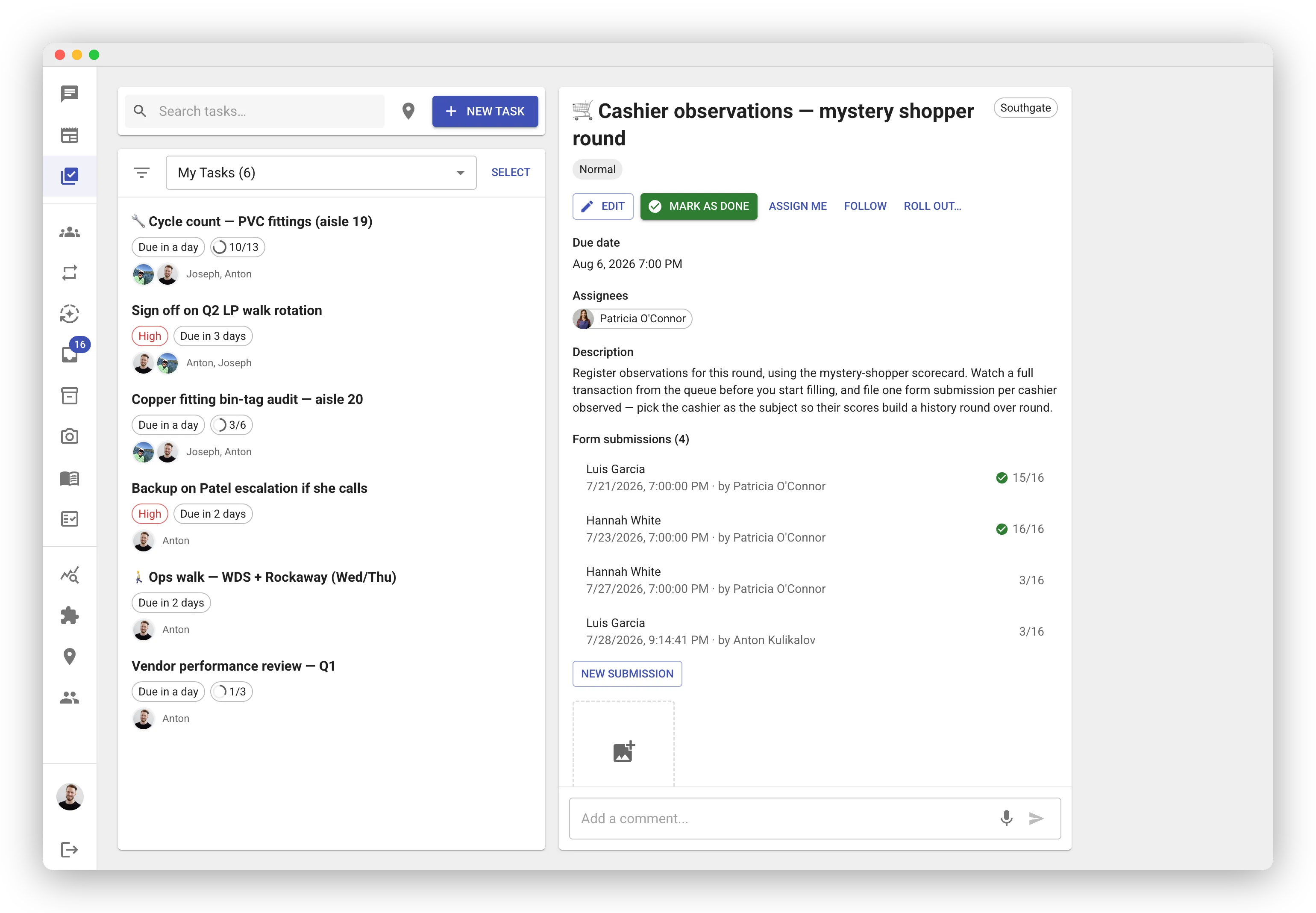
Section titled “Filling Out a Form”Open the task and find the Form section — it lists the fills so far and a New submission button. Both the mobile app and the web work the same way:
- Start a new submission
- Say who or what it’s about — pick a teammate from the crew list, or type a label like “Receiving dock unit”
- Answer the questions; add a note where a plain answer needs context
Answers save as you go — a half-finished fill is a draft you can come back to, and only its author can edit it. Several people can each work on their own fill of the same task at the same time.
Submitting
Section titled “Submitting”When a fill is complete, tap Submit. The first tap arms the button — and warns you if fields are still unanswered, so nothing gets skipped by accident. Required questions are a strong nudge, not a hard block: if a line genuinely doesn’t apply, leave it and submit anyway (or answer N/A where offered).
A submitted fill is locked for everyone, permanently — it’s the record. If something was entered wrong, start a new submission rather than looking for an edit button.
Reviewing Results
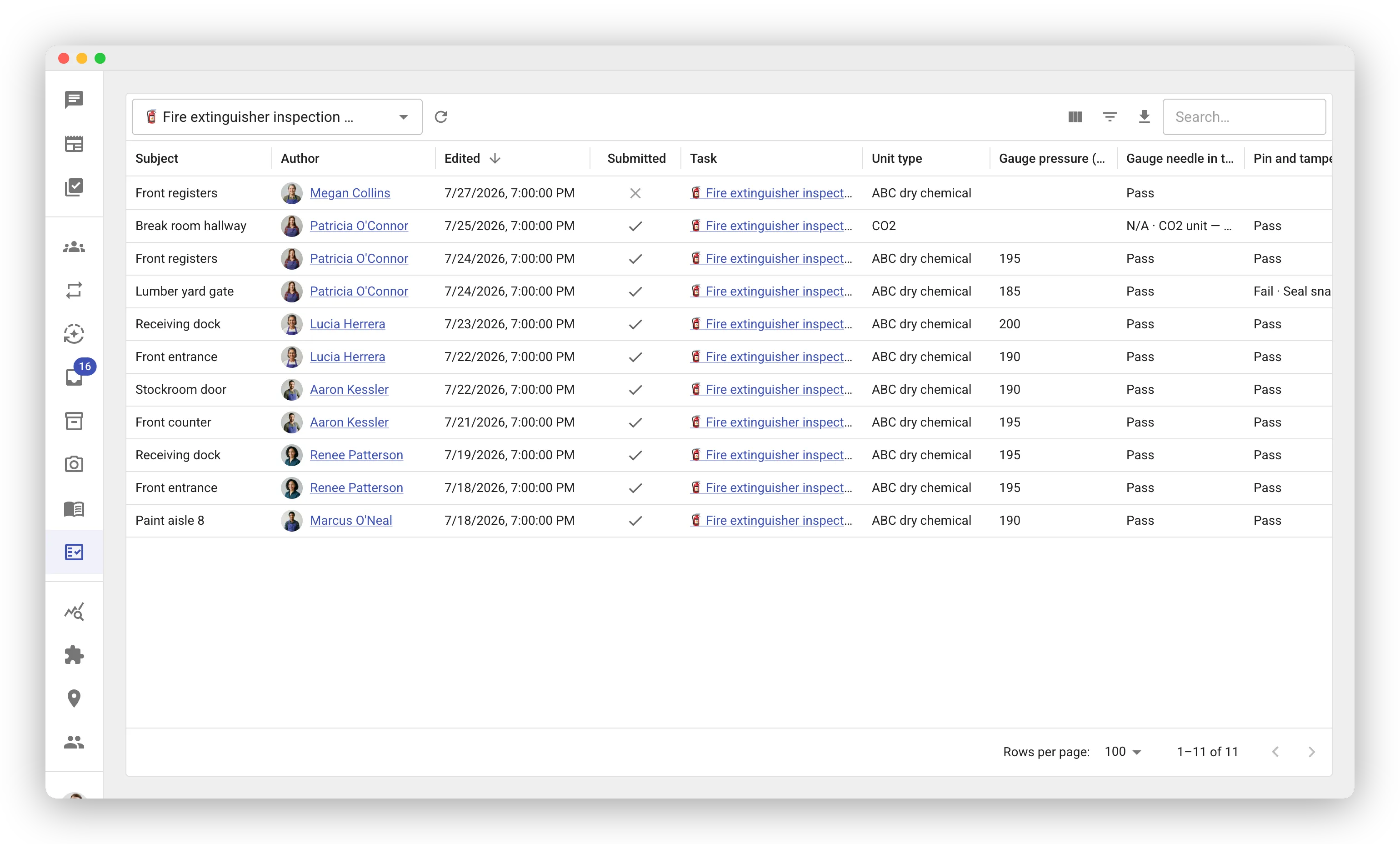
Section titled “Reviewing Results”On the web app, the Form Results page (under Knowledgebase) shows every fill of a form in one table — across every task and every occurrence of a recurring schedule. Pick the form from the selector in the toolbar; each row is one submission, each column one question. From there you can:
- Export to CSV — notes come along with the answers
- Open any row — click it to see the full fill, or continue one of your drafts
- Share the view — the selected form rides the page URL, so a link opens the same table for a teammate
For trends, skip the eyeballing and ask the AI: “What’s the pass rate on register greetings this quarter?” or “Show me Maria’s observation scores over the last three rounds.”
Who Can See a Form
Section titled “Who Can See a Form”A form follows its task: anyone who can see the task can see the form and its results, and the Form Results page shows only series from stores you have access to. When the answers themselves shouldn’t circulate among the crew, turn on Private answers instead of hiding the whole task.
Private Answers
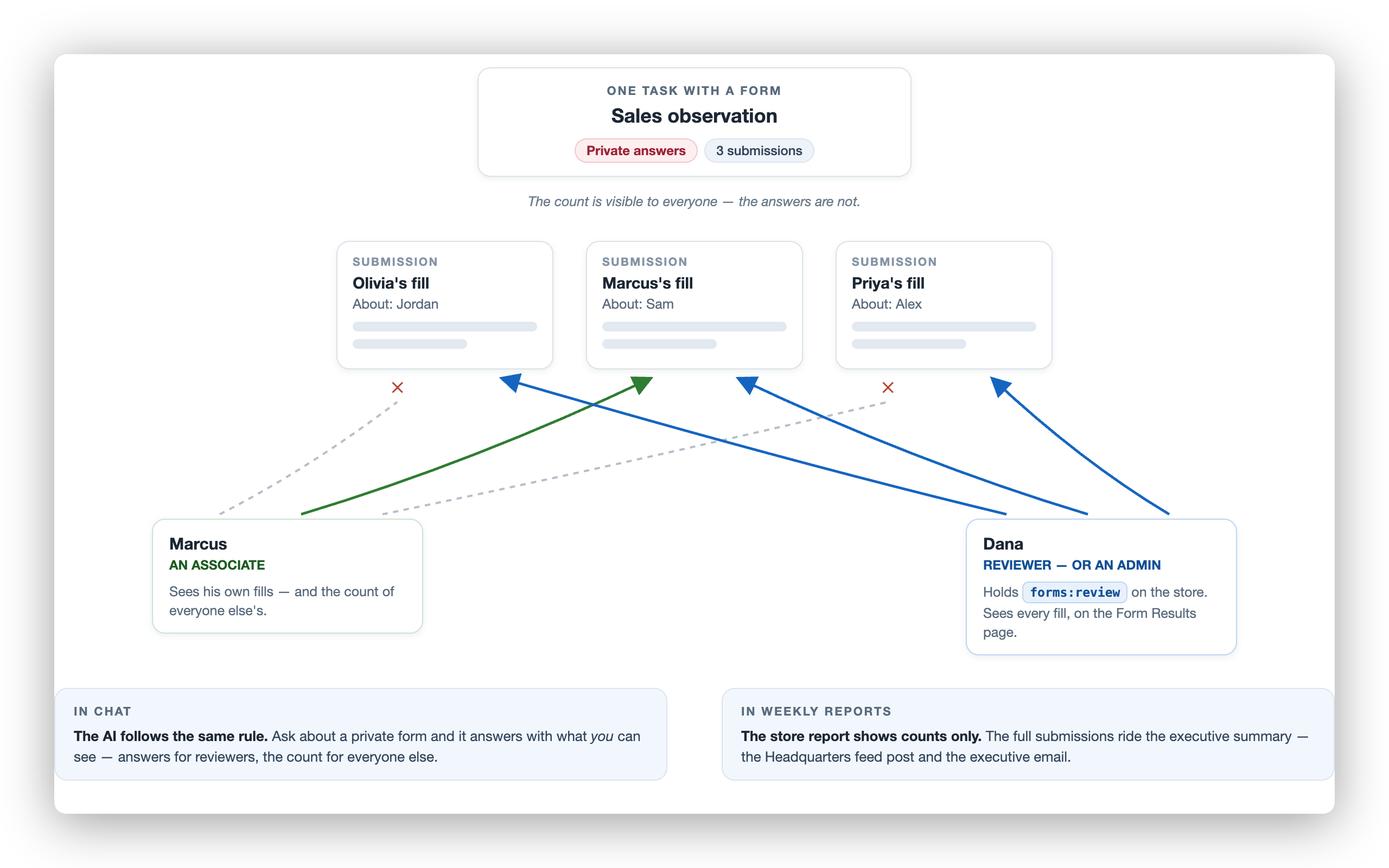
Section titled “Private Answers”Some evaluations are filled by the crew about the crew — say, a weekly sales observation where every associate scores a co-worker. For those, flip on Private answers in the web form editor. Everyone can still fill the form, but:
- Each person sees only their own submissions. The submission count stays visible everywhere — so a manager can still tell who has and hasn’t filled theirs — but the answers, subjects, and photos in other people’s fills don’t show.
- Reviewers see everything. Grant
forms:reviewon the store to whoever should read the results; they review on the Form Results page. Admins can always review. - Chat follows the same rule. Ask the AI about a private form and it answers with what you can see: reviewers and admins get the actual answers, everyone else gets the fill count only.
- Weekly reports show counts only at the store, while the executive summary carries the full submissions. Because that’s the one place the content surfaces automatically, an organization using private forms should have at least one executive channel set up: a Headquarters feed, or executive email recipients on the Weekly Reports integration.
The toggle locks once the form has a submission: answers people gave under the privacy promise stay private, and answers given in the open stay open. A task whose private form already has submissions also can’t move to another store — who gets to review the answers is decided by the store they were given at. Recurring tasks carry the setting into every occurrence, and copying a private form keeps it private.
- Edit questions in place to keep history. Rewording a question keeps its column of past answers on Form Results; deleting it and adding a new one starts a fresh column. The editor reminds you of this when you edit a form that’s already been used.
- Answer N/A, don’t guess. Pass rates ignore N/A answers, so an honest “not applicable” keeps your scores clean.
- One fill per subject. Resist bundling three cashiers into one submission — separate fills are what make individual histories work.