

Competitor Price Tracking
Price Tracking watches competitor sites for the items you choose and shows where each one sits against the market. You pick the items, the store to compare against, and how often to check. FastQuery finds each competitor’s matching product, reads its price on schedule, and keeps every reading so you can see the movement over time. The feature is in beta and free while it is.
How it works
Section titled “How it works”Every tracked item is one of your products at one store. FastQuery compares against the store’s ZIP code, so a competitor with local pricing is read at the location nearest that store, and the gap is measured against the item’s price at that store.
The competitors are one list for your whole organization — retailer sites like amazon.com, homedepot.com, or a local rival’s own site. Every tracked item is priced against the same list. Amazon and Home Depot are read from their own catalogs; every other site is read from the product page on that site.
When you add an item, FastQuery searches for the like-for-like product at each competitor within minutes: the same brand and model for a branded item, or the same size, grade, and material for a commodity like lumber or drywall. Once matched, each item is checked daily, weekly, or monthly, and the newest prices land in the grid.
There is no on-demand lookup. Prices come from the schedule, and the first reading arrives right after the match.
Who can use it
Section titled “Who can use it”Price Tracking needs the market_prices:manage permission. No built-in role grants it, so an admin adds it to a role in Roles and Permissions. Holders see Price Tracking in the web app’s admin menu and a Track Prices button on the Inventory page.
Setting up competitors
Section titled “Setting up competitors”Open Competitors from the Price Tracking toolbar. Type a site’s domain, like lowes.com, and press Add; click a site’s remove button twice to drop it. Saving reaches every tracked item at once: a site you add is matched within minutes, and a site you remove stops being checked.
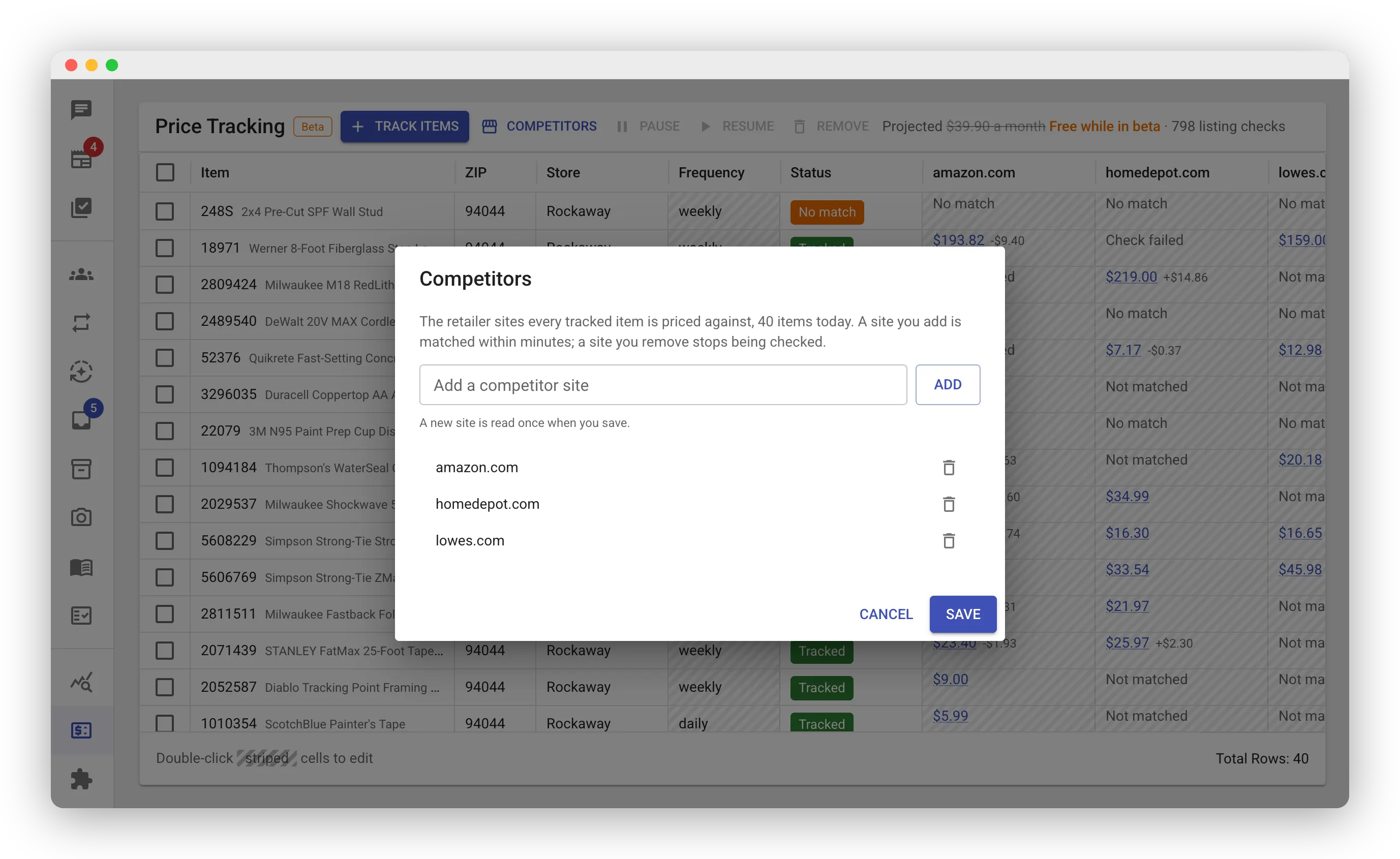
A new site is read once when you save. If FastQuery cannot open its home page, the save is refused and names the site, so a typo never becomes a column that never matches. Amazon and Home Depot are always accepted.
Tracking items
Section titled “Tracking items”Until you track something, the page shows sample rows marked Sample data so you can see what each column holds, and one button: Plan competitor tracking. It opens an Advanced Mode chat where the AI Agent picks the items worth tracking for your store and a monthly budget, and can add them for you. The toolbar appears once the first item is tracked.
Click Track items on the toolbar. The dialog takes a table with one row per item: paste a column of SKUs straight from a spreadsheet, or type them in.
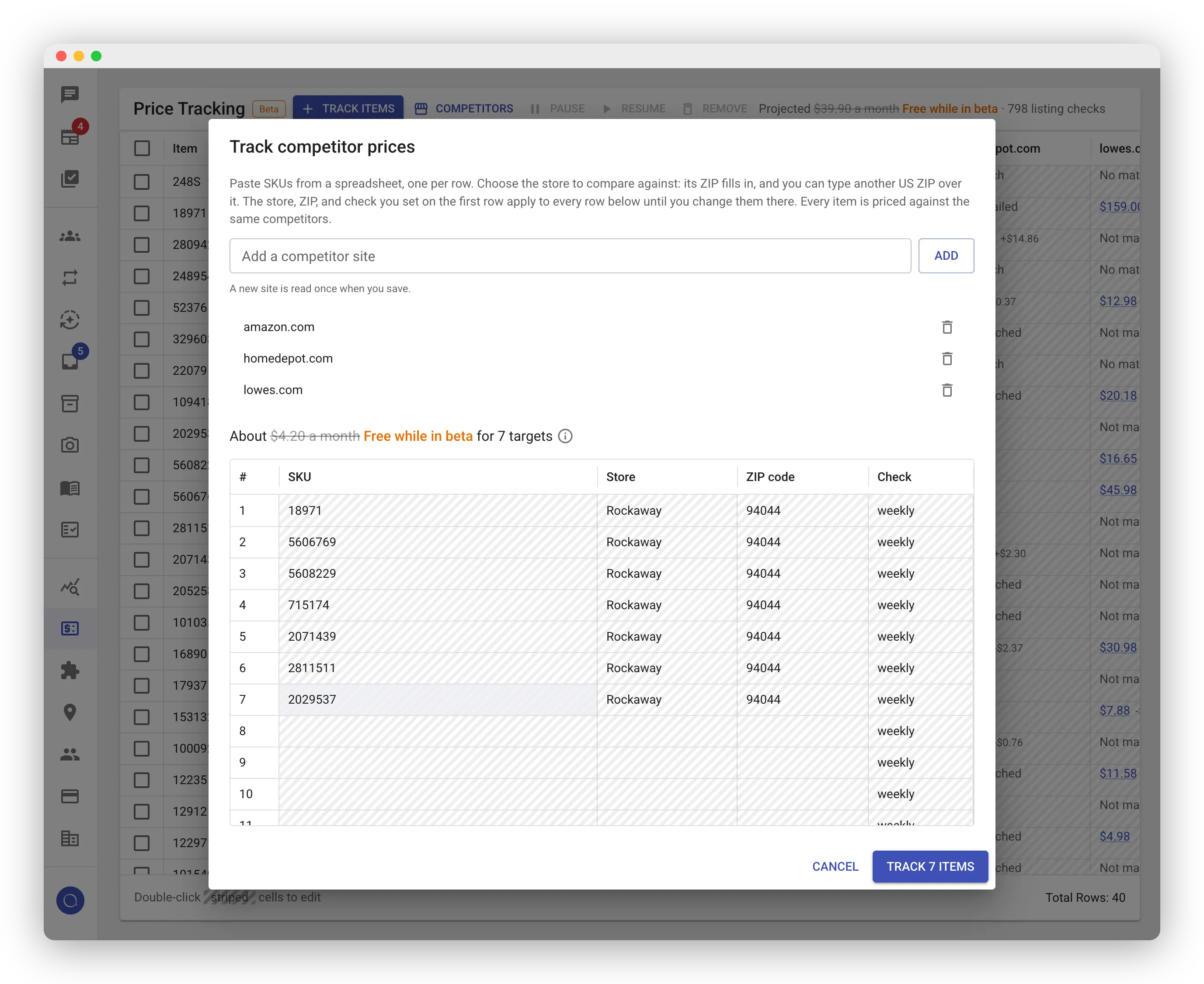
- Store — choose the store to compare against. Its ZIP fills in, and you can type any other US ZIP over it.
- Check — daily, weekly, or monthly.
- The store, ZIP, and check you set on the first row apply to every row below until you change them there.
- The competitor list sits at the top of the dialog, so a first add needs no other setup.
SKUs are checked against your inventory when you confirm. An unknown SKU refuses the whole add and names the SKU, so you can fix the row and confirm again. An item already tracked at the same ZIP is skipped rather than doubled.
To track what you are looking at on the Inventory page, filter the grid to the items you want and click Track Prices. The dialog opens with those SKUs filled in.
Reading the grid
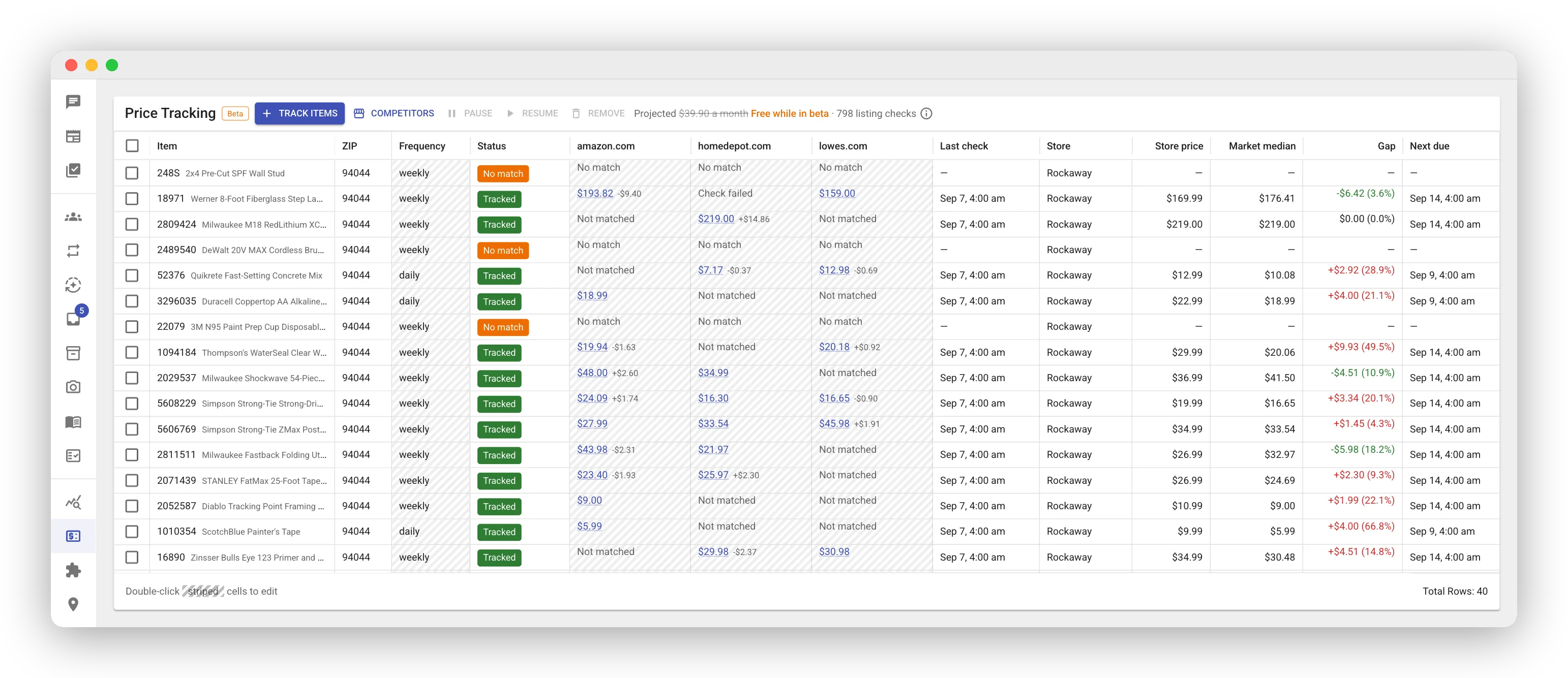
Section titled “Reading the grid”Each row is one tracked item. Beyond the item, ZIP, store, and check frequency:
- Status — where the item is in its life:
- Matching soon — FastQuery is finding the competitor listings; prices arrive after the first check.
- Tracked — matched and checked on schedule.
- No match — no competitor carries a like-for-like listing. Hover the chip for the reason. Paste a listing URL (below) to fix it.
- Paused — not checked until you resume.
- One column per competitor — the newest price, linked to the listing, with its movement since the check before. A cell reads Checks soon when the listing is matched but not yet read, Not matched when that competitor has no listing, Not found when a listing is gone, and Check failed when the last read did not get through; the next check tries again. A price in amber is a doubtful match: the listing’s size or pack differs from your item, or the price is far from your store’s (below a third or above three times). Hover it for the reason. A doubtful price stays visible but is left out of the median and the gap, and the AI’s price review leaves it out too, until you fix or accept the match (below).
- Last check and Next due — when the item was last read and when it is next.
- Store price — your price at the chosen store at the last check.
- Market median — the median of the competitors’ newest prices.
- Gap — your store price minus the median. Red means you are above the market; green means below.
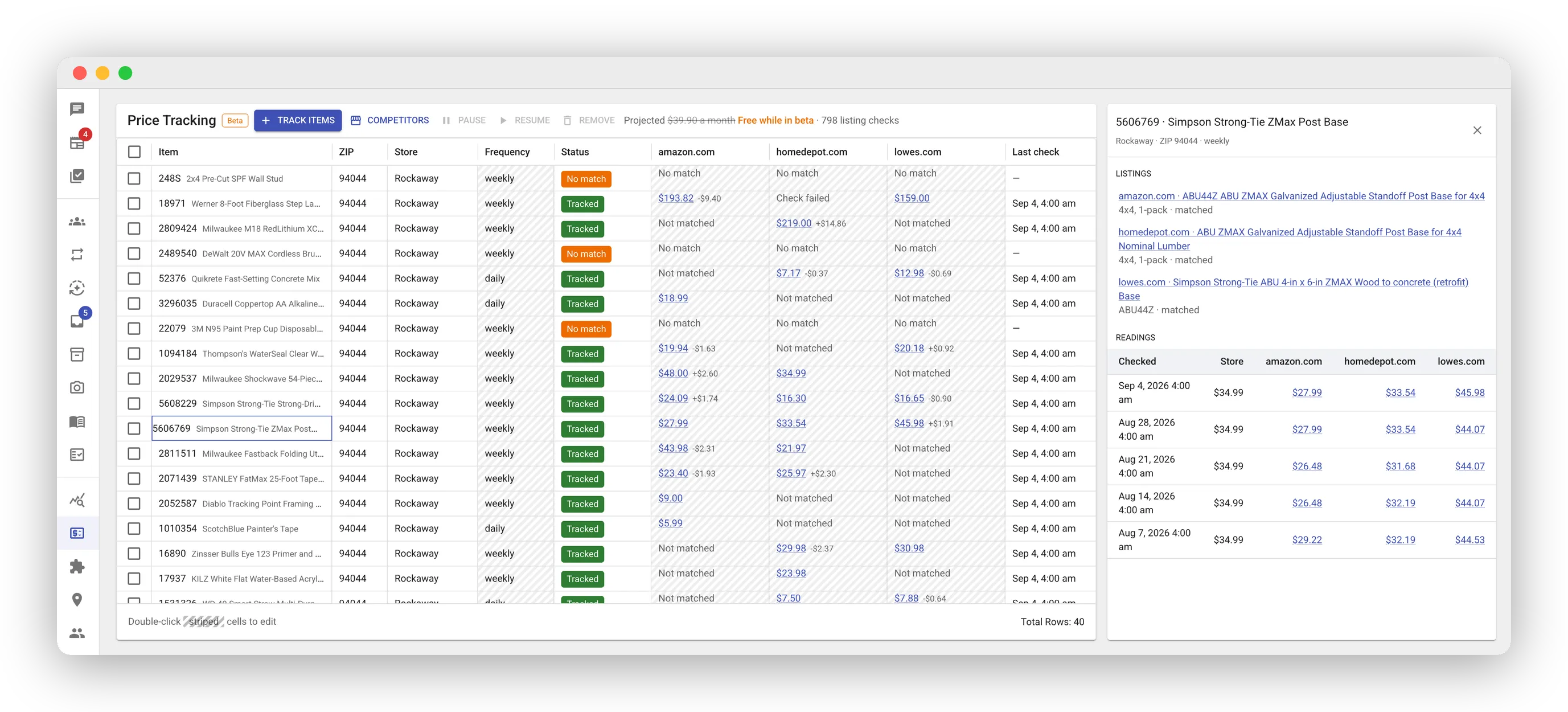
Click a row to open its history beside the grid: the listings FastQuery matched (or the URLs you pasted) with their size and pack, then every check with the store price and each competitor’s price.
Fixing a match
Section titled “Fixing a match”FastQuery picks the like-for-like product, but you can override it. Double-click a competitor cell and paste a listing URL:
- Amazon — an Amazon product page URL.
- Home Depot — a Home Depot product page URL.
- Any other site — a product page on that competitor’s own site.
A Google Shopping link, or a page on another site, is refused in the cell with a note. A URL you paste is never replaced by FastQuery’s own matching. If a later check no longer finds the page, the cell reads Listing not found so you can paste a new URL or clear the cell. Clearing a cell sends the item back to matching for that competitor.
When a price shows in amber and you judge the match right anyway, open the item’s history and click Keep this match next to the listing. Later checks count it as accepted, whatever they read. Pasting a new URL or clearing the cell replaces the listing, and the acceptance goes with it. A URL you paste gets the price check too, so a pasted listing far from your price also shows in amber until you keep it.
Frequency, pause, and remove
Section titled “Frequency, pause, and remove”- Frequency — double-click the Frequency cell to change it. The next check moves to the last check plus the new interval, never earlier than now.
- Pause and Resume — select rows and use the toolbar. A paused item is not checked and costs nothing.
- Remove — select rows and click Remove. The item leaves the grid; its past readings stay in your data.
Asking the chat
Section titled “Asking the chat”The AI reads the same tracking, so market questions are a chat away:
- “Are we competitive on DeWalt drills?”
- “How do we compare to Home Depot on 2x4s?”
- “Who undercuts us on the items we track?”
The answer names each competitor’s latest price, the movement since the last check, your store price, and the gap. The chat can also change what is tracked — “Track competitor prices on these items at Rockaway”, “Also watch lowes.com”, “Stop tracking the caulk” — and asks you to approve each change before it is made. Adding from chat prices each item at the named store’s ZIP; a different ZIP is set on the Price Tracking page.
The chat cannot fetch a competitor’s price on demand. If an item is not tracked, it offers to track it, and the first reading arrives within minutes.
In an Advanced Mode chat the readings are part of your operational data, so the AI can query them in SQL alongside sales and inventory movement, and two workflows turn them into work.
Plan competitor tracking. Ask “What should we track at Rockaway for $30 a month?” and the AI scores the store’s selling items on what customers price-check, reads what the store already tracks, and proposes what to stop tracking and what to start, with the frequency for each and the monthly cost added up to your budget. You approve the removals and the additions as two separate changes, and nothing is tracked until you do.
Decide price changes. Ask “Which prices should we change this week?” and the AI prices every tracked item against its competitor readings and your recorded stance, prices the rest against their class peers, and runs every proposal through the same checks: your price endings, your margin floor, one bounded step, the item’s place in its good-better-best set, promo and recent-change holds, and the store’s shelf-label hours. You get one list per store with the new retail and the reason, the holds with one reason each, the minutes of tag work, and an import file for your price update. Paper-label stores get an offer of a re-tag task. The review runs with or without readings; without them it recommends a tracking plan first.
Price Tracking is priced per listing check — one competitor, one item, one read. Failed reads, items with no match, and paused items cost nothing.
While the feature is in beta nothing is billed. The toolbar and the add dialog say Free while in beta.
The account also carries a limit on how many searches a month FastQuery can run across all customers. If an add or a frequency change would pass it, the change is refused with a message that names the limit — track fewer items or competitors, or check them less often.