

What's New
September 17, 2026
Ask whether a coupon makes money
Section titled “Ask whether a coupon makes money”In an Advanced Mode chat, ask the assistant whether a coupon, a rewards certificate, or loyalty pricing pays for itself. It runs the new coupon review procedure: a year of receipts for every standing deal across the chain, then one table with what each deal gave away, the margin it left, the break-even share of sales, the weeks it stopped, and the one deal worth testing with a held-out store. Like every standard procedure it asks for your approval before it starts and shows its steps as it works (Standard Procedures). See a demo run on our demo store.

Choose what a scan does in a count
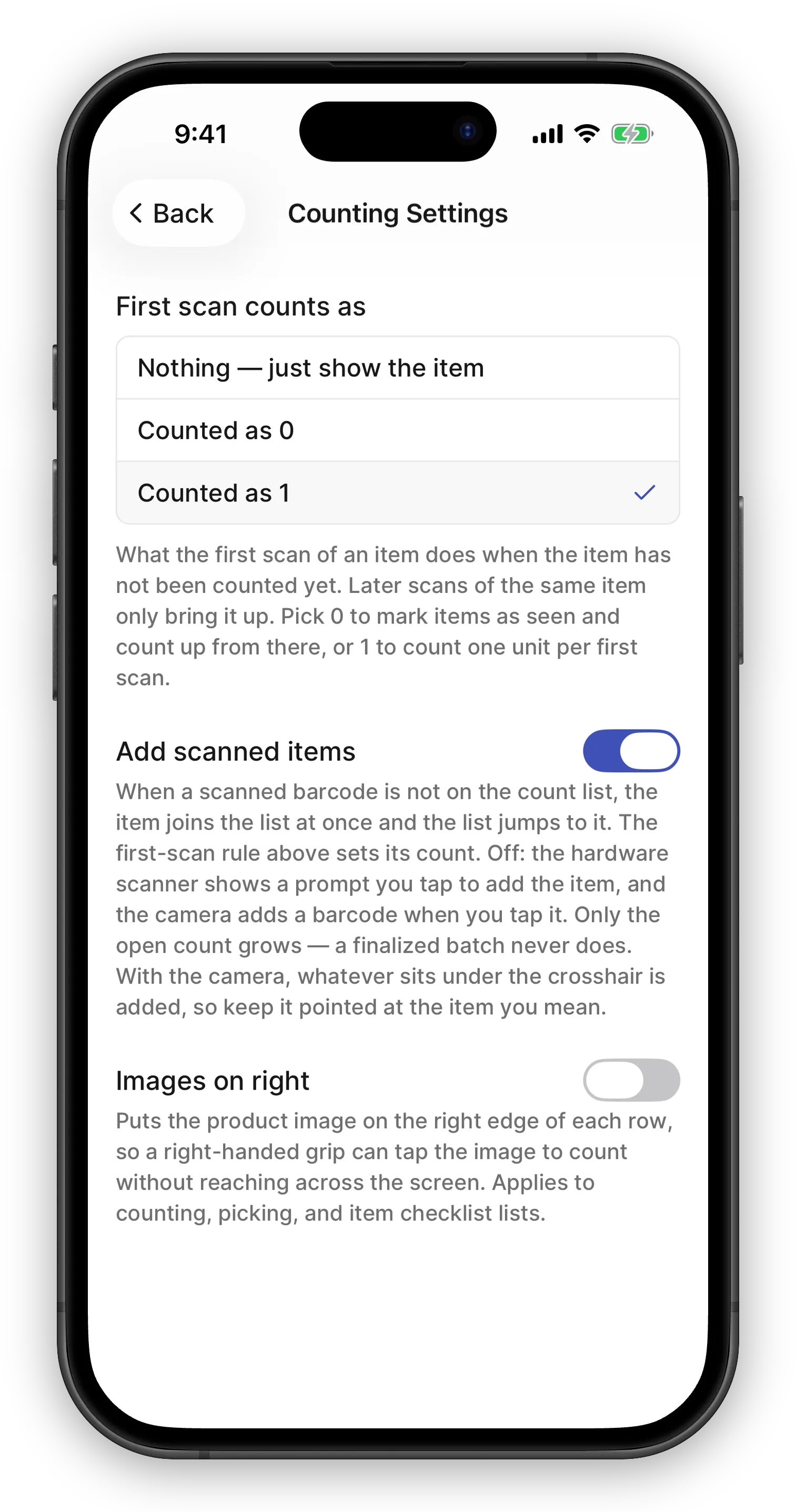
Section titled “Choose what a scan does in a count”Open Settings from the count list’s toolbar menu to decide how scanning works for you. First scan counts as lets a first scan record nothing (just show the item), a zero, or one unit, so you can scan shelf tags to confirm empties or confirm singles without typing. Add scanned items puts anything not on the list straight into the count, with no prompt, for a full physical inventory. Each setting is explained on the screen and stays on the device until you log out; task product lists get the same screen for Check on scan (Scan Settings).
Finalize the small differences first
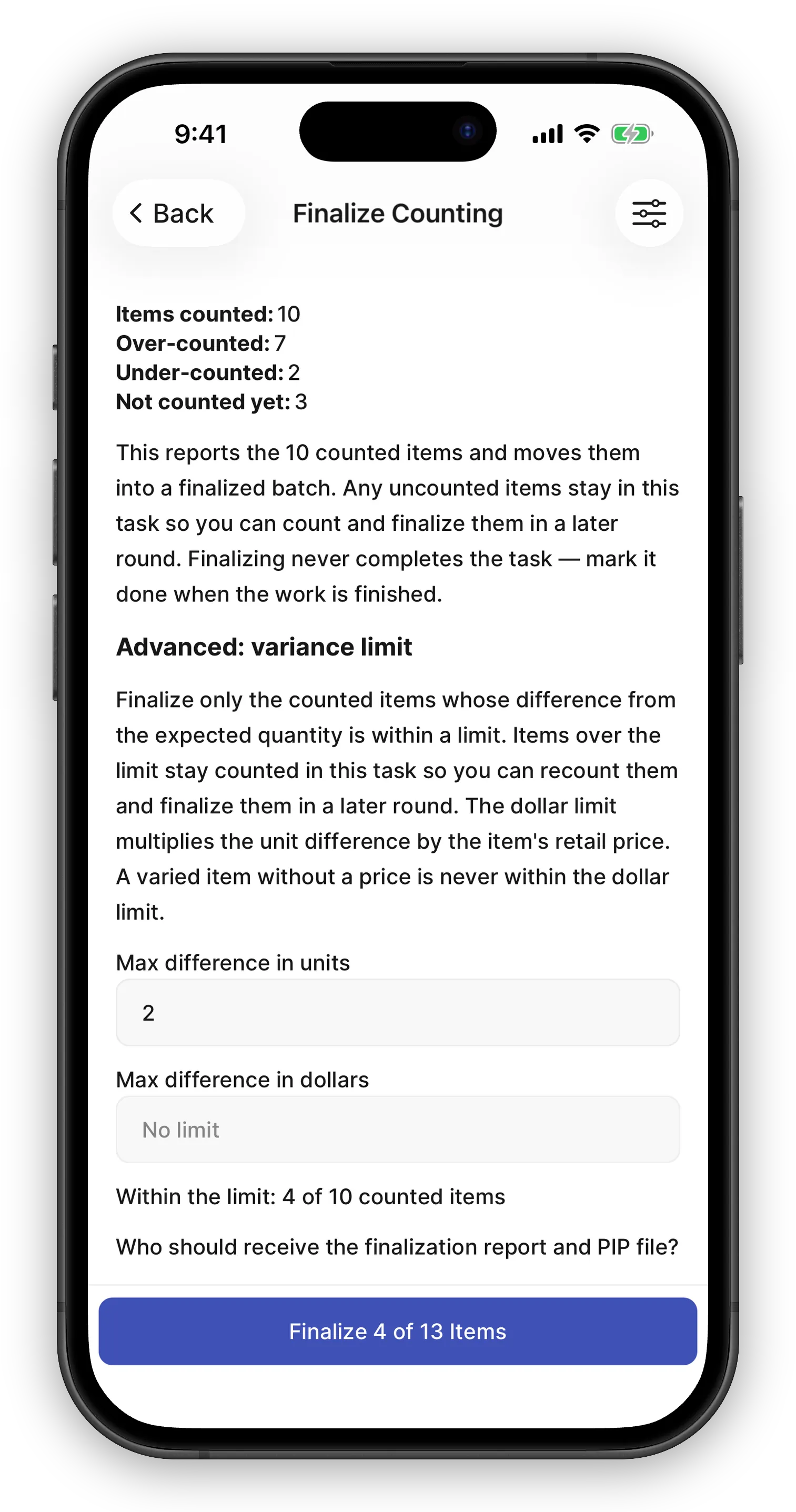
Section titled “Finalize the small differences first”On the finalize screen, tap the sliders button in the top-right corner to set a variance limit in units or dollars. Only the counted items within the limit go into the report and the adjustment file; the items over the limit keep their counts and stay open in the task for a recount and a later round. The limit is forgotten after each finalize (Finalizing Only the Small Differences).
Narrow the count list to the items that need you
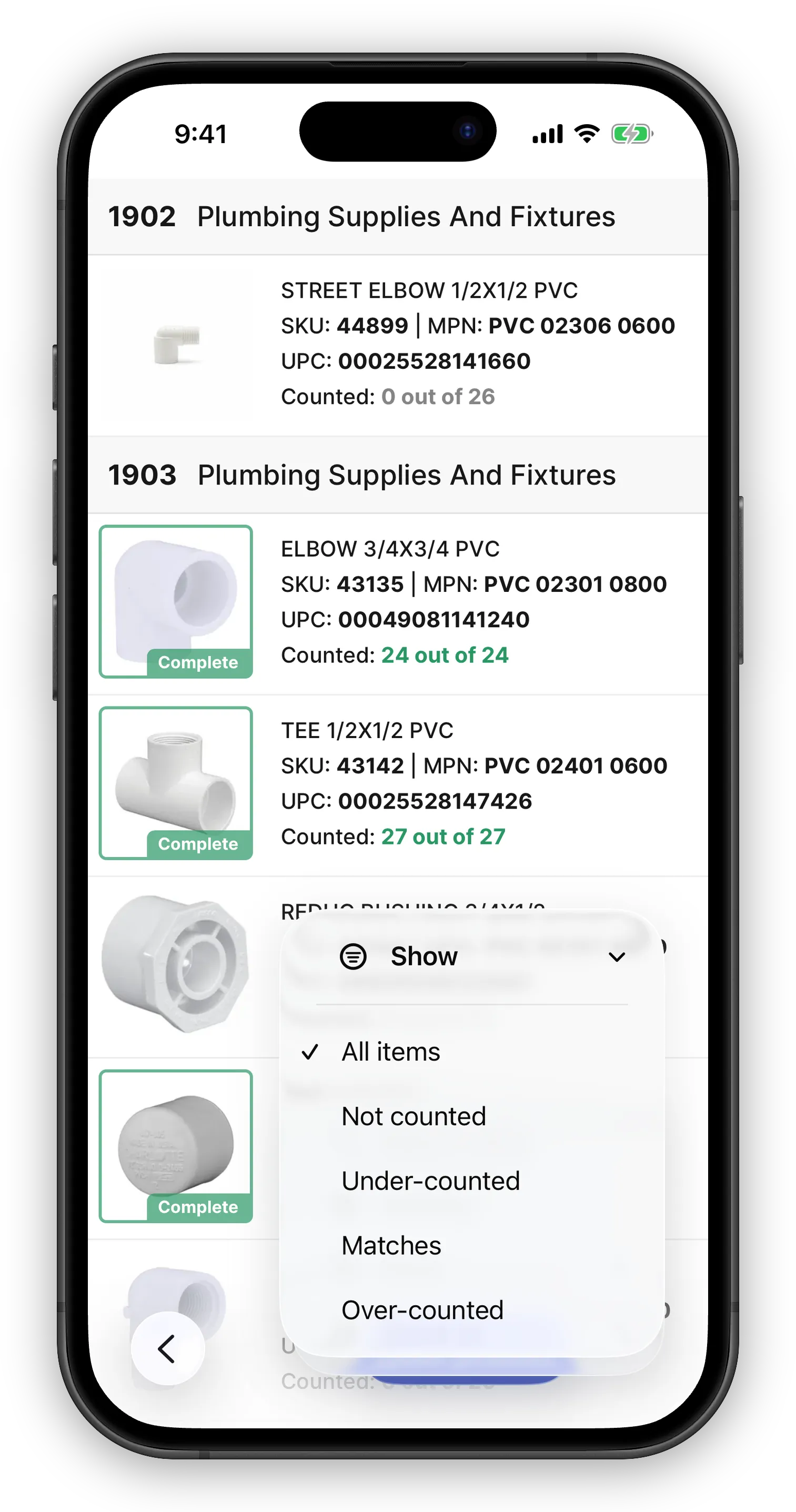
Section titled “Narrow the count list to the items that need you”On the count list, open the toolbar menu and tap Show to see only the Not counted, Under-counted, Matches, or Over-counted items. The list keeps its bin order, so a recount pass still walks the aisles in sequence, and swiping through items stays within the narrowed list. An item you count stays on the list with its new color until you choose the option again or pull down to refresh, and an item you scan joins the list if it was hidden. The choice lasts for the visit; the next time you open the task, every item is back (Narrowing the List for a Recount).
Minor changes
- An item that fails to save when added to a count from a scan now comes off the list with a “Scan it again” message, instead of looking added and being lost.
- The assistant can create a counting task from a pre-count sheet: SKUs you give a quantity for start counted, and the task’s progress shows them as done (Counts Follow Sales Until You Finalize).
- The Images on right toggle moved from the count list and product list toolbar menus to their new Settings screens.
- The count grid on the web task page gained Variance and Variance $ columns, and every column header now has a menu to sort and filter the grid, so a 20,000-item count can be narrowed to the uncounted items or sorted by the dollar difference.
- A counted item on the count list, in the swiper, and on the web task page now shows the expected quantity from the time of your count, the same figure the finalize report uses. Before, the list compared against the live quantity, so a sale after your count could show a match as a discrepancy.
- A large count task opens in about half the time it took before. An 18,000-item physical inventory that took 12 seconds to load now takes 6.
- Opening a count from a push notification or a chat link right after starting the app now saves your count edits. Before, an edit on a task the app had not listed yet was dropped without a message.
- Adding a note or changing the bin of a counted item no longer changes the quantity the count is measured against; only a new count does.
- A count of zero now shows as Partial when units were expected, or Complete when none were, on the phone and in the web grid, the same way the Show filter and the finalize screen classify it. Before, it showed a blue Counted badge.
- The web count grid’s Variance columns now follow a count edit at once, instead of after a reload.
- Opening a count list no longer shows an old count target, or an item that was removed from the task, left over from an earlier session’s live updates.
- On the mobile count list, swiping or holding a card to count down now goes past 0 to “Not Counted”, the same as the minus arrow on the item screen.
September 16, 2026
Run a recurring task today, not on its next date
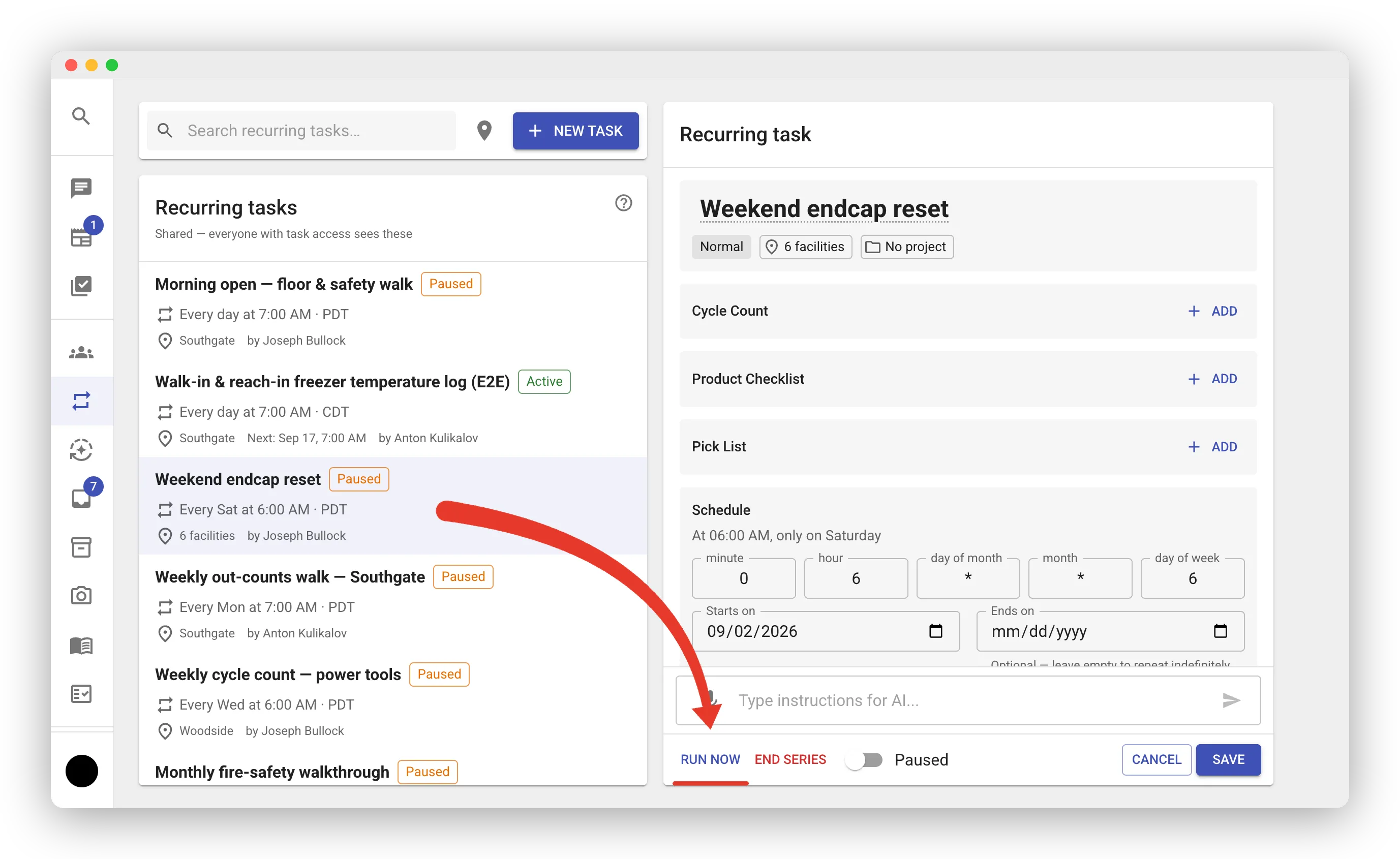
Section titled “Run a recurring task today, not on its next date”Open any recurring task you can edit and press Run now — in the editor footer on the web, the ⚡ button in the header on mobile. The series fires once exactly as its schedule would: one fresh task per store or person, still-open tasks from earlier runs marked Missed, and the next scheduled run left where it was. Handy for a paused routine that needs one more go, or a new store that should start today (Recurring Tasks).
Know when someone changes your recurring task
Section titled “Know when someone changes your recurring task”When another person edits, pauses, resumes, runs, or ends a schedule you created, you now get a notice in your Inbox, a push, and an email naming who changed it and what changed. Your own edits stay quiet. Open the notice to land on the schedule (Recurring Tasks).
Minor changes
- On mobile, the recurring-task screen’s header now reads “Schedule” to make room for the Run now button.
- A recurring task no longer pauses itself after ten missed occurrences in a row. The missed streak still shows on the schedule’s row as a signal; only a person pauses or ends a series (Recurring Tasks).
- A standard chat now points you to Advanced Mode for chain-wide jobs such as a store-to-store transfer list or a dead stock sweep across every store, instead of working through them one store at a time (Advanced Features).
- The POS, ITR, and PO History exports can now be delivered as one file per store: a store’s file replaces only that store’s days, so a large nightly export can be split with Compass’s Dimension Delivery (Advanced Data Exports).
- Clicking a CSV file link in a chat or on a shared chat page now opens the full-screen table with a download button, instead of downloading the file.
- On a shared chat page, a file link the share could not include now reads as its name followed by “(redacted)”, instead of the bare name.
- A counting task can now hold up to 20,000 items, up from 2,500, and bulk task creation from inventory now targets 1,000 items per task by default, up from 500 (Creating Bulk Tasks from Inventory).
- An answer that runs past the length limit is now retried in a shorter form. If the retry runs past it too, you get a short notice that says so and how to ask for a smaller piece, instead of a cut-off reply or a chat that stops responding.
- Sub-agents dispatched from an Advanced Mode chat no longer have the paid Google Shopping, Amazon, Google Maps, and demand-trend lookups. They keep web search and page reading. Competitor prices come from Price Tracking (Advanced Features).
- Epicor Eagle exports that carry an
Average Costcolumn now load, and the store’s average cost shows next to Cost in the inventory grid (hidden by default), the CSV export, and the per-store availability views on web and mobile. Cost still means the replacement cost.
September 14, 2026
Managers can update a crew member’s profile
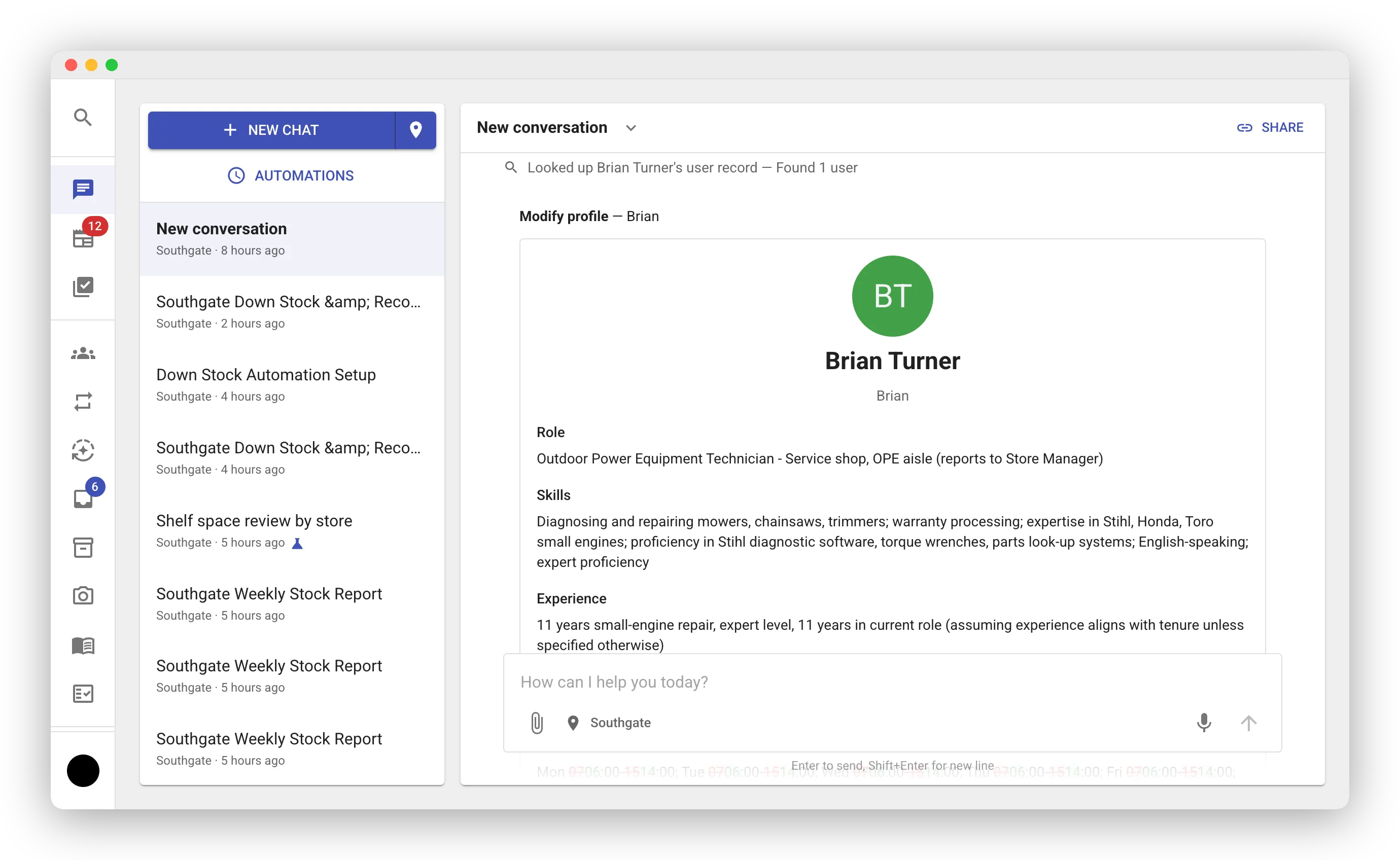
Section titled “Managers can update a crew member’s profile”Ask the assistant to set someone’s hours, role, or certifications — “set Maria’s schedule to Monday to Friday, 6 am to 2 pm” — and it shows you the before and after for approval. You can edit anyone whose home store you manage; org admins can edit everyone. The person gets an email listing each change, who made it, and the old and new values, so profiles stay current without anything changing behind anyone’s back.
Give every associate their daily task in one automation
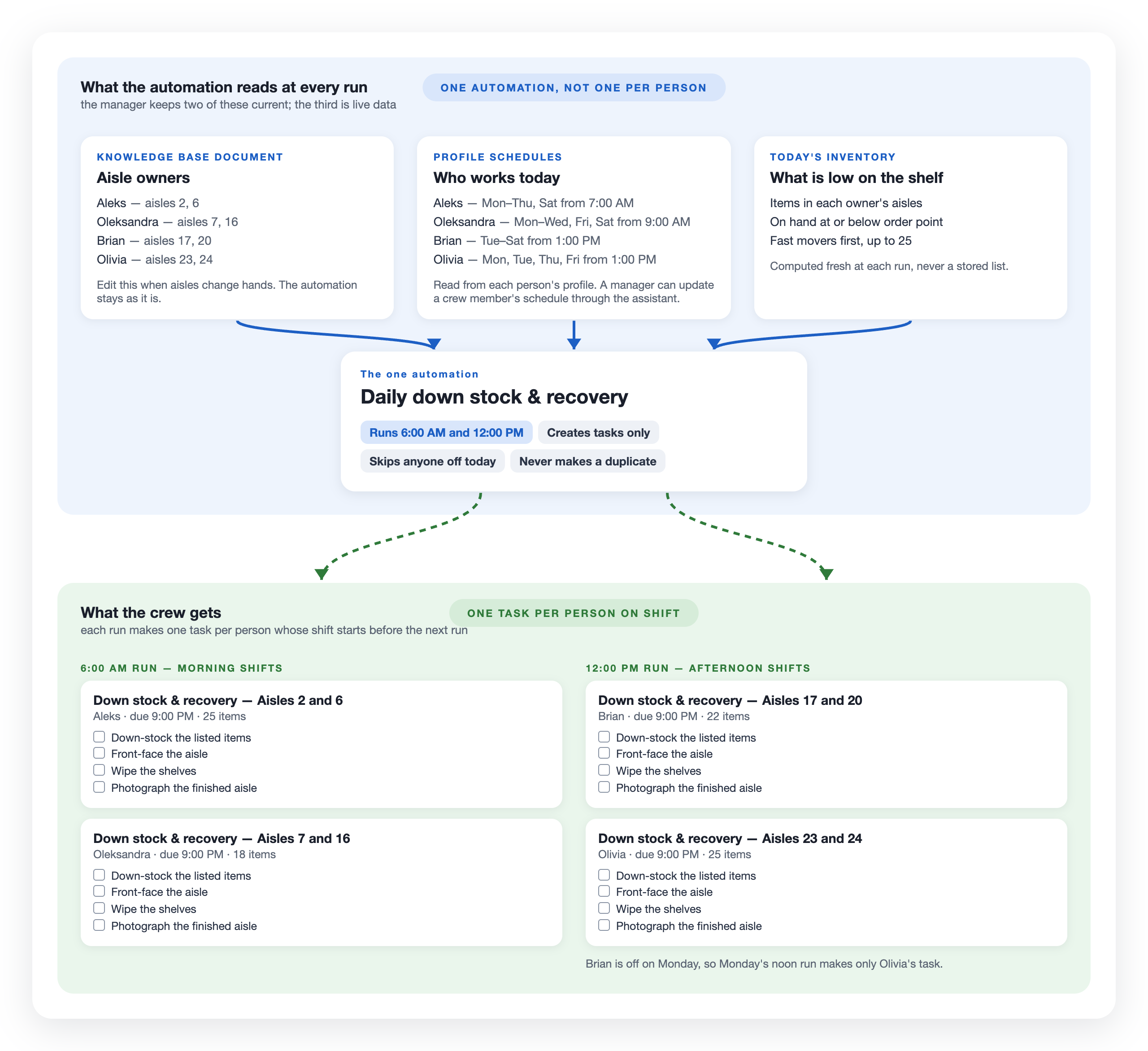
Section titled “Give every associate their daily task in one automation”Tell the assistant “give each of my associates a down-stock task every day before their shift” and it sets that up as one automation, not one per person or per day. It first asks the few things only you know, such as who owns which aisles and what the checklist says, then reads each person’s shift from their profile, runs before each shift start, and builds every list fresh that morning. Who owns what lives in a knowledge base document you edit when aisles change hands, and the assistant describes the whole setup in plain words before the approval card.
Minor changes
- The assistant’s text between its tool steps now shows in the chat as it is written, and only runs of two or more tool steps fold under “Thought process”; a single step shows on its own line. A report that ends with a question card no longer hides inside the fold.
- An answered question now shows in the chat like a tool step. A plain Allow or Deny reads as one line, such as “Allowed: Create task — Count aisle 3”. A question with its own choices lists every option with the one you picked checked. Task approvals now name the task.
- When you ask the assistant to schedule a job that one of your automations already does, it now offers to update that automation, or to turn it back on if it is paused, instead of adding a copy. If you want a new one anyway, it offers to remove the old one at the same time.
- A newsfeed post approval now names the post by its first line, in the chat thread and on a shared page, the way a task approval names the task.
- A dataset query can now return up to 50,000 rows to a file, up from 10,000. A chain-wide list such as weekly count sheets for every store now comes out of one query instead of several.
- Names and titles the assistant writes no longer show “&” in place of an ampersand. This covers task titles, automation names, knowledge base document titles, and chat names.
- The approval card for a new automation now labels the schedule with the store’s own timezone, read from the store record, instead of a cached copy that could be stale.
- On a shared chat page, links to tasks and newsfeed posts now open the task or the post in the app. Before, the page showed only their titles.
September 13, 2026
Minor changes
- The payroll sync gives every new account the user role and warns you when a new hire’s title looks managerial (UKG Integration).
- A store with MangoReport tasks created earlier in the month no longer shows Waiting for MangoReport (MangoReport Integration).
- The sidebar account menu stays open while the pointer travels to it diagonally.
September 12, 2026
Ask the assistant for a private task
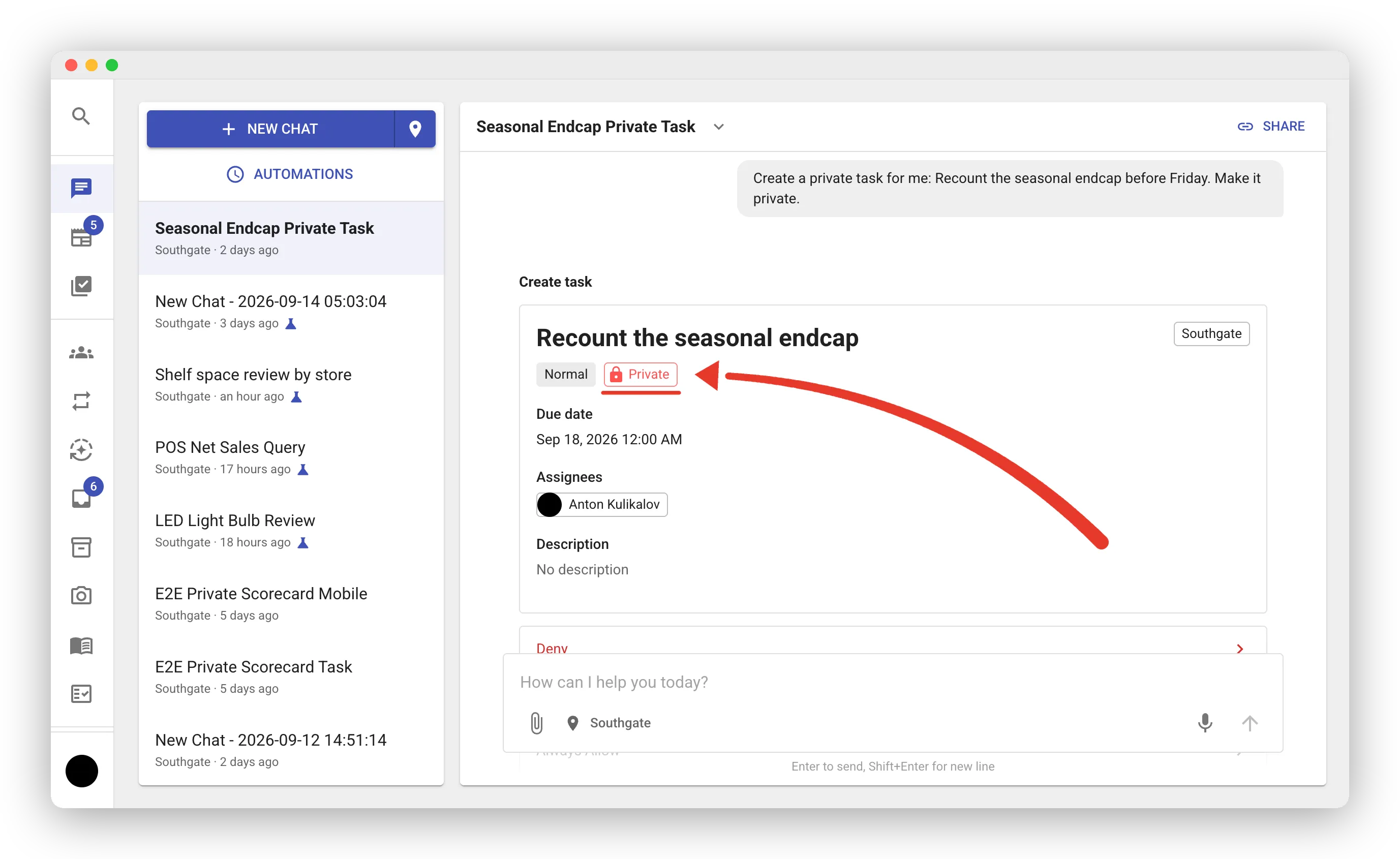
Section titled “Ask the assistant for a private task”Tell the assistant to create a task and add “make it private”. Only its creator, assignees, and followers see it, and the approval card shows a Private tag before you confirm. Works on web and mobile. See Private tasks.
Grant Headquarters like any other facility
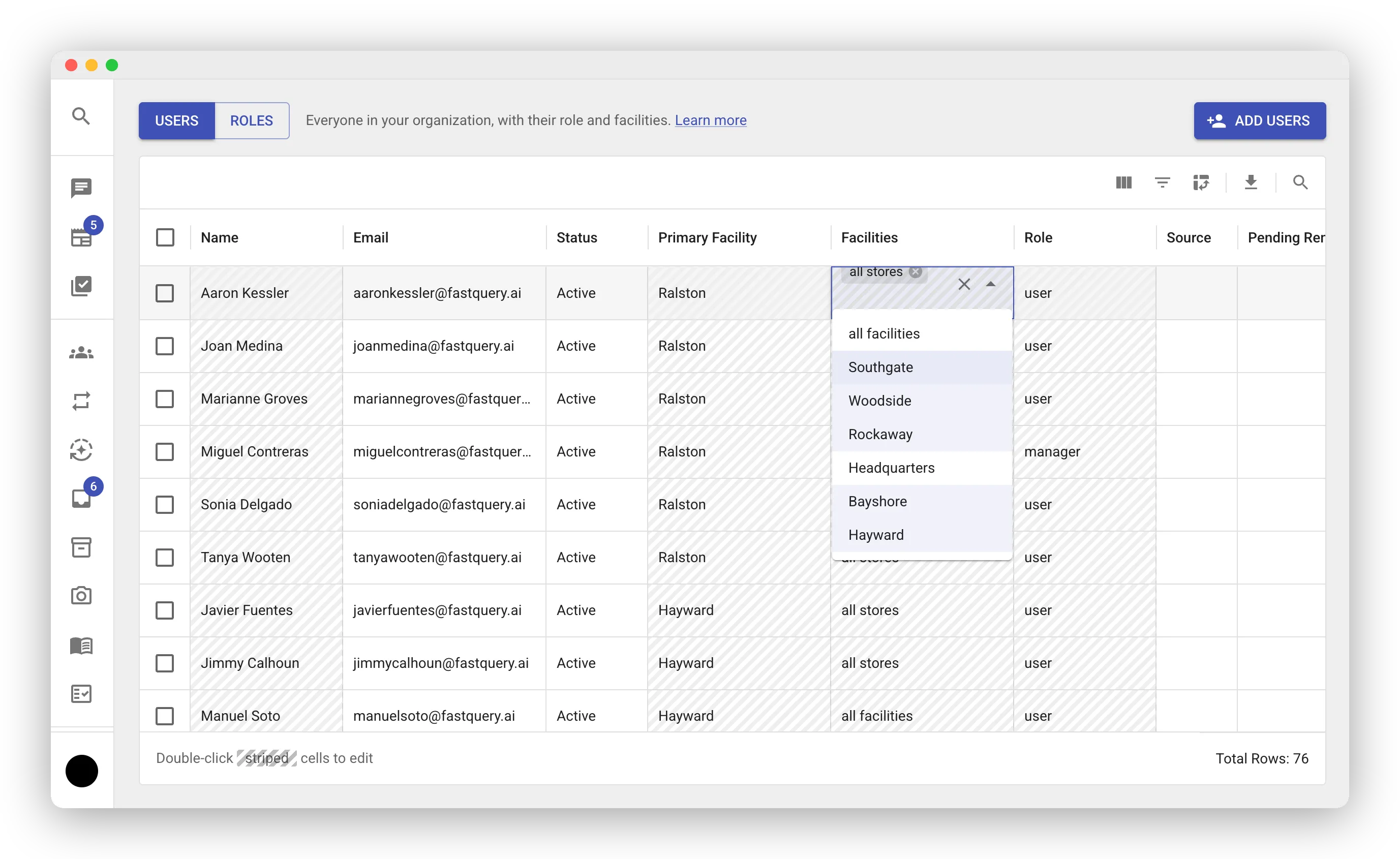
Section titled “Grant Headquarters like any other facility”On Manage Users, the Facilities cell now lists Headquarters next to your stores. A store’s manager gets it automatically, and a warning icon marks a listed manager without it. Add New Users gains a Facilities column. See User Management and Facilities.
Minor changes
- Zippedi scans create separate Floor Outs and Office Outs tasks instead of one Restock list (Zippedi Integration).
- CSV and markdown preview cards in chat show the file’s name.
- The chat thread scrolls behind the message box, and CSV grids page instead of trapping the scroll wheel.
- A category review file opens with the hierarchy, then the economics, then the action, and ranks the category among the department’s classes.
- Zippedi tasks hold up to 1,000 items each.
- A deleted user no longer lingers in a location’s Managers list.
September 11, 2026
Search everything from one box
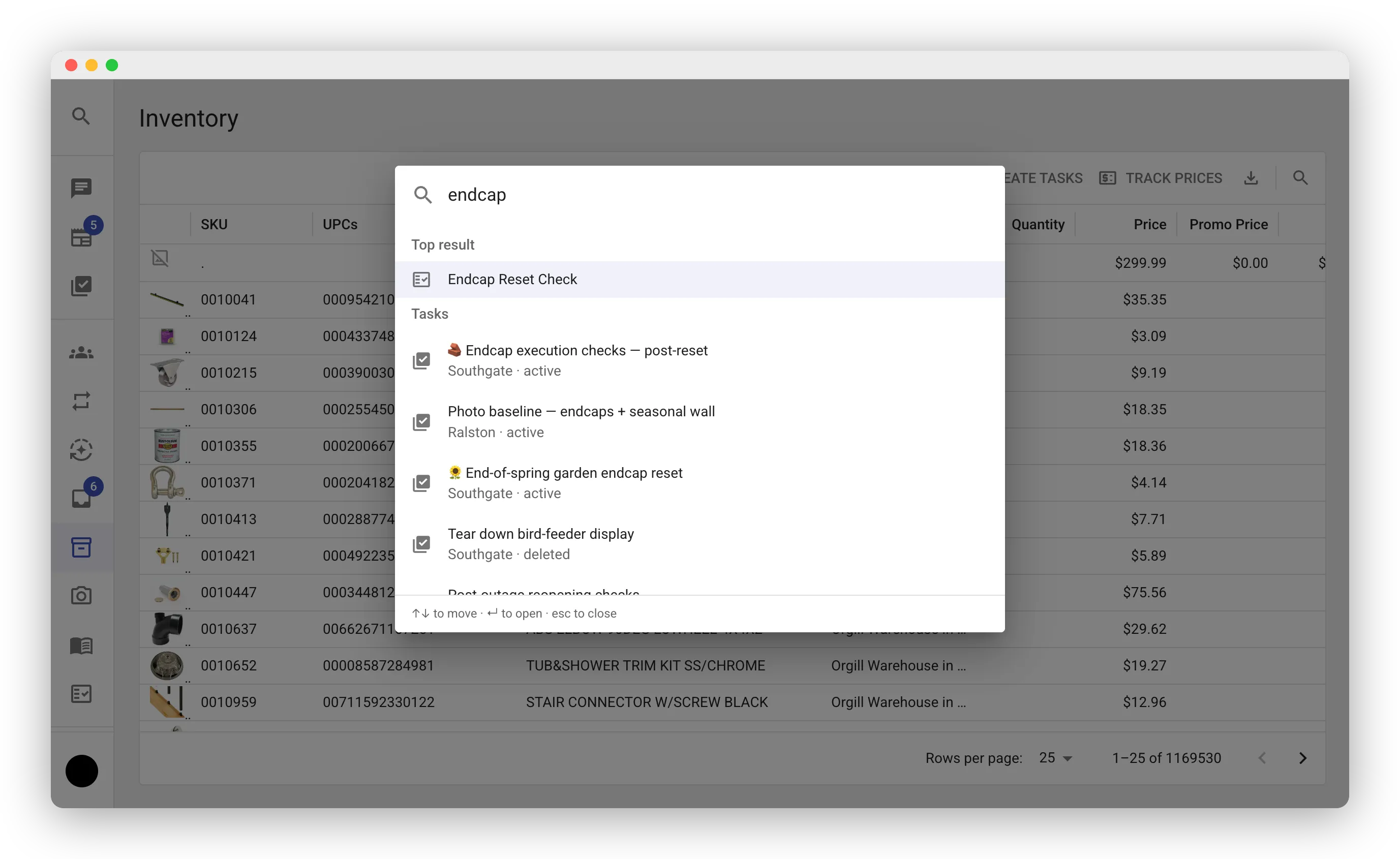
Section titled “Search everything from one box”Press ⌘K or Ctrl+K anywhere in the web app and type. Results come grouped by kind: tasks, chats, documents, automations, people, pages, skill cards, and more. Arrow keys move, Enter opens, and your last five picks wait in an empty box.
Minor changes
- The bottom of the sidebar is now an account menu with Organization, Billing, and Usage.
- A skill card, the search palette, and Analyze with AI open a new chat with the text filled in but not sent.
- An SFTP upload re-sent after a timeout no longer damages the upload in progress (Epicor Eagle Integration).
September 9, 2026
Scan shelf labels that carry your SKU
Section titled “Scan shelf labels that carry your SKU”Every camera and the hardware scanner in the mobile app now read Code 128 labels that encode your SKU instead of a product barcode. A label that drops the # or - of the SKU still matches. See Barcode Scanning.
Minor changes
- The Facilities picker on Manage Users has an all facilities entry (User Management).
September 8, 2026
Track competitor prices
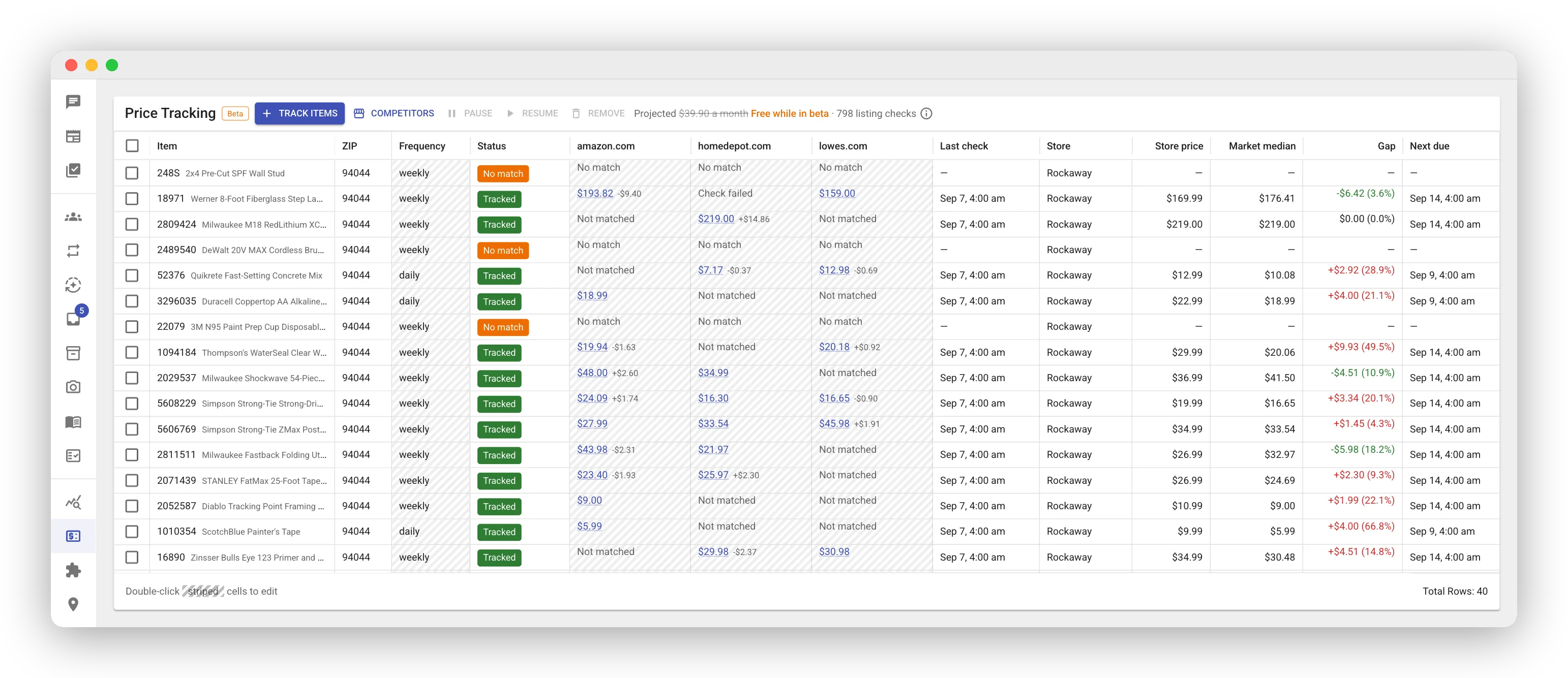
Section titled “Track competitor prices”Price Tracking, in beta, watches competitor sites for the items you choose. Paste SKUs, pick the store, set a daily, weekly, or monthly check, and the grid shows every competitor’s price, the market median, and your gap. Plan competitor tracking picks the items worth tracking and Decide price changes tells you which tags to change. Free during the beta; needs market_prices:manage. See Competitor Price Tracking.
See the exact change before the assistant edits a knowledgebase document
Section titled “See the exact change before the assistant edits a knowledgebase document”The approval card for a knowledgebase write now shows the document’s path and a line-by-line diff, on web and mobile. See Knowledgebase.
Minor changes
- Chat skill cards start with a verb, such as Find margin leaks, and say in one sentence what you get.
- An automation run that created tasks or posts counts as delivered without an email, and the outcome email names a refused permission or workflow (Automations).
- Track Prices on the Inventory page now works on a filter with more than a hundred items.
September 7, 2026
Close a category review with decisions, tasks, and a record
Section titled “Close a category review with decisions, tasks, and a record”“Review a category’s assortment” now delivers one table with an action on every line, from add and remove to change supplier, and the gross profit and cash each action is worth. The assistant then asks for your decisions group by group, records them in the knowledgebase, creates one task per approved group, and books a check in thirteen weeks. See Standard Procedures.
Minor changes
- A task for several stores assigns each person only at their home store (Creating Tasks).
- CSV previews in chat are taller, span the panel, and have a Full screen button.
- An Eagle export with a blank Quantity on Hand now stores zero (Epicor Eagle Integration).
- Eagle placeholder names such as
BLANKandUNKNOWN VENDORno longer show as a manufacturer or vendor.
September 4, 2026
Query your supplier’s warehouse catalog in Advanced Mode
Section titled “Query your supplier’s warehouse catalog in Advanced Mode”With an Ace or Orgill warehouse connected, Advanced Mode reads its catalog next to your own data: cost, retail, pack, UPC, and closeout flag for every item. Ask which items in a category the warehouse carries that you do not, or which slow movers have a cheaper equivalent. See Warehouse Suppliers.
Minor changes
- While a standard job runs, the chat shows its current step, the time elapsed, and how long that job usually takes.
September 3, 2026
Hand a whole job to the assistant and get a report back
Section titled “Hand a whole job to the assistant and get a report back”In an Advanced Mode chat, ask for a standard job such as “find dead stock” or “build this week’s replenishment orders”. The assistant confirms the scope on an approval card, runs the job on its own, and comes back with the report. The card links to a recorded run on the demo store, and every job is free during the preview. See Standard Procedures.
Put a standard job on a schedule
Section titled “Put a standard job on a schedule”Pick the workflows an automation may run, and each scheduled run delivers the report by email. A $50 limit stops a run whose price would pass it. See Automations.
Minor changes
- Ask for a Word document and the assistant writes a real
.docx. - Advanced Mode is now one permission,
chat:advanced_mode; the manager role carries it (Roles and Permissions). - A recurring task’s schedule shows on the web task page without pressing Edit.
- Knowledgebase citation links open in place, headings jump, and attached files download in one click.
- Renaming a store updates the Store filter on the Inventory page for every row.
- A shared chat keeps quotes, questions, and approvals in the thread.
- Workflow files carry a readable name, such as
dead-stock-candidates.csv.